MTC will only import AI files that are Version 9 or newer. Thus, if an AI fails to import, that is the most likely
issue. From some programs, such as Funtime, it will be necessary to save in a different format, such as
PDF or EPS.
A PDF created from a raster image will not import into MTC. In the preview window will be a message
saying “Nothing to Preview.” In these situations, open the PDF files in Adobe Reader, right click on the
Image and select Copy Image or press Ctrl+C. Then use Pixel Trace to import the image into MTC. Refer
to Chapter 6.
There is also an Import Strokes and Fills menu with three options to Import Strokes Only, Import Fills
Only or Import Strokes and Fills. Select the latter and then note if you have unwanted lines in your image.
If so, then try one of the other choices, such as Import Strokes Only.
4.05 Importing SCUT, SCUT2
Files created in Sure Cuts a Lot (SCAL) are saved in the format SCUT or SCUT2, depending on the version
of SCAL used. These formats are also imported using the same methods as described for SVG. There are
no special settings. Just locate the file on your computer, select it, and click on Open.
4.06 Importing TTF, OTF Font Files
If the selected file format is TTF or OTF, then the font file will be added to the installed fonts list and be
available for creating text shapes. The font does not need to be installed first in Windows, nor does it need
to be re-opened in MTC after the file is opened again on the current user’s computer or any other computer.
More details are covered in Section 5.02.
4.07 Importing from Lettering Delights
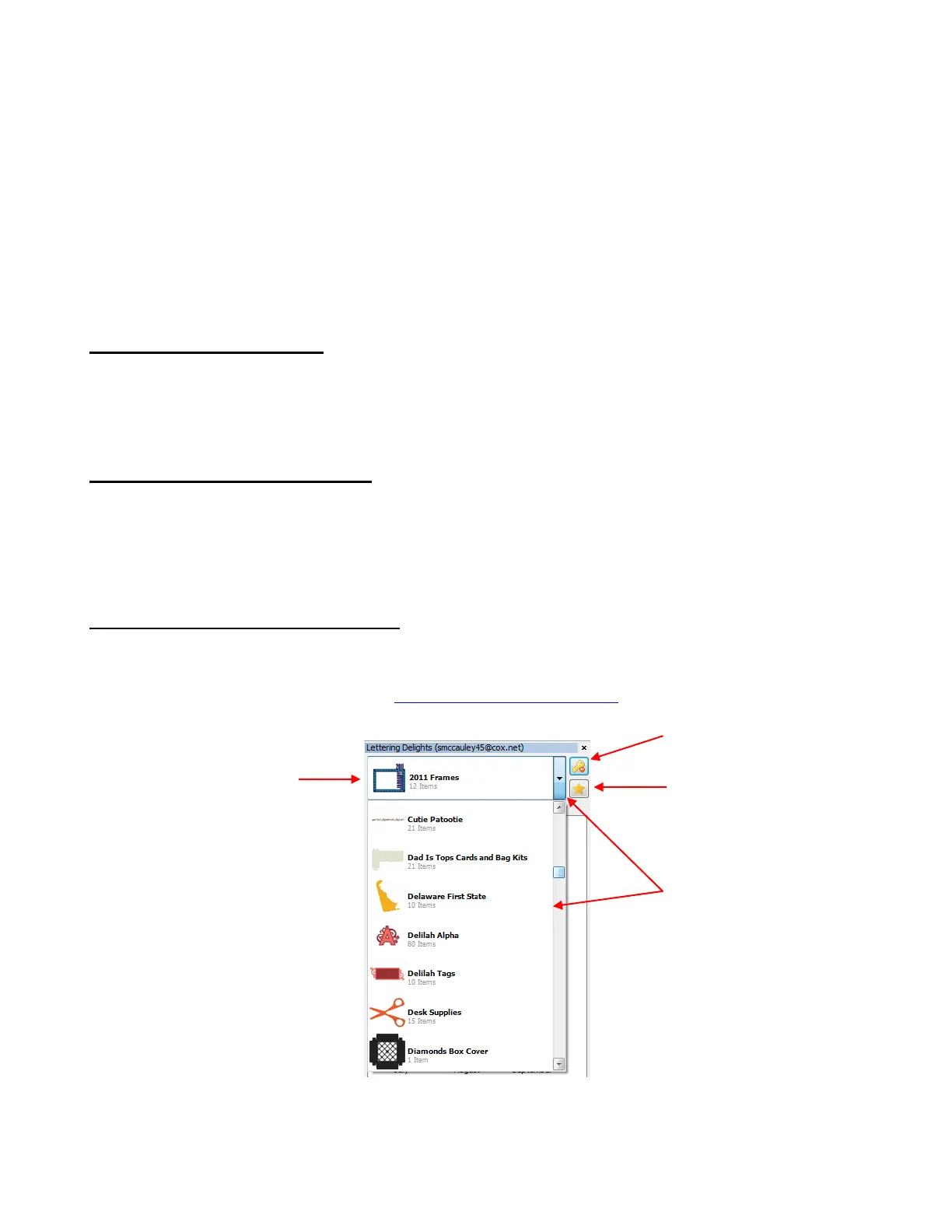
If the Lettering Delights option is chosen, then the Lettering Delights window will open at the left side of
the screen.
You may log into the following web site: http://www.letteringdelights.com/ and purchase new cutting files or
load existing files from your account.
Once you have selected a Lettering Delights product, double click on any image and a window will open
where you can choose to go to the Lettering Delights’ web site to purchase this particular product. The
shapes in that product package will then be available to download directly into MTC in the future, when you
log into your account.
Currently-
selected
product
Click to only show products
you’ve already purchased.
Click on down arrow to
open drop down menu of
other products at
Lettering Delights. Note
that if you click on the
Star icon above, only
products you’ve
purchased will be
shown.



 To Next Page