the letters so that the circles will not overlap. Also, you may want to resize the lettering vertically to make
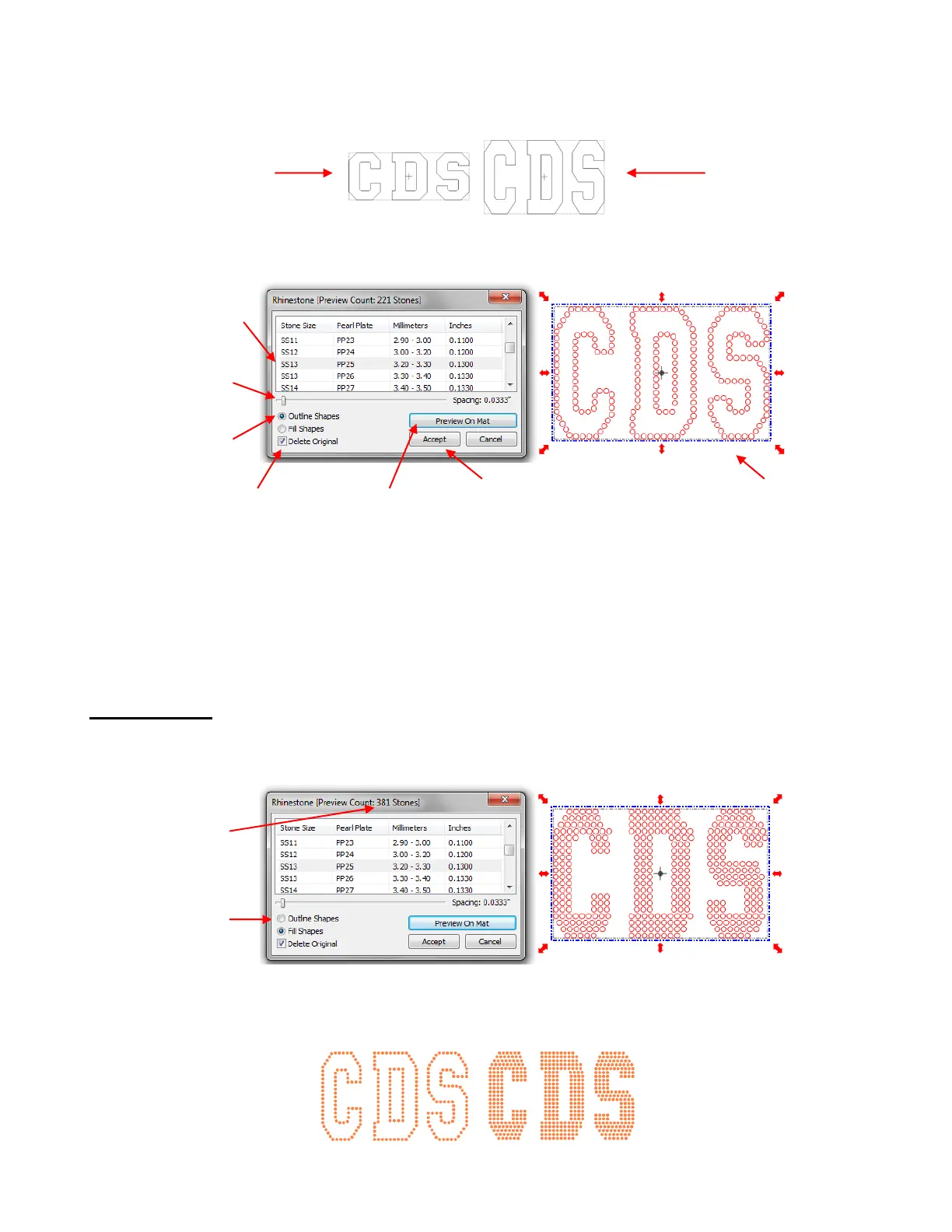
the letters taller. This allows more circles to be applied and can improve the ability to read the text:
To apply a rhinestone outline, select the shape and then click on the Rhinestone icon. This window opens:
It is recommended that you mark the Delete Original option while previewing your design on the screen.
However, before clicking on Accept, remove the mark. You may need to recreate your design at some point
and having the original shape will be beneficial.
The final step will be to tweak the design using the short cut keys mentioned at the beginning of this section.
Rhinestone Fill
The other option in the Rhinestone feature is Fill Shapes. Instead of outlining the shape, the image will be
filled with circles in horizontal rows. In our prior example, the same letters will now appear like this:
Note that in the title of this window, the number of circles in the design is shown. Rhinestones are typically
sold by the gross and 1 gross equals ~ 144 stones.
Letter is 6” wide but
only 2.3” tall
Letter is still 6” wide
but is now 3.6” tall
and will show up
better on the shirt
Click on Accept
when done.
Click on Preview
button to see effects
of settings
Select a circle size
larger than your stones
Option to Delete
Original shape
Number of
circles in design



 To Next Page