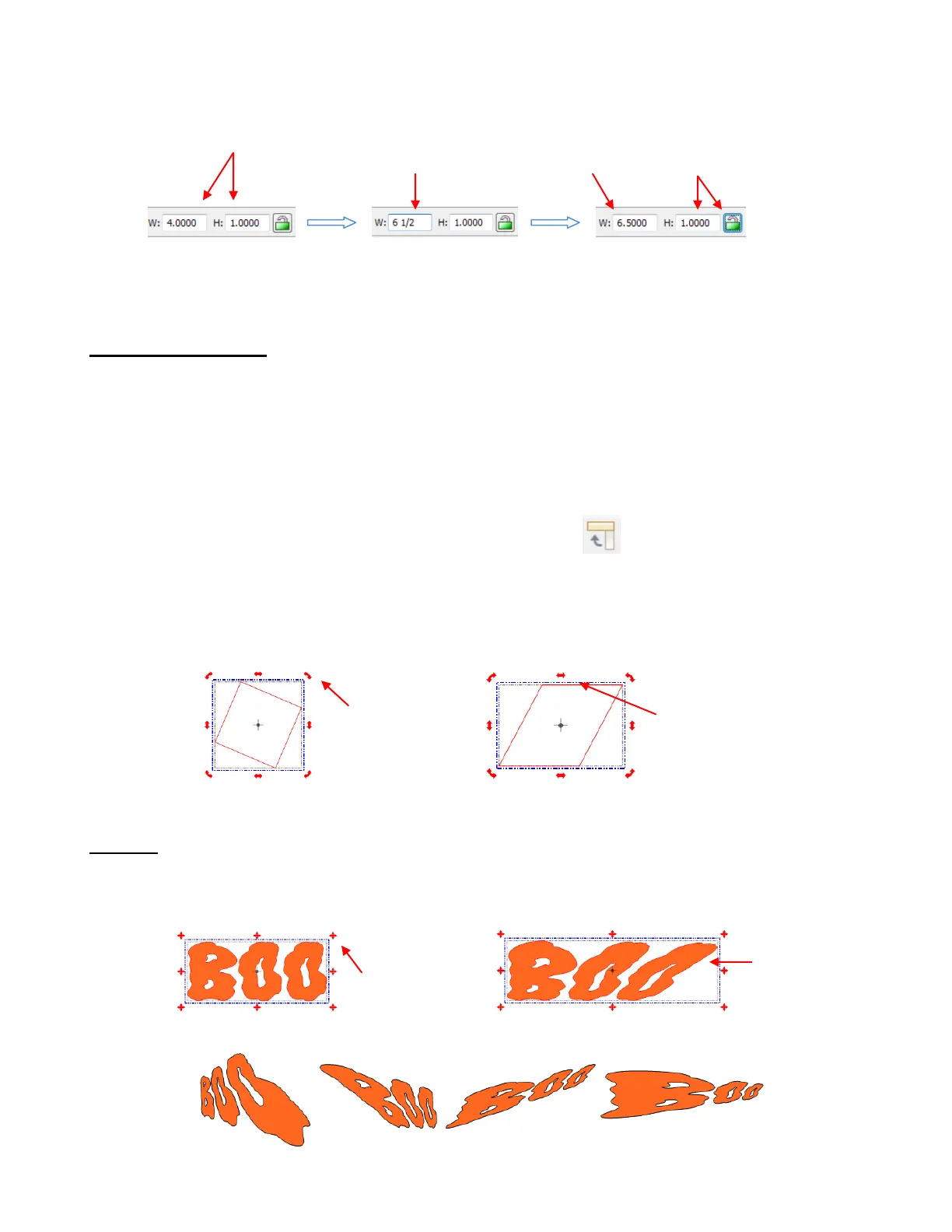
Fractions may also be entered with a space between the number and the fraction. For example, 6.5 could
be entered as 6 ½:
To resize a shape containing a raster image (called a texture), hold the Shift key while dragging the corner.
This will resize the texture as well as the shape. Also refer to Section 3.14.
Rotating and Slanting
With the shape selected, dragging any of the four corners will allow free rotation of the shape. The shape
will be temporarily locked at its center and will rotate around that center.
If you hold the Shift key while dragging one of the four corners, the shape will be pinned in the diagonally
opposite corner and will rotate around that corner. If you hold the Ctrl key while dragging one of the four
corners, the shape will rotate in 15
o
increments. Ctrl+Shift+Rotate will rotate around the opposite corner in
15
o
increments.
A selected shape can also be rotated exactly 90
o
clockwise, by using any of the following:
Click on the Rotate 90
o
Clockwise icon on the Magic Toolbar
Press Ctrl+G
Go to Edit>Shape Magic>Rotate 90
o
.
If you drag one of the double headed arrows along a side, versus a corner, you can slant the shape instead
of rotating it:
Warping
In the warping mode, shapes can be transformed dramatically by dragging the “+” handles at the corners.
Dragging along the sides results in the same effects as slanting above, but can be combined with the
dragging of corners to create many different variations on the original shape:
Holding the Shift key or the Ctrl Key while dragging a corner allows the warping to extend even further!
Enter 6 ½ (don’t
forget the space).
A value of 6.5 is
then displayed.
The H value remains at 1.0
because the Aspect Ratio
was not locked.
Drag a corner to
begin warping
Text begins to
warp. Try
dragging
additional
corners, too!



 To Next Page