outline of your shapes. This works better than fill embossing which can stress the cardstock and cause
wrinkling. Here are the steps:
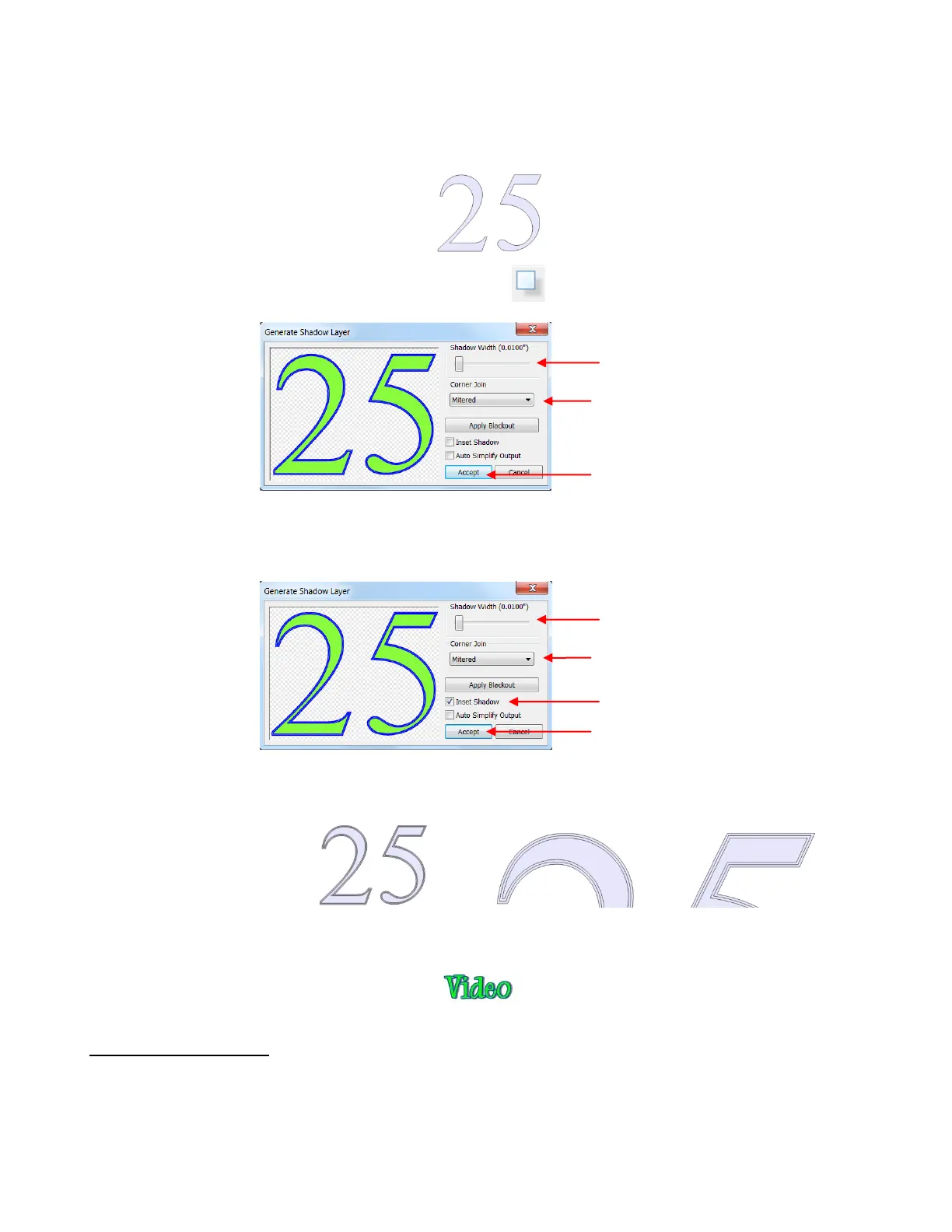
Create the shape you wish to emboss. In this example, the numbers 25 are used for a 25
th
wedding
anniversary:
Select the shape and go to the Shadow Layer function: and perform the following:
After clicking on Accept, re-select just the original image, and go to the Shadow Layer function again and
perform the following:
Now you have three versions of your shape and when using the embossing tool, you will have a thicker
outline of the shape:
The following video shows the Zing embossing tool being used to emboss a design onto metal.
10.09 Engraving Metal
The same basic guidelines apply to engraving as in embossing and scoring:
You will probably need to use the WYSIWYG cut mode.
You will need to turn off the Blade Offset setting for engraving.
You will probably need to use multiple passes to get the desired results.
2. Set Shadow Width to 0.01”
1. Select Corner Join style.
3. Set Shadow Width to 0.01”
2. Select Corner Join style.



 To Next Page