3.15 Other Shape Manipulations
Aligning
There are seven alignment functions used to align shapes with one another. After selecting two or more
shapes, these functions can be accessed using any of the following:
Right click on the screen and select Align and Space>Align>
Press R, T, L, B, S, V, or H (see below)
Go to Edit>Align and Space>Align>.
Right (Press R) aligns all shapes along their right sides and positioned to the right most shape of the group.
Left (Press L) aligns all shapes along their left sides and positioned to the left most shape of the group.
Top (Press T) aligns all shapes along their top sides and positioned to the upper most shape of the group.
Bottom (Press B) aligns all shapes along their bottom sides and positioned to the lower most shape of the
group.
Vertical Center (Press V) aligns all shapes vertically and positioned to the average vertical center of the
group.
Horizontal Center (Press H) aligns all shapes horizontally and positioned to the average horizontal center
of the group.
Stack (Press S) aligns all shapes to be horizontally and vertically centered with one another.
Spacing
There are two alignment functions used to equally space shapes, either horizontally or vertically. After
selecting three or more shapes, these functions can be accessed using any of the following:
Right click on the screen and select Align and Space>Space>Vertical (or Horizontal)
Press [ or ] (see below)
Go to Edit>Align and Space>Space>Vertical (or Horizontal).
Vertically (Press [) equally spaces shapes between the uppermost and bottommost shapes in the selection.
Horizontally (Press ]) equally spaces shapes between the leftmost and the rightmost shapes in the
selection.
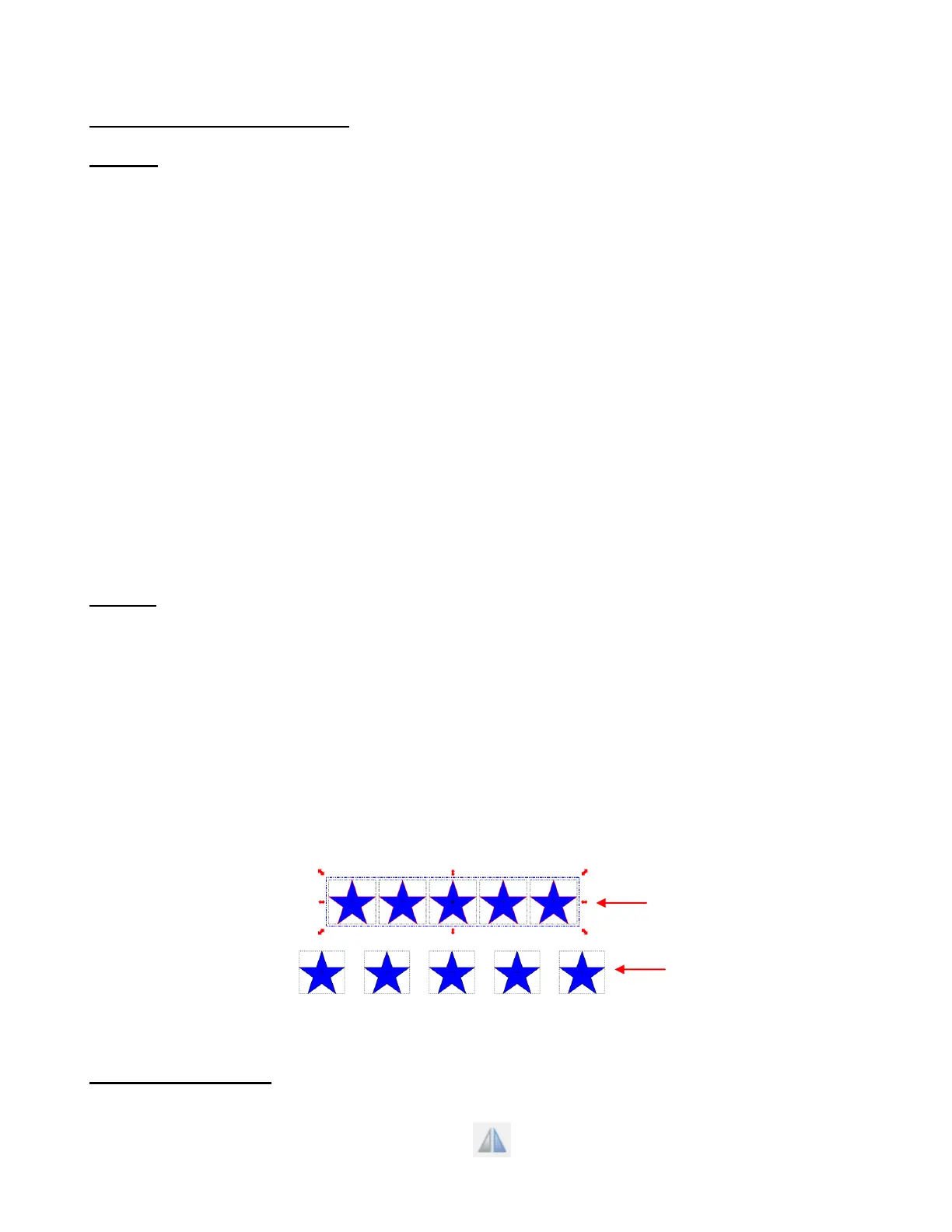
Another way to increase or decrease the spacing between a selected group of shapes, is to hold the Ctrl
key and drag the middle:
This same method can be used for vertical spacing, as well. The shapes also do not need to be the same.
You could equally space, for example, a star, a letter “B”, and a straight line.
Mirroring and Flipping
To horizontally mirror a shape, select it and then use one of the following:
Click on the Mirror icon on the Magic Toolbar
Right click on the screen and select Shape Magic>Mirror
Hold the Ctrl key and drag
this red handle to the right.
Stars are now spaced
further apart



 To Next Page