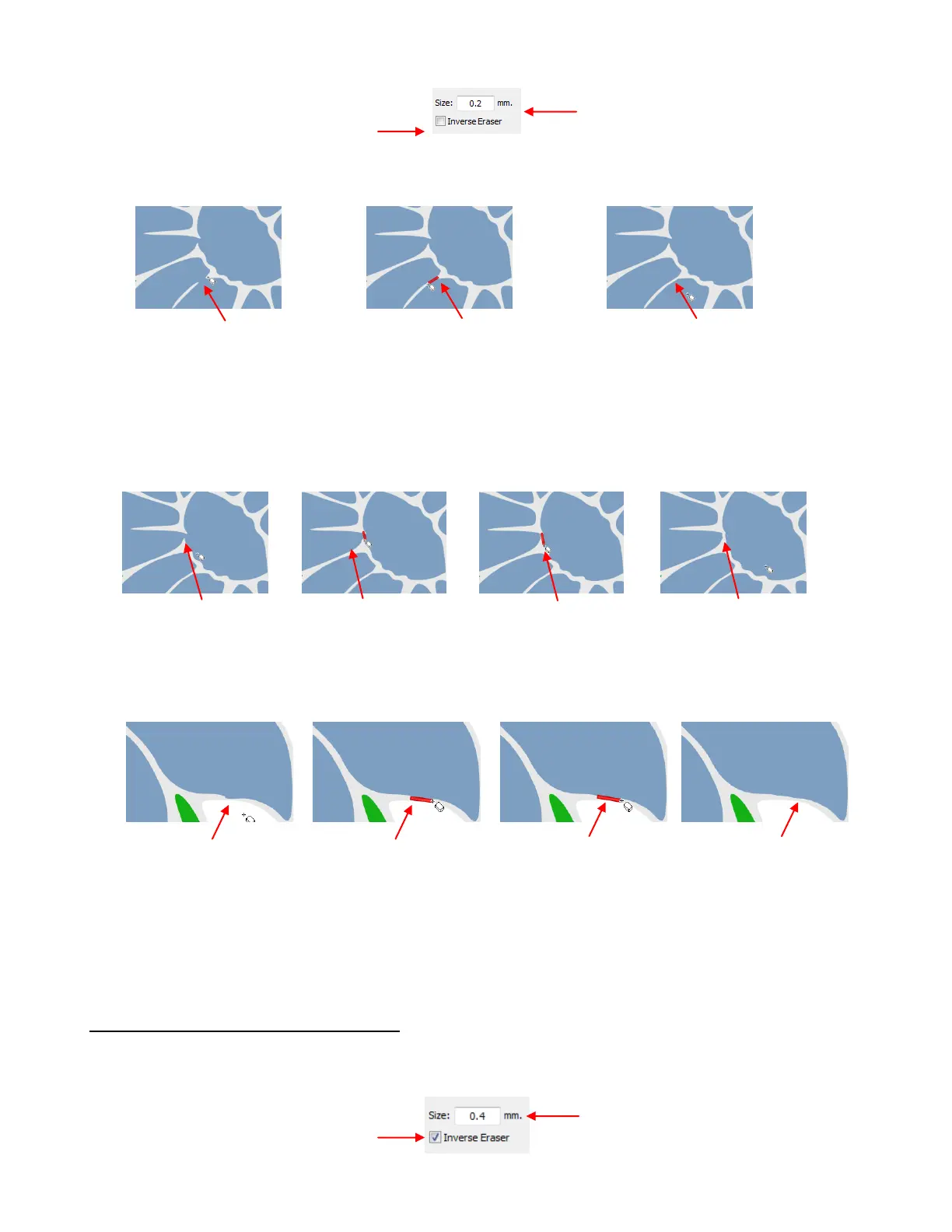
Hold down the left mouse button and drag the mouse in a small line where you want to erase. A red line will
be drawn and, when you release the mouse button, the portion of the shape beneath that red line will be
erased:
If the line was too thick and you erased more than you wanted, then use the Undo button (or Ctrl+Z) to
back up a step. Then enter a smaller Erase Size. If not enough was erased, then increase the Eraser Size
and go over your path again with the thicker eraser.
Apply the Eraser tool to the other two areas of the yellow petals. In the next example, one of the petals
needs to be separated from the center of the flower:
In this last example, one of the petals sticks out a little too far and will be trimmed back. On the second
erasure, the Ctrl key is held down so that the red line will be perfectly straight:
Once you have finished erasing all part of the petals, click on the Select Tool so that you have access to
the regular MTC functions. Select the petals and apply the Auto Simplify Path to smooth the edges where
you erased and reduce the nodes. At this point, if you are finished using the Eraser Tool, you can now
reactivate Auto Simplify Welds. Refer to Section 7.02
Inverse Erasing (Adding To An Image)
The other option in the Eraser Tool settings is the Inverse Eraser which allows you to add to or fill in empty
areas of a shape. Mark that option and again, set a Size for using the Eraser Tool as a drawing tool:
Enter the Size (thickness) of
eraser you want to use.
Drag mouse along path to be
erased. A red line will appear
as you drag.
Release mouse and path
under the red line is erased.
Shape needs to be erased
so that this petal matches
the others
Petal is now separated
from center of flower.
Petal is connected
to center of flower.
Eraser Tool is used
to disconnect.
Eraser Tool is used again
to smooth edge of petal and
around center of flower.
Petal extends too far
to the outside
Eraser Tool is used to
erase that part.
Eraser Tool is used again,
this time holding the Ctrl
key to get a straight path.
Check the Inverse Eraser box.
Enter the Size (thickness) of
drawing line.



 To Next Page