5 – 0: Zoom to 500%, 600%, etc to 1000%
To move the workspace up and down, roll the mouse wheel.
To pan, press the Spacebar while dragging the left mouse button.
3.06 Opening MTC Files
Opening a New File/Project
When you launch MTC, a new blank Virtual Mat will appear with a new blank project opened. At any time,
another new project can be opened, in a new window, using any of the following:
Click the “+” icon on the Tab bar
Right click on a project tab on the Tab Bar and select New from the menu
Click on the New icon on the File toolbar
Press Ctrl+N
Go to File>New.
Opening an Existing MTC File
An existing file can be opened into MTC by using any of the following:
Click on the Open icon on the File toolbar
Right click on a project tab on the Tab Bar and select Open from the menu
Press Ctrl+O
Go to File>Open
Double clicking on an MTC file in Windows Explorer or attached to an email
Import from MTC Gallery (refer to Section 4.11).
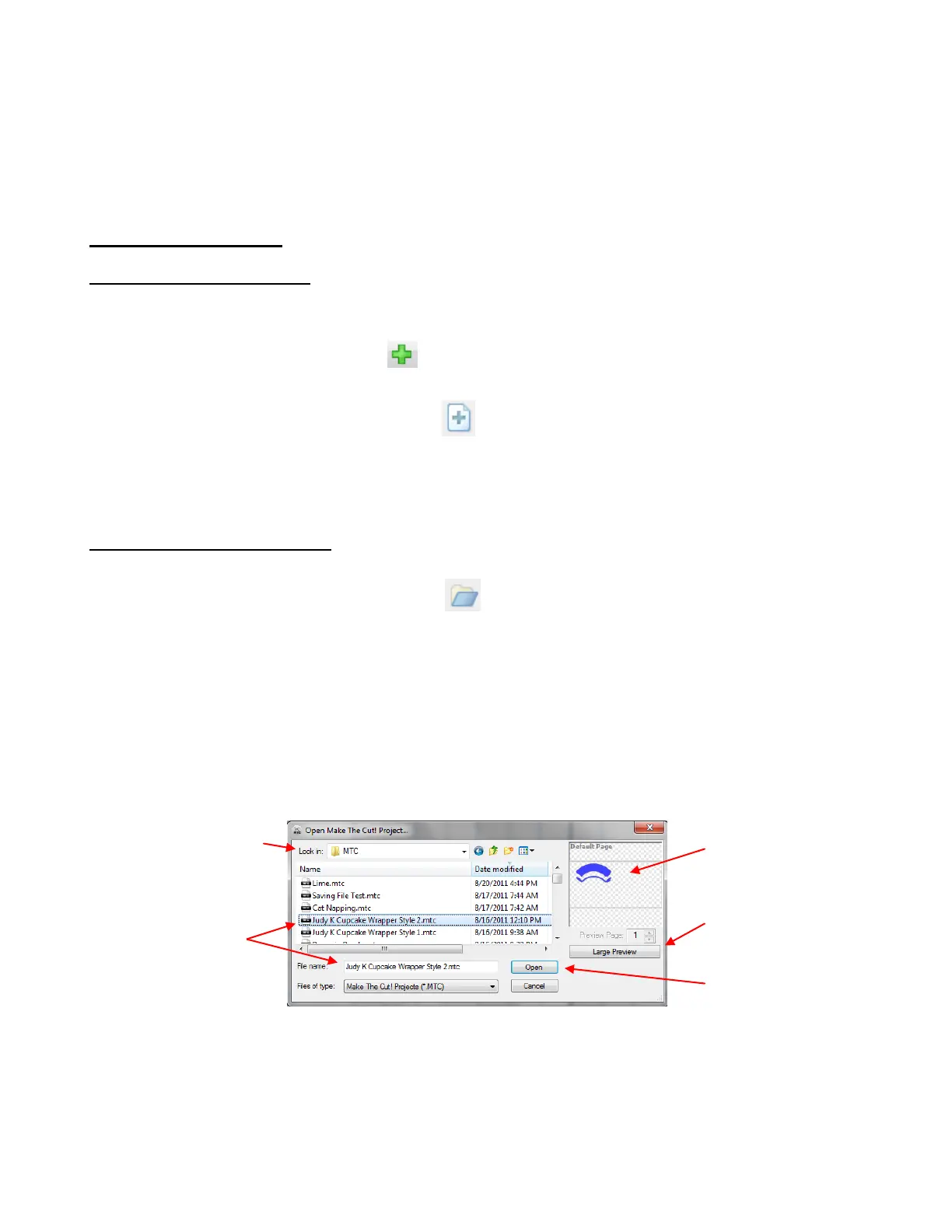
In all cases, a window will open where you can browse to locate the file you wish to open:
There is also a Basic Shapes library available (Refer to Section 3.08). Plus other file formats (such as .svg,
.eps, and .ai) may be imported into MTC. Refer to Sections 4.01-4.08.
As you open new projects or existing files, the Tab Bar will show each project:
A preview of the file
shape(s) will appear
Click here to open a window
to display a larger preview
of the file shape(s)
Click on Open and the
saved file will open as a new
project
Click on the file and
it will appear under
File name:



 To Next Page