4.12 Exporting as EPS/AI, SVG, or PDF
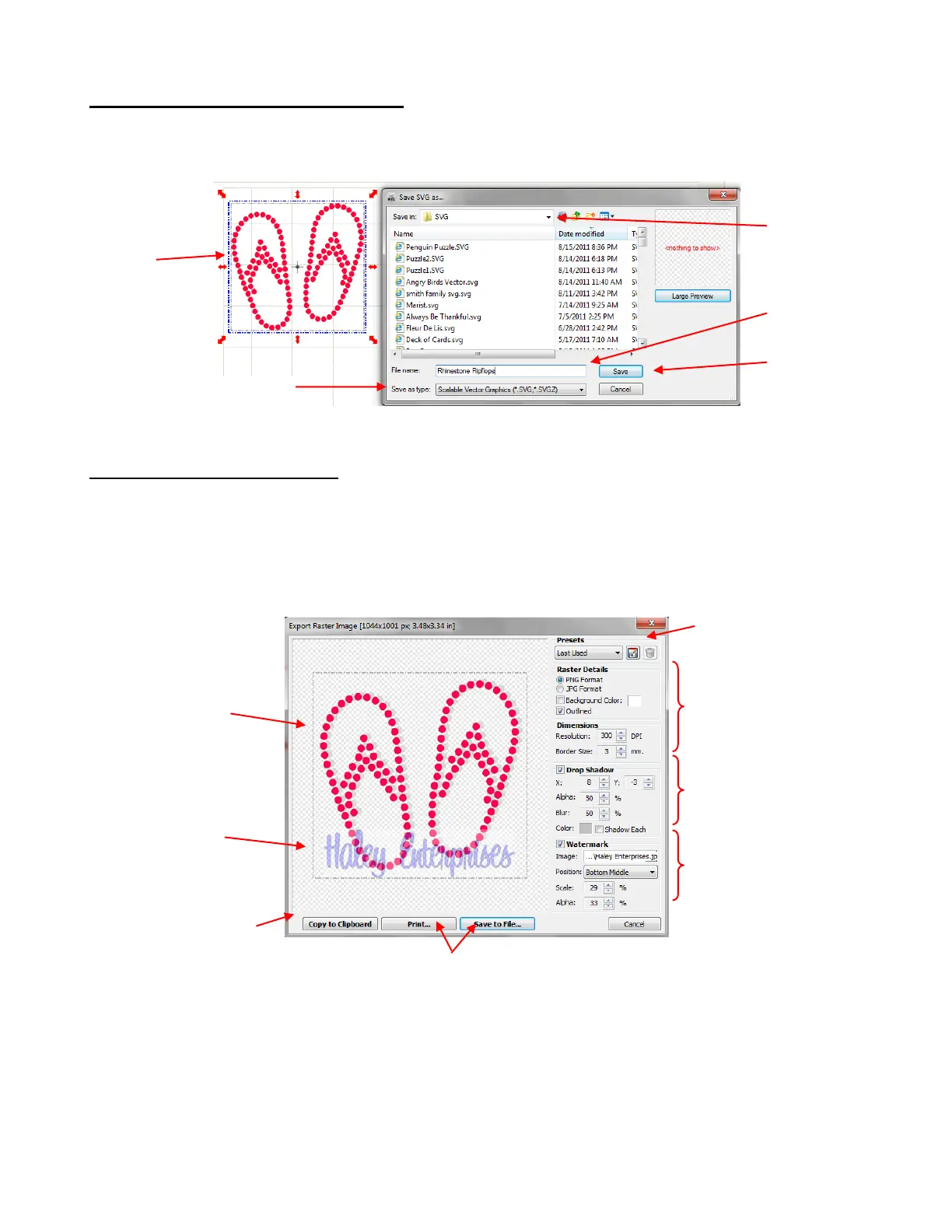
For each of these formats, first select the shape or shapes and then select the Export option from the
dropdown menu (right click on selected image for Export option). A window will open:
4.13 Exporting as a Raster File
There are many reasons why you might want to export your file as a raster. For example: (1) The image
could be posted on a web site or blog, (2) The image could be shared with a friend or a customer, (3) The
image could be used in a digital scrapbooking program.
Select the image and right click to bring up the menu to select Export and then select the last choice, Sel.
to Raster File. This window will open:
Note the many settings available for the raster export. If the image is to be imported into a layering
program (such as Photoshop or a digital scrapbooking program), then PNG will be the preferred format.
For commercial applications, you may wish to add a watermark to protect your image from being copied.
A drop shadow can be added to give your image dimension. Experiment with these settings and if you
find certain ones that you wish to use repeatedly, click on the option at the top to save the settings and
a window will open where the settings can be saved with a name you provide:
Select location for
saving file
Click on Save
when ready to
export.
Image to be
exported
with optional
drop shadow
added
Option to save selected
settings to reuse on
future exported rasters
Specifications for
the image
Raster can be
copied/pasted to
other programs
Raster can be printed and/or saved



 To Next Page