5. Working with Text
5.01 The Text and Fonts Tab
On the Main Bar in MTC, you will find a tab called Text and Fonts:
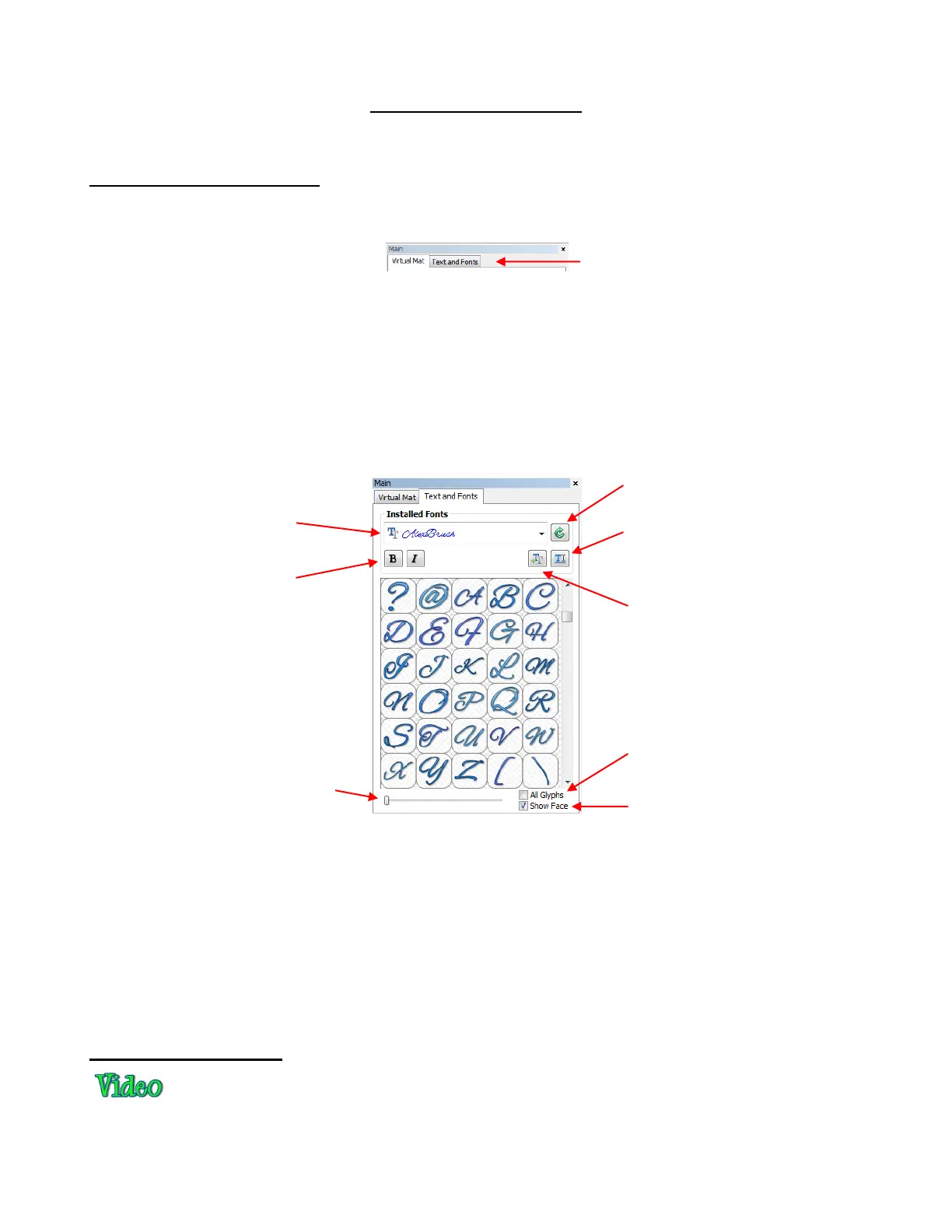
The Text and Fonts tab is used for:
Browsing and selecting which font to use for creating a text shape. Note that marking the Show Face
option will display the font names in their font type.
Browsing all of the characters (glyphs) available in any given font
Opening/importing new fonts
Accessing the window for typing text
Choosing to make text bold or italic.
Fonts appearing in black in the dropdown menu are installed in Windows. Fonts appearing in blue have
been opened into MTC during the current session. Fonts appearing in green have been opened during this
session or previously opened, with the option marked to permanently install in MTC. (Refer to Section 5.02.)
You can click on any font in the dropdown menu and then use your mouse scroll button to scroll through all
of the fonts in the menu. The characters will then change as you scroll, thus possibly making it easier to
decide on a font to use.
Some fonts will change significantly if the Bold option is selected, so be aware of that possibility.
5.02 Opening Font Files
True type (.TTF) and open type (.OTF) fonts which are already installed on your computer are ready to be
used in MTC. However, unlike most other Windows applications, uninstalled fonts do not need to be pre-
Drop down menu for
selecting a font
Options for making
text Bold and/or
Italic
Mark box to show all possible
characters (glyphs) available in
selected font.
Mark box to display font name in
drop menu in font face.
Scroll to increase/decrease
size of text characters
displayed.
Refresh list of available fonts
Open a font not already
installed in Windows (refer to
Section 5.02).
Click to open window where text
may be typed and added to
project (refer to Section 5.03).
Click on this tab to access
Text and Fonts



 To Next Page