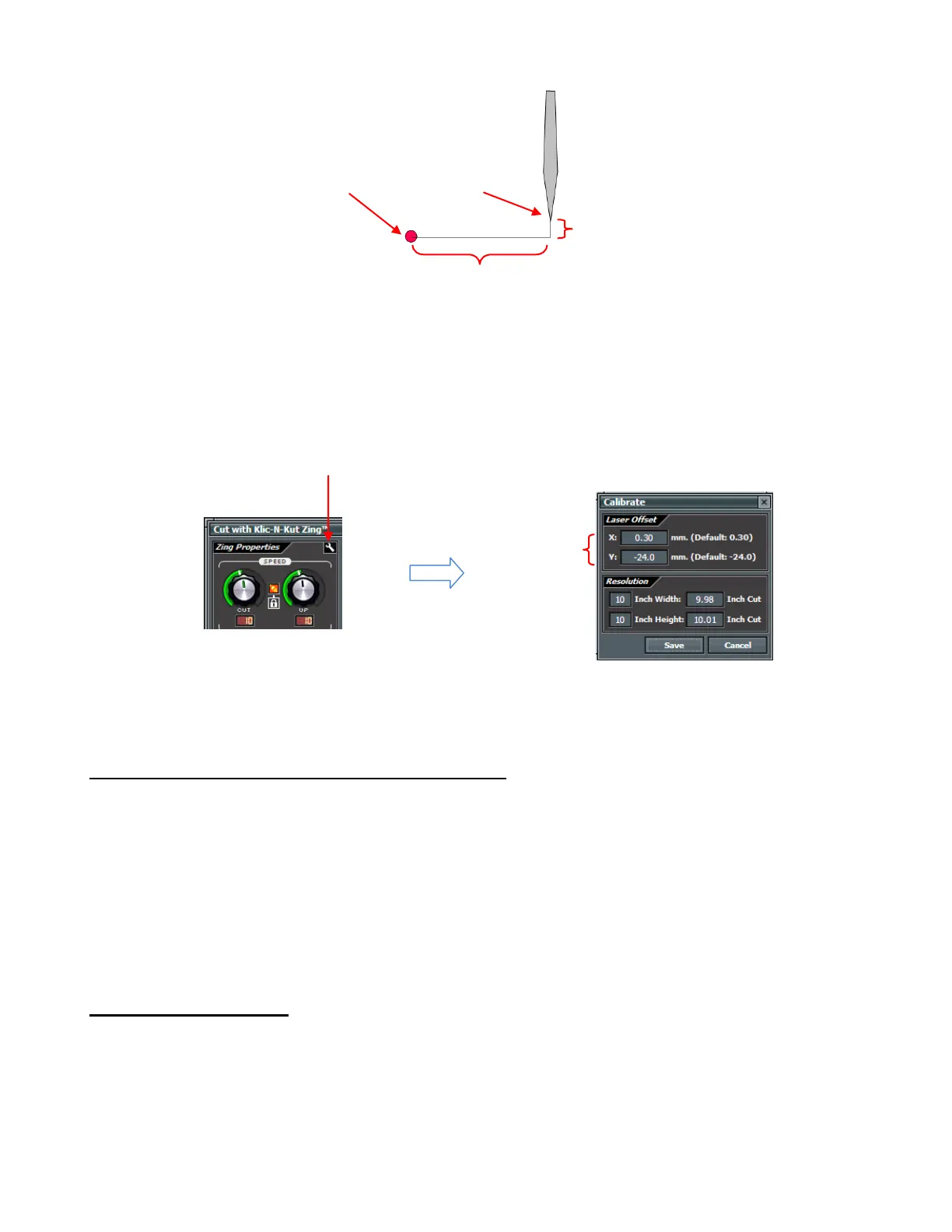
This calibration only needs to be done one time, for a given blade holder, and then you can record this
calibration in case you ever need to install MTC on a new computer or you have to reformat the hard drive
on your current computer. The units are in mm which are easier to measure in very small distances.
The Zing plug-in has a set of default calibration numbers which will be close to your final numbers, but not
exactly the same. To access these numbers, click on the tiny wrench icon indicated below and the
Calibrate window will open:
The process involves performing and repeating a PNC to see how much you need to adjust the X and Y
values in order to get perfect results. And you SHOULD be able to get perfect PNC’s! : )
9.03 PNC Procedure Part 1: Setting Up and Printing
What do you need before you begin a PNC? First, you need an image to print, a printer, the blade holder
you plan to use for all of your PNC’s, and a good night’s sleep! The last requirement simply means that you
don’t want to start learning the PNC process when you are tired, stressed, or in a hurry. Mastering a PNC
comes when you have the time to repeat it about 4 times in a row. At that point, you will not only have
repeated the process enough times to feel very comfortable with the order of the steps, but you’ll have your
calibration perfected and then be ready to do future PNC’s quickly and with ease
While it is possible to do PNC’s in either portrait or landscape mode, it is highly recommended that you
select the same orientation you typically use for your other cutting in MTC. If you prefer to work in portrait,
please skip to the Portrait Mode Option section following the Landscape Mode Option section.
Landscape Mode Option
To begin, create a new custom mat that’s set for letter size or A4 or whatever size your printout will be.
Refer to Section 3.04 if you need instructions for creating a custom mat. Uncheck the Margins box. For
letter size, make the Width 11” and the Height 8.5”. For A4, set the Width to 11.69” and the Height to
8.27”.
Since you are reading the Landscape Mode Option section of the user manual, set the Virtual Mat to
Landscape and select your new custom mat.
Click on the wrench to open the
calibration window



 To Next Page