8.03 Weld Tool
The Weld tool removes the overlap between two or more selected shapes. After selecting the shapes, it can
be applied in any of the following ways:
Click on the Weld icon on the Magic Toolbar.
Press Ctrl+W
Right click on the screen and select Shape Magic>Weld
Go to Edit>Shape Magic>Weld.
Designing a Balloon
In Section 5.03, the Weld tool was used to remove the overlap with lettering. It can also be used to design
everyday items from basic shapes:
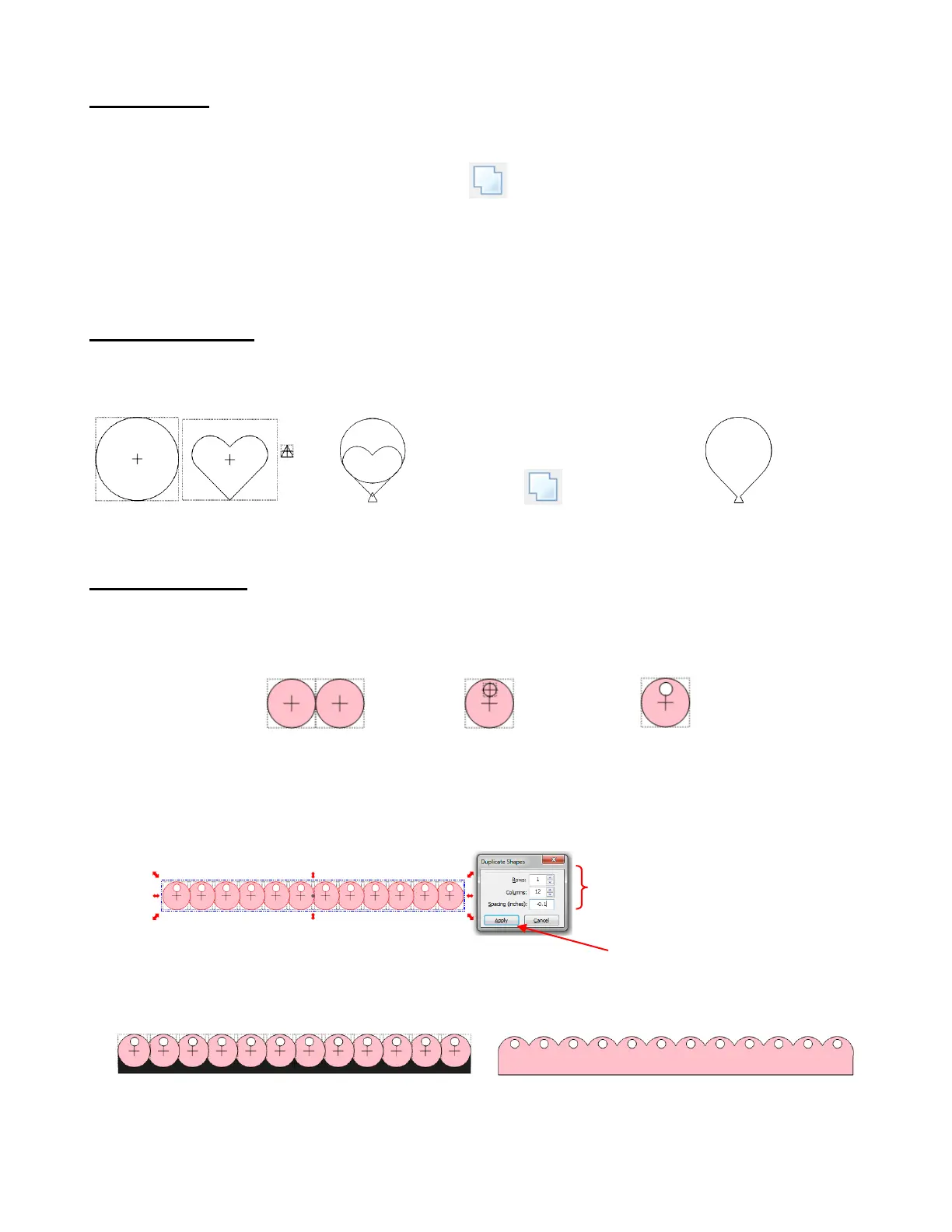
Circle, heart, triangle Overlap shapes Apply Weld (Magic Toolbar) Result: Balloon
Designing a Border
Another use of the Weld tool is in designing borders. First create the shape to be repeated. A circle with a
smaller circle near the top is created. Apply the Join (Ctrl+J) function to make the two circles into a single
shape:
Select the shape and use Ctrl+D to invoke the Duplicate function:
Add a long rectangle to overlap the bottom and then apply the Weld tool to the selected shapes:
Add 2 circles from
Basic Shapes
Resize one and
place near the top of
the other
Select both and
apply Ctrl+J to Join
Enter 1 Row, 12 or more Columns,
and a negative value for Spacing so
the shapes will overlap



 To Next Page