Drawing Your First Shape
New owners tend to be eager to try out their cutters. It’s also important to test your cutter to insure that data
is being sent properly from your computer to the machine and everything is operating correctly. The
following steps will allow you to do some testing with the test pen. But note that the following steps are for
drawing, not cutting. Before inserting the blade holder into the KNK Zing, please read Section 2.01.
This first test will show you how the Knife Point mode works. This is a very useful setting because it is easy
to know where your shapes will cut on your material, plus it economizes the use of your materials. Instead of
cutting shapes where they are located on the Virtual Mat, the shapes will be moved and cut where you set
the origin on the material, using the blade tip (not the laser light).
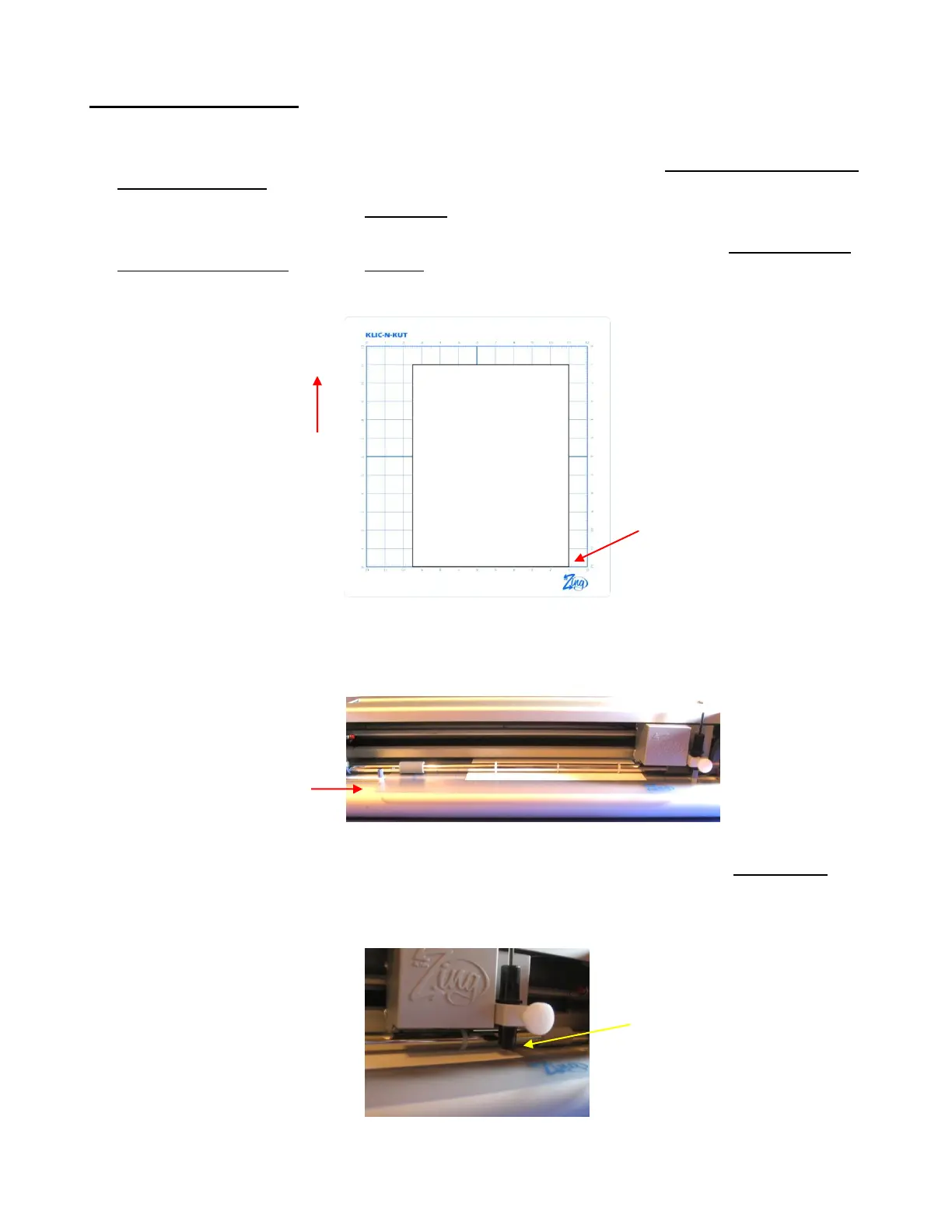
1. Place an 8.5” x 11” sheet of paper on the mat, using any of the grid lines. Place the paper onto the mat
like this:
2. Insert the mat into the cutter, with the mat snug between the material guides. Slide the mat towards the
back and use any of the horizontal markings at the front of the Zing to align the mat. Then lift the pinch
levers to drop the pinch wheels onto the cutting mat. Most of the mat and the paper should now be
behind the cutter, not in the front:
3. Before installing the test pen, make sure the pen will write by scribbling on scrap paper. Then loosen the
front screw on the blade holder seat and insert the pen tool. Make sure the pen nib is slightly above the
cutting surface so that it will not drag across the paper. Firmly tighten the screw. (Note: with the Zing
turned off, you can manually slide the blade carriage to the left so that you can check pen or blade tip
height, as necessary).
4. Select either Landscape or Portrait, on the Virtual Mat tab, depending on your personal preference
(as described at the beginning of this section):
Only the front part of the
mat and material will be
in the front of the
machine.
Feed the mat this
direction into the
Zing
Raise the pen high enough for
the tip of the pen to be above
the paper. Then tighten the
front screw.
Align the paper along one
of the grid lines on the
Zing cutting mat.



 To Next Page