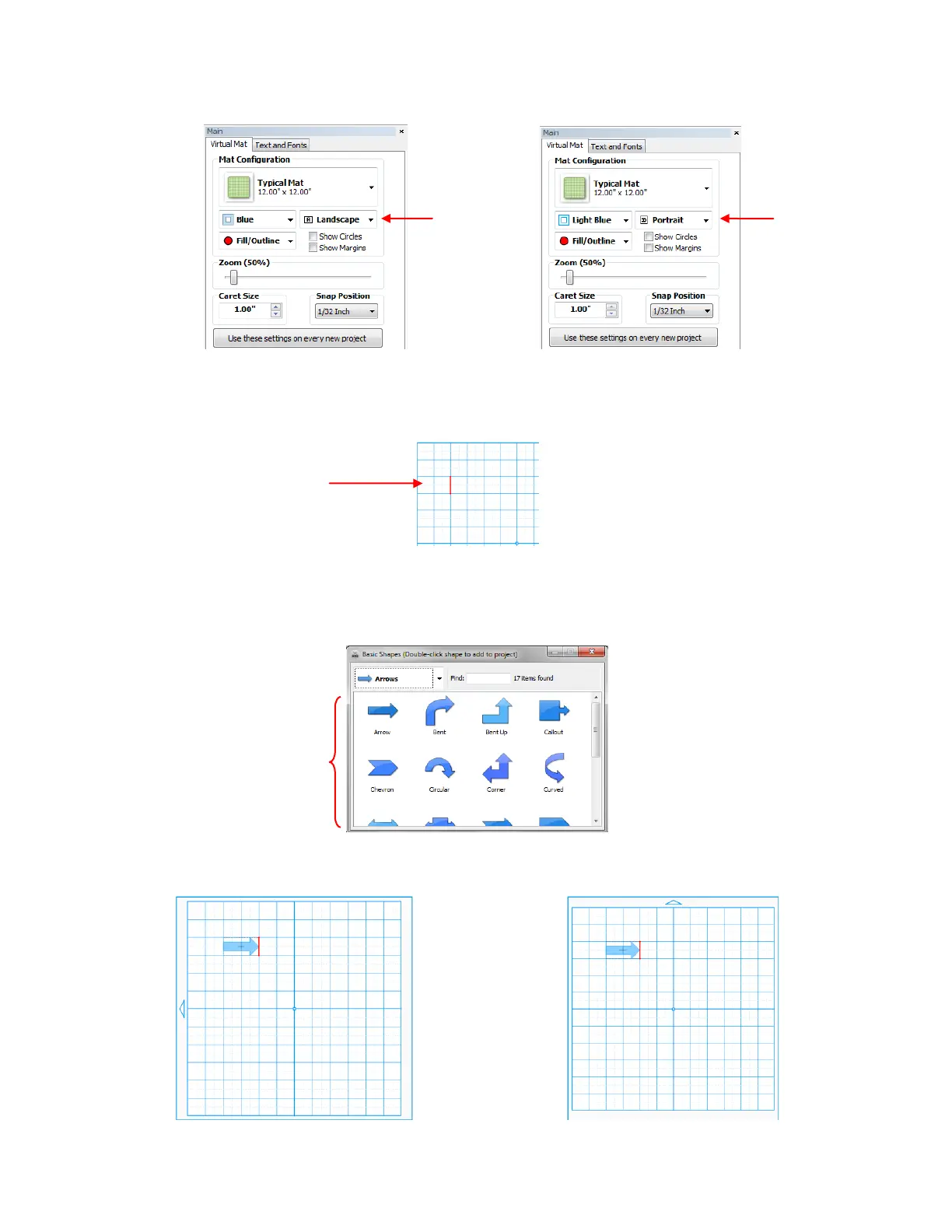
5. Before adding a shape to draw, double click in the gridded area on the screen to plant the Caret. This
will determine where the shape will be imported:
6. Go to File>Import>From Basic Shapes and select the category called Arrows. Double click on any of
the arrow shapes to add that shape to your screen. An arrow will help you better compare where a
shape gets drawn versus how you see it on the screen.
7. Now you will have an arrow on your virtual mat that looks like this:
Double click any of the arrow
shapes to add to your screen.
Double click to plant the
Caret (the vertical red line)
onto the virtual mat.
Select your preferred mode: Landscape or Portrait



 To Next Page