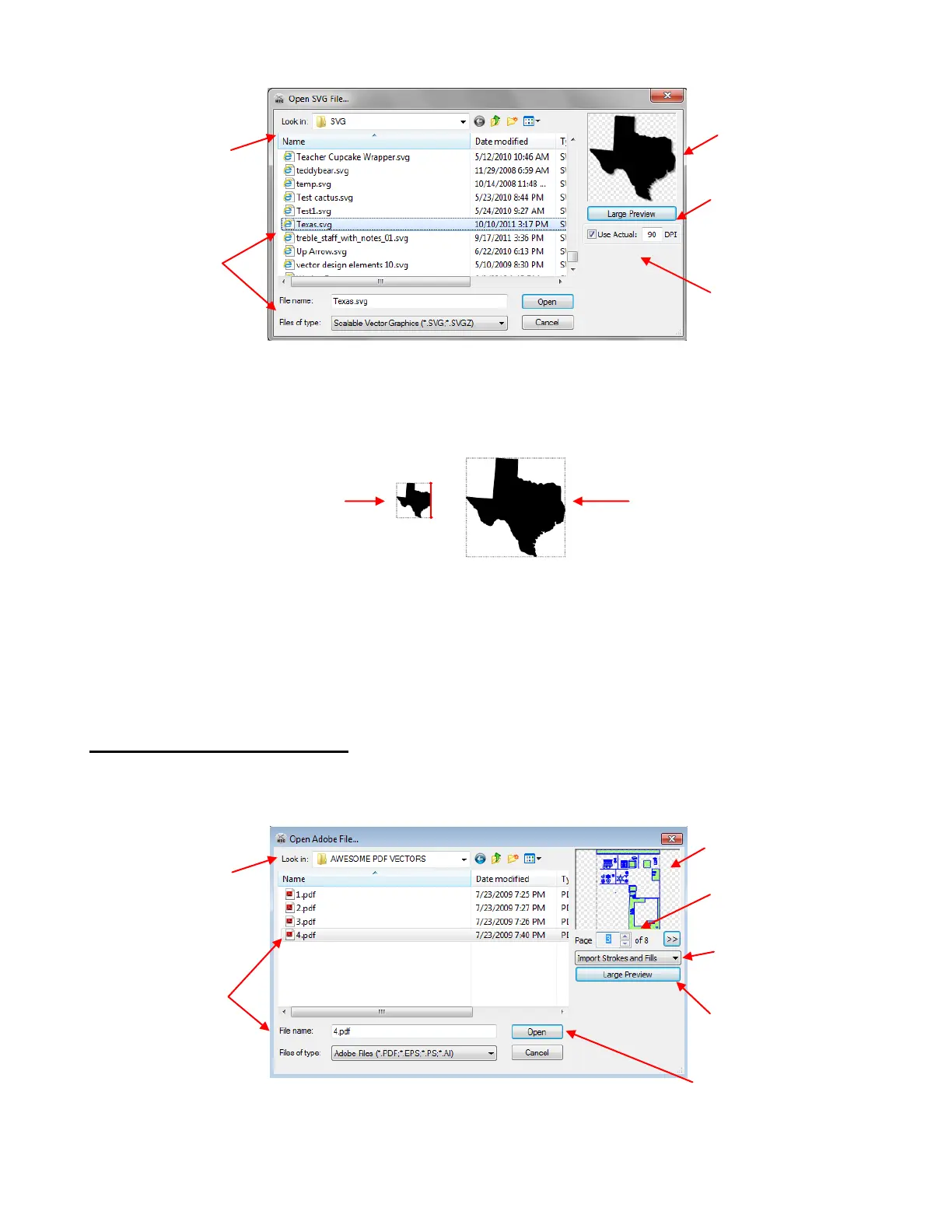
The Use Actual setting controls the dimensions of the shapes that are imported as SVG files. If left
unchecked, the shape will be sized according to the height of the Caret. If the box is checked, then the
dimensions will be based on the DPI you enter:
Different programs use different DPI’s when exporting as SVG. Thus, to size the shapes the same as the
program where the SVG was created, you need to know which program was used. For example, if the SVG
file was created in Inkscape, use 90 DPI. If the SVG file was created in either Adobe Illustrator or KNK
Studio, use 72 DPI. While knowing this setting isn’t relevant in most files, such as the one shown above,
there could be some files where it is very important, such as an envelope template for a certain sized card
or a cupcake wrapper template.
4.04 Importing AI, EPS, PS, PDF
If the selected file format is one of the following vector formats: AI, EPS, PS, PDF (vector only), then
importing the graphic works the same as opening MTC files or importing SVG files. There are a few different
import options:
Note that when the file has multiple pages (such as some PDF vector files), the user should choose which
page to import. Click on Large Preview to better see the individual shapes or use Adobe Reader to view the
pages in the same way you would view any PDF file.
Click here to open a
window to display a large
preview of the file shape(s).
Click on Open and the
saved file will open as a new
project.
Select page number if
it’s a multi-page file
Browse to locate
folder containing
the file.
Click on the file
and it will appear
under File name:
Preview of the file to be
imported
Browse to locate
folder containing
the file.
Click on the file
and it will appear
under File name:
Preview of the file to be
imported
Click here to open a
window to display a large
preview of the file shape(s).
Mark Use Actual if you
want the SVG imported in a
particular size. Otherwise
the SVG will be imported at
the same height as the
Caret on the screen.
SVG was imported without checking
the Use Actual box, thus sized at the
same height as the Caret.
SVG was imported after checking the
Use Actual box, thus sized according to
the DPI value entered
Option for Importing
Strokes Only, Fills Only
or Strokes and Fills.



 To Next Page