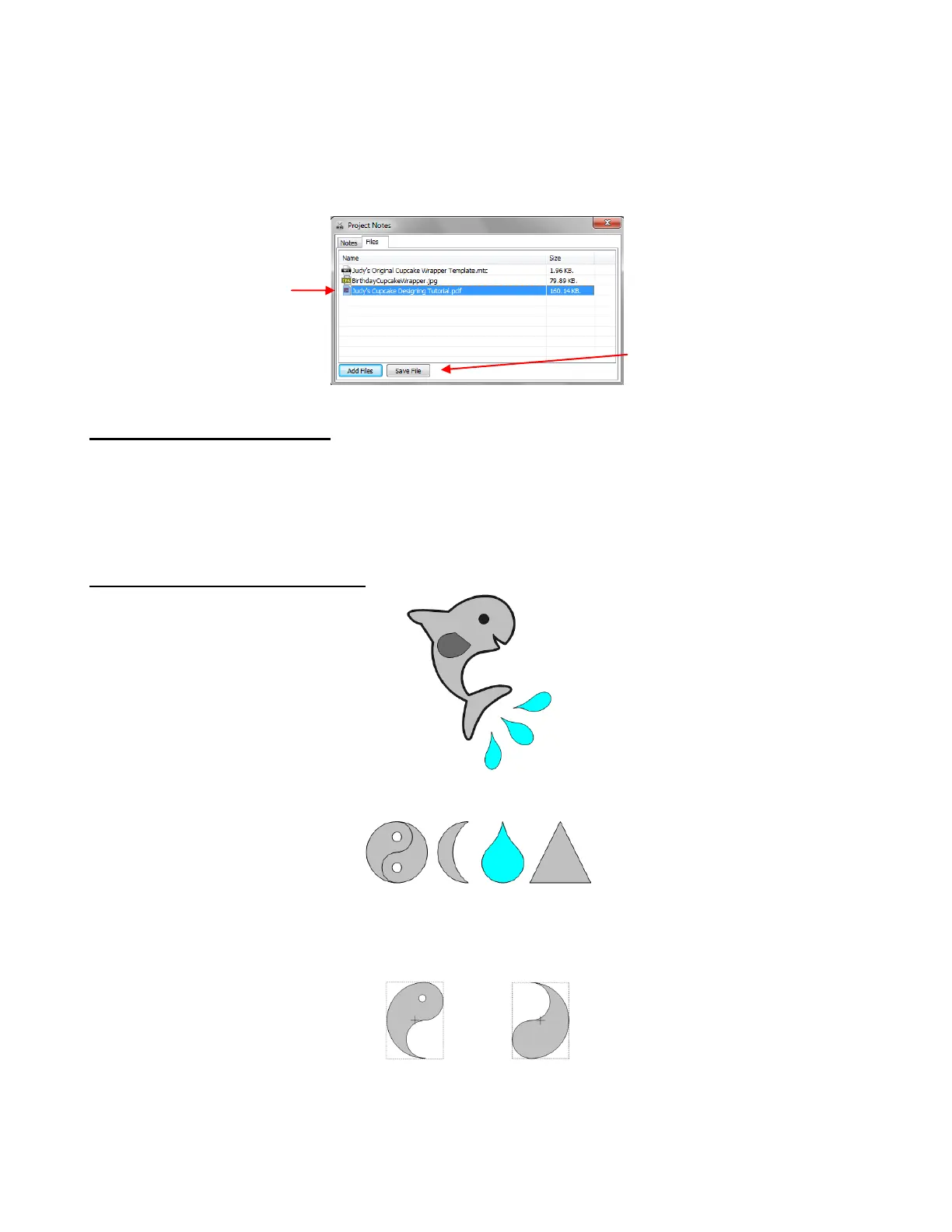
If you open an MTC project file from someone who has attached one or more files in the Notes window, you
can try double-clicking the file name to automatically open that file. With some file formats, such as PDF,
you will need to save the file to your computer and open it outside of MTC.
To save an attached file, click on the file name and then click on the Save File button to open a window
where you can browse your computer to locate a folder for saving that file.
8.11 Design Contest Tutorials
In October 2011, a contest was sponsored by KNK USA. The challenge was to take existing designs or
shapes and transform them into new shapes using various functions in MTC. The following tutorials are
from the two winning entries and are excellent examples of how the tools available in MTC can be used in
creative ways.
Designing a Whale by Brigit Mann
Begin with the following Basic Shapes:
Select the Yin Yang, resize to about 3” in height. Apply the Break function. Delete the lower circle and set
the right side of the Yin Yang off to the side. Make the circle slightly smaller (this will be the whale’s eye).
Apply a Join to the left side to recombine the circle to the Yin Yang:
Resize the crescent and rotate and put it partially on the whale body where the mouth would be. Select
both pieces and apply Boolean Join, selecting B-A Difference:
Then click on Save File to
save the highlighted file to
a location of your choice on
your computer.
To save a file, first
highlight the name by
clicking once.



 To Next Page