9.04 PNC Procedure Part 2: Aligning and Calibrating
Aligning the Laser with the Registration Marks
Click on the Cut Project With icon to go to the cut window. If you haven’t yet performed a test cut, do so
now using either the Knife Point or WYSIWYG setting. Perform the test cut in a location that won’t be part
of your final cut or use a scrap of the same material you are cutting.
After the test cut is successful, click on the Set Blade Origin window. Move the laser light until it is directly
over the lower right corner of the printout, as indicated above. Click on Finished to set the origin.
Under Cut Type, select Print And Cut.
Click on Cut Project and the laser should automatically move to within a very short distance of the first
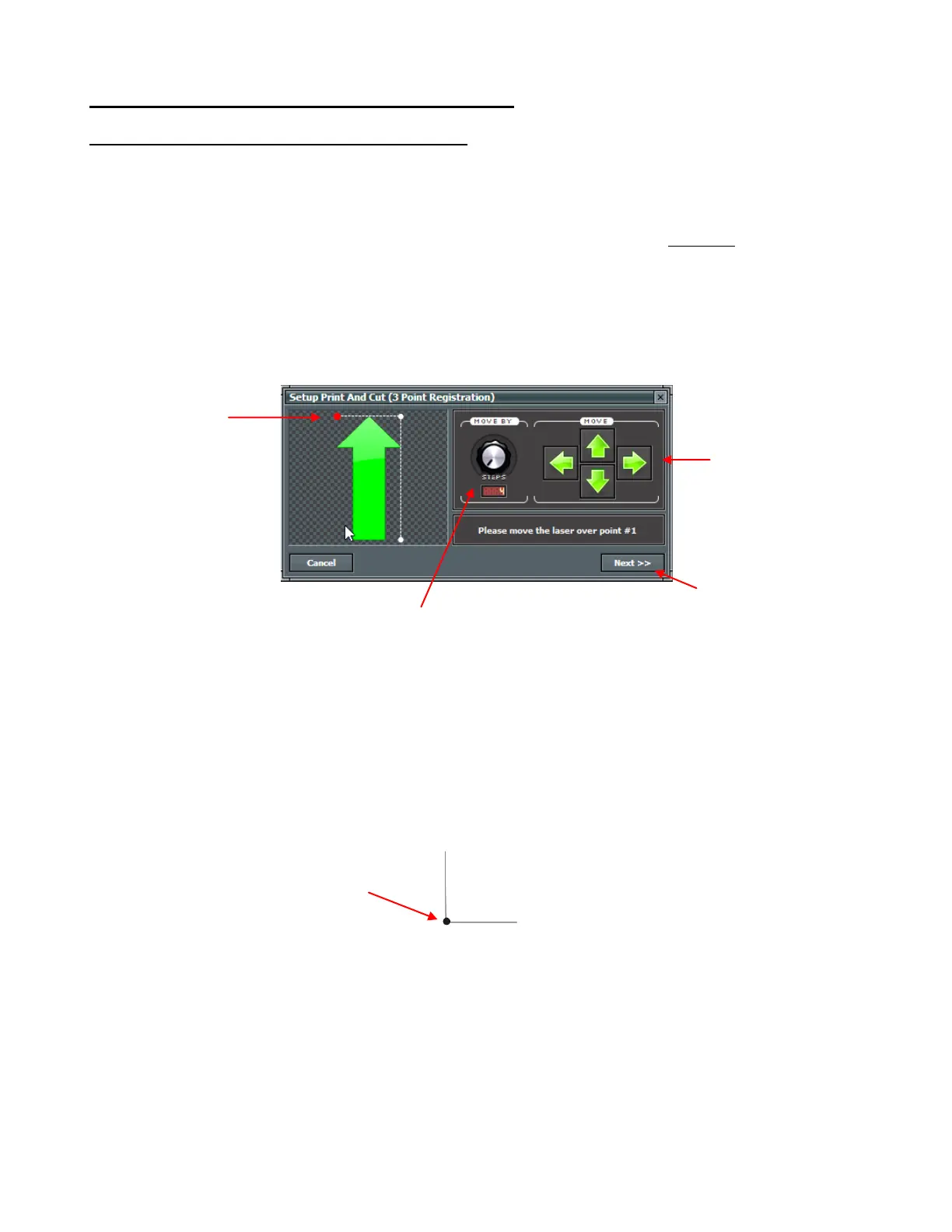
registration mark. The following window will open:
Make sure the laser has moved within an inch or less of the registration mark indicated by the flashing red
dot shown above. If not, you’ll want to review the steps you’ve used so far to make sure you have all of the
same settings shown and you have your printout on the mat in the same orientation as shown previously.
The next step is to move the laser dot so that it is precisely at the corner of the printed registration mark.
This window is very similar to the Set Blade Origin window. Click on the arrow keys on the screen or use
the arrow keys on your keyboard. Important: once you are close to the mark, decrease the Move By setting
to 4 so that you’ll have precise control on alignment. Once the laser dot is dead-on, click on Next or press
the Enter key.
The laser will move to the vicinity of the next registration mark and the flashing red light in the software
moves to the same relative point:
Move the laser light to the
dead center of the printed dot.
This dot will be flashing
red.
Note the orientation of
this screen relative to
your printout on the
mat. This will be the
top right reg mark as
you face the KNK
because your arrow
should point to the
right.
Controls step size for each arrow key movement
Click on Next (or press the
Enter key) after you have
moved the laser to the
corner of the reg mark
Click on arrows to move
the laser light (or use the
arrows on the keyboard)
You will notice that the intensity of
the laser light will change when it is
on top of the printed black lines. This
can be very useful!



 To Next Page