The Cut with Klic-N-Kut Zing window can be accessed in the following ways:
Click on the Cut Project With icon on the File Toolbar
Press Ctrl+Shift+C
Go to Cut Project With…>Klic-N-Kut Zing…
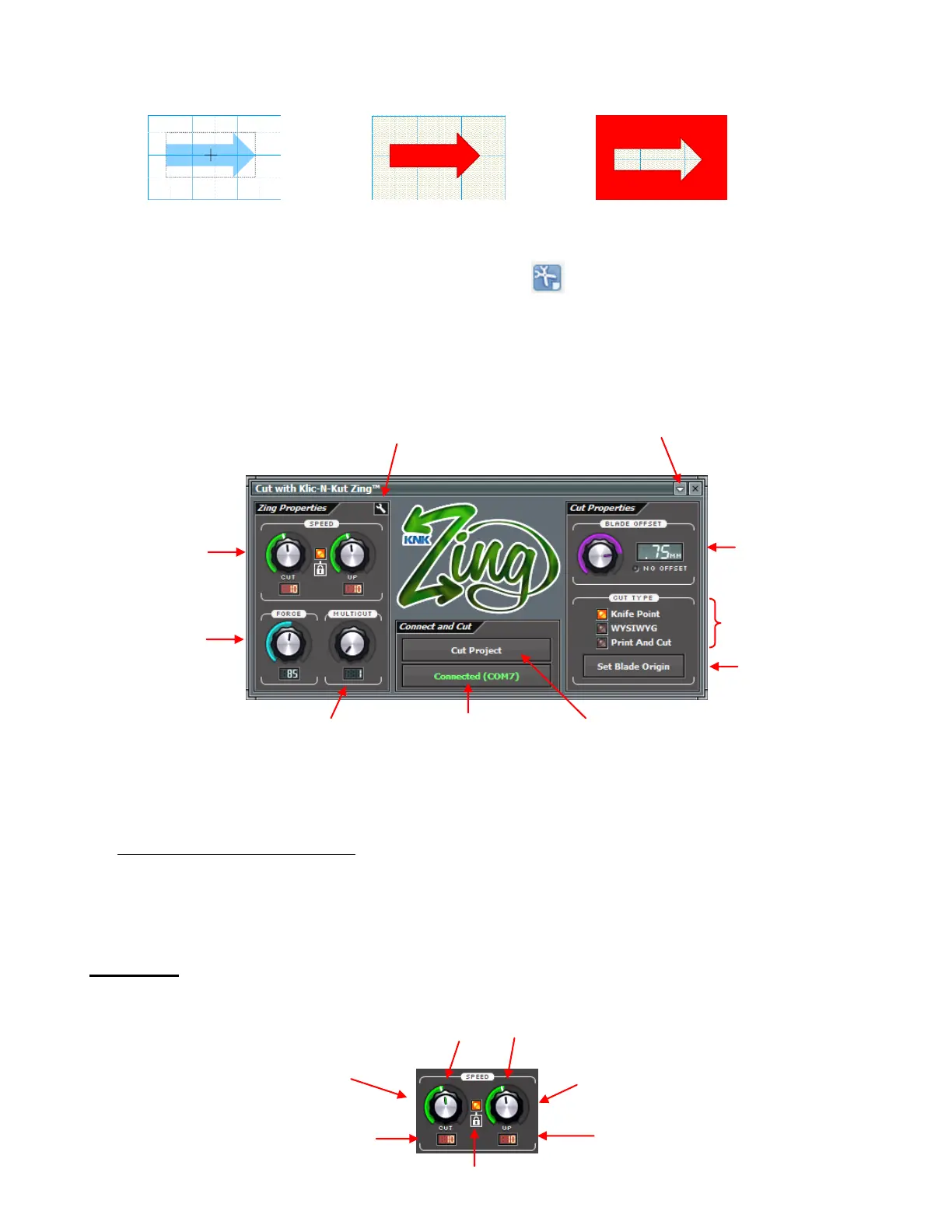
The following window will open:
Refer to the Section numbers shown for instructions on each setting. The Cut Project button doesn’t need
its own section as it simply initiates the cut once you have made your other settings.
To change a setting that has a dial, hold down the left mouse button and move your mouse up to increase
the setting or down to decrease the setting. Alternatively, left click on the dial once and then use the up and
down arrows on your keyboard to change the setting.
The movement within the Zing logo can be toggled on and off by left clicking on the logo.
2.03 Speed
There are two Speed settings: Cut and Up:
Blade Offset:
Section 2.06
Cut Project: will initiate
the cutting of shapes sent
to cut
Force Setting:
Section 2.04
Speed Settings:
Section 2.03
Multicut Setting:
Section 2.05
Connection Status and
Test Cut Menu: Section
2.09
Set Blade Origin:
Section 2.08
Laser Offset: Section 9.02
Resolution: Section 2.12
Updates, Presets,
and Help: Section 2.10
Cut Speed: speed at which blade
travels in the down/cutting position
(settings from 1 – 20)
Up Speed: speed at which blade
travels in the up/not-cutting position
(settings from 1 – 20)
When light is on, the Up Speed is
locked to the Cut Speed.
White marks indicate the start of the fast speeds.
Current Cut Speed setting
Shape as shown
on Virtual Mat
Shape shown with first
click of Cut Preview
Shape shown after second
click of Cut Preview



 To Next Page