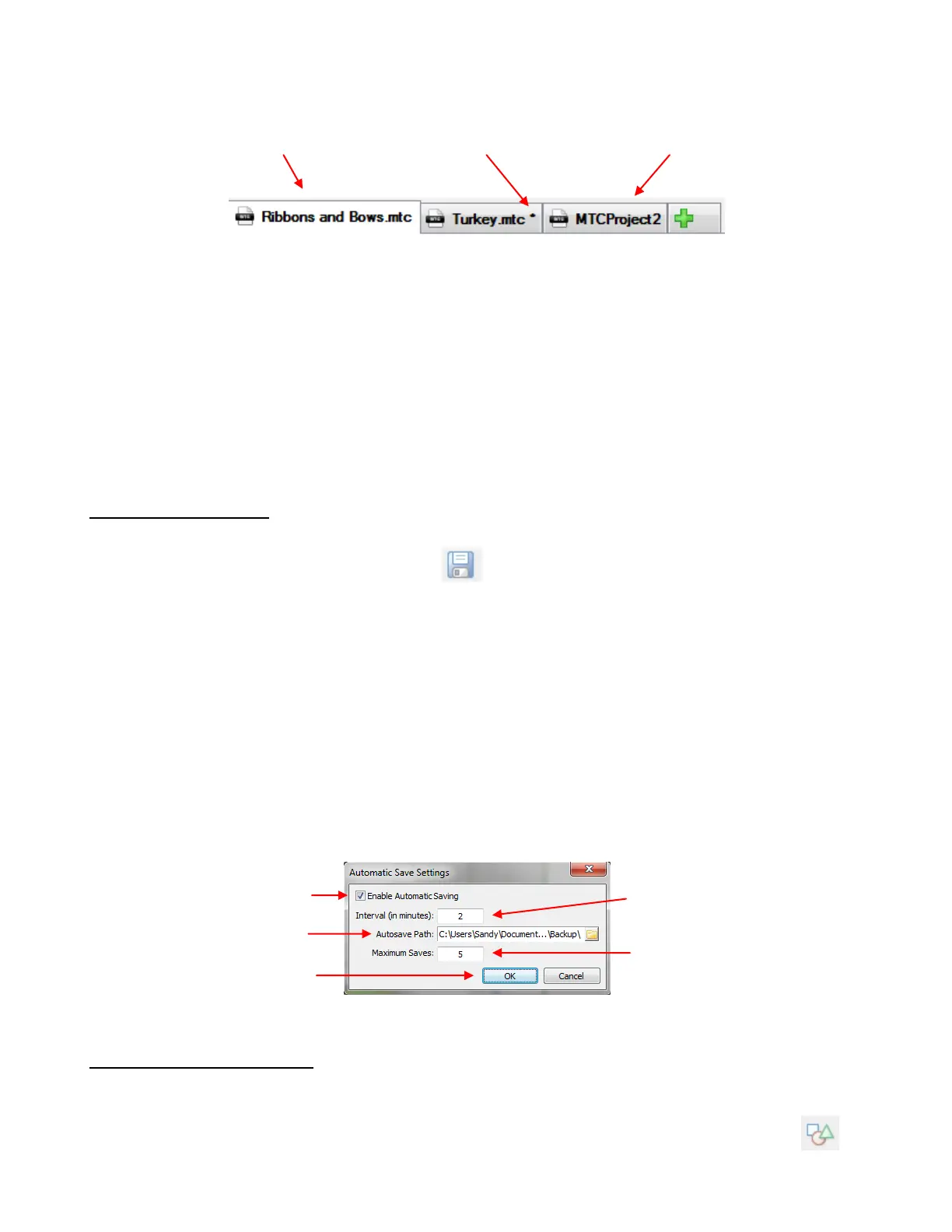
Click on any of the tabs and that project window will be displayed. You can scroll/tab through the projects
using any of the following:
Press Ctrl+F6
Press Ctrl-Tab
Go to Window>Next Window.
All of the projects can be displayed at once, in separate windows, by choosing one of the various options
under Window on the Menu Bar.
3.07 Saving MTC Files
A file can be saved in MTC format by using any of the following:
Click on the Save icon on the File toolbar
Right click on the project tab on the Tab bar and select Save or Save As from the menu
Press Ctrl+S
Go to File>Save or File>Save As.
If you’ve made changes and wish to save under a different file name, choose File>Save As. Name the file,
choose a location, and click on Save.
If you wish to save all of your open projects, go to File>Save All or right click on a project tab on the Tab
Bar and select Save All from the menu. The various windows in which you’ve made changes will then open,
in sequence, with the option to save the changes or not or cancel the saving process for that file.
You can also turn on an auto-saving option by going to Help>Advanced>Automatic Saving. This is a very
good idea when doing extensive designing or editing of files. It’s not unusual for graphic programs to
occasionally crash or the possibility of a sudden power outage to occur.
3.08 Opening Basic Shapes
MTC has a rich selection of basic shapes available. To access the Basic Shapes library use one of the
following:
Click on the Import Basic Shapes icon on the Import Toolbar or on the Node Mode Toolbar
Press Ctrl+Shift+B
Check box to turn on
Automatic Saving
Enter timing for frequency
of saves
Enter location where
backups will be saved
Enter Maximum Saves
before deleting older ones
This project has been saved
using the name shown.
This project has been saved using the
name shown but the asterisk indicates
that changes have been made since the
file was last saved.
This is a new project that
hasn’t yet been saved.



 To Next Page