Go to Edit>Shape Magic>Advanced>Smooth & Simplify.
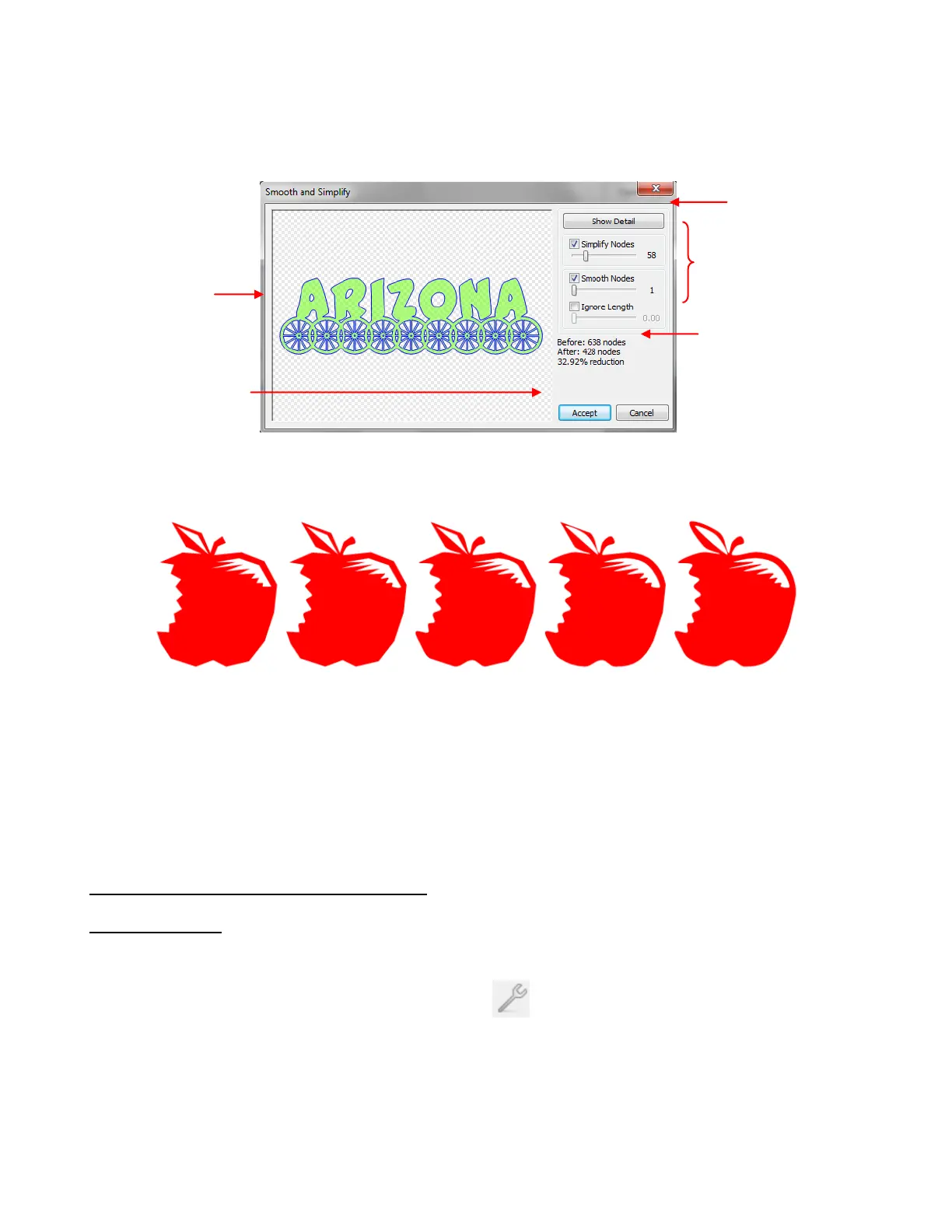
The following window opens with settings which can be adjusted as desired. Adjustments will be reflected in
the preview so that distortions of the image can be avoided:
The Ignore Length option can be used to control the amount of smoothing applied to an image. For
example, in the following image of a very angular apple, the higher the setting for Ignore Length, while
holding Smooth Nodes at a constant value, the more rounding of the shape:
In general, the Smooth and Simplify function is not used because of the two easier functions (Auto
Simplify Welds and Auto Simplify Path) which were both added to MTC after this function was introduced.
If Simplify Nodes doesn’t reduce the nodes significantly, then try reducing the size of the image, as
described at the end of the Auto Simplify Path section.
7.03 Shape Magic Advance Part 2: Details
View Path Detail
The View Path Detail function is used to provide information about the selected shape or shapes. It can be
accessed in the following ways:
Click on the Advance icon on the Magic Toolbar and select View Path Detail
Press Ctrl+Shift+X
Right click on the screen and choose Shape Magic>Advanced>View Path Detail from the menu
Go to Edit>Shape Magic>Advanced>View Path Detail.
Once selected, the following window opens:
Preview of
how image
will be
changed
Adjust these
settings and note
changes to shapes
Reduction in nodes based
on current settings chosen
Click on Accept
when done



 To Next Page