7.02 Shape Magic Advance Part 1: The Simplify Functions
Auto Simplify Welds
The Auto Simplify Welds function is an on/off feature which should be turned on when MTC is installed. Its
purpose is to continuously reduce the number of nodes after other functions are applied, so that a design
will cut smoothly and quickly to a cutter.
Auto Simplify Welds can be accessed in the following ways:
Click on the Advance icon on the Magic Toolbar and select Auto Simplify Welds
Right click on the screen and choose Shape Magic>Advanced>Auto Simplify Welds from the menu
Go to Edit>Shape Magic> Advanced>Auto Simplify Welds.
Most of the time, this function can be left on. However, if you are extensively editing an image, such as
using the Eraser function over and over on the same selected shape, then it may be necessary to turn off
this feature. Repeated applications of the Auto Simplify Welds will begin to distort the shapes. So, as
recommended in later sections of this chapter, turn it off, and then the following Auto Simplify Path can be
applied once the editing is completed.
Auto Simplify Path
The Auto Simplify Path function can be applied when you have turned off Auto Simplify Welds. Select
the shape(s) and then invoke Auto Simplify Path in any of the following ways:
Click on the Advance icon on the Magic Toolbar and select Auto Simplify Path
Press Ctrl+Shift+Z
Right click on the screen and choose Shape Magic>Advanced>Auto Simplify Path from the menu
Go to Edit>Shape Magic>Advanced>Auto Simplify Path.
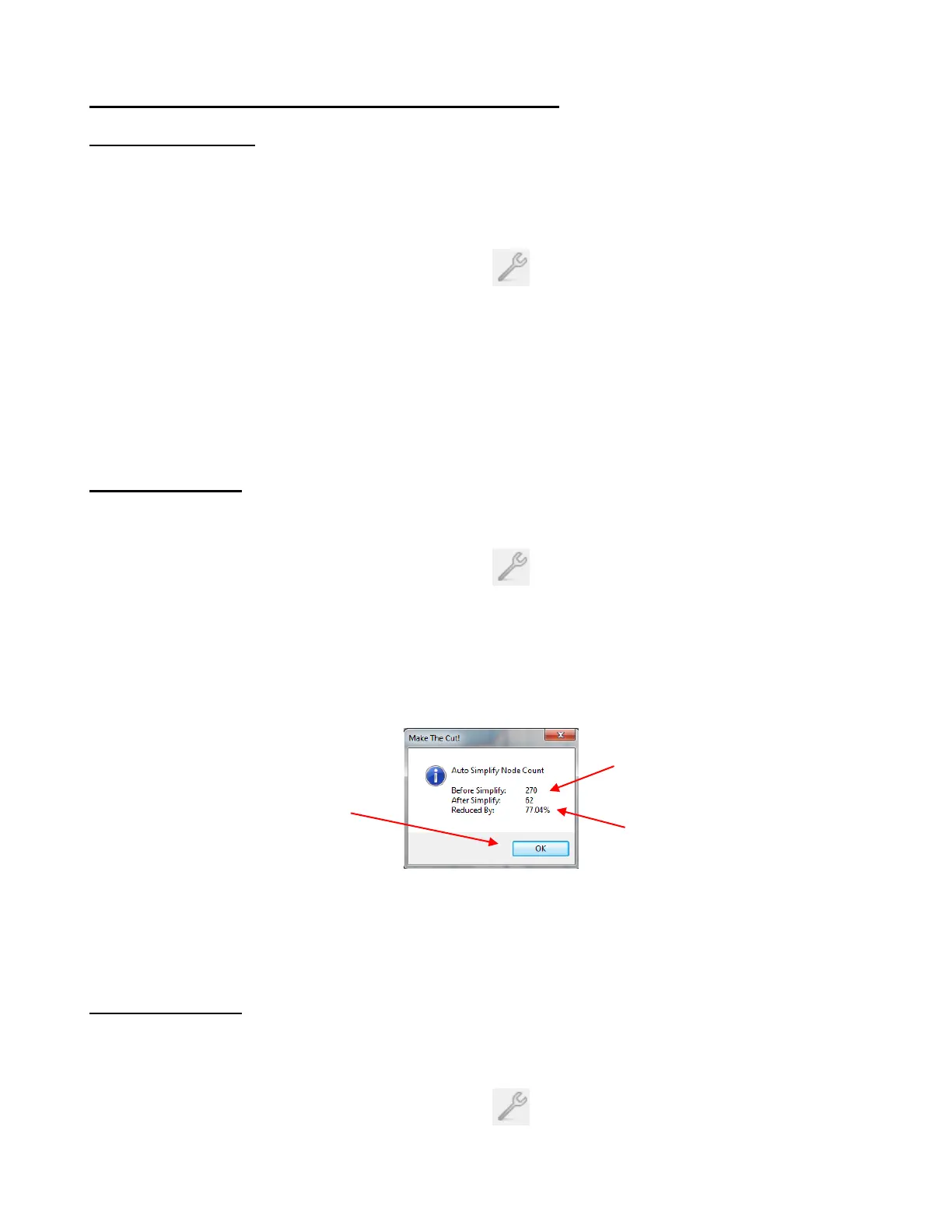
The function will be automatically applied and a window will open indicating the results of the simplification.
Here is a sample window:
If not enough nodes are deleted, then try temporarily decreasing the size of the shape. Use the scaling
method shown in Section 3.13 to reduce the size of the shape to, say, 25 %. Apply the Auto Simplify Path
function. Then resize using the reciprocal, 25%r, to return to the original size.
Smooth & Simplify
The Smooth and Simplify function is a manual version of the Auto Simplify Path function in which you
can choose how much simplifying will be applied. Select the shape and then open the Smooth & Simplify
window in any of the following ways:
Click on the Advance icon on the Magic Toolbar and select Smooth & Simplify
Press Ctrl+Shift+J
Right click on the screen and choose Shape Magic>Advanced>Smooth & Simplify from the menu
Number of nodes in the
selection before and after
Auto Simplify is applied
Percent reduction in the
number of nodes
Click on OK to close
the window



 To Next Page