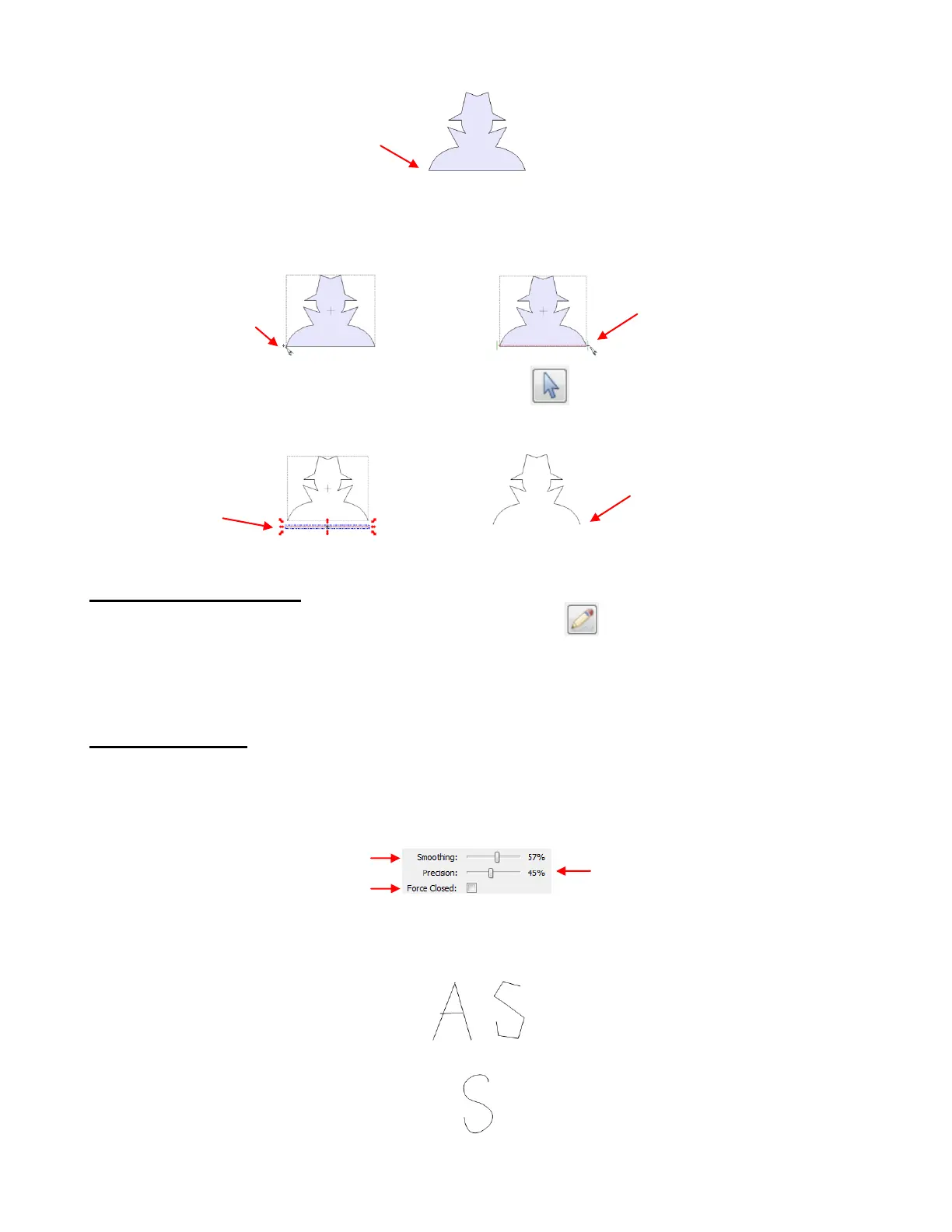
To slice off just the bottom of the shape, select the Knife Tool and hold down the mouse button outside of
the shape on one side, just barely above the bottom of the shape and then drag the mouse over to the other
side, letting go once the cursor is outside of the shape:
Then click on the Select Tool (Edit this project normally) at the top of the Node Mode Toolbar.
Now you can select and move the cut line away from the bottom of the shape and delete. The shape no
longer has a connecting line along the bottom:
7.10 Draw Freehand Lines
The Draw Freehand Lines function (Pencil Tool) is the 4
th
icon on the Node Mode Toolbar and can
be activated by clicking on the icon or pressing F4. This tool is used to freely draw thin or thick lines with
your mouse or tablet, or even draw dashed lines or a path of circles! Your shapes can then be edited using
the other tools on the Node Mode toolbar, as well as customized using other functions in MTC.
Drawing Thin Lines
There are a number of settings which will affect the outcome of your drawing. Smoothing is used to control
whether the drawing is more angular (made up of straight lines paths) or rounder (made up of curves).
Precision is used to control the number of nodes used as the image is drawn. The Force Closed option,
when marked, will automatically close the beginning and the end of the path as you draw:
For example, if you are freehand drawing the letter “A”, you would want to decrease Smoothing and
Precision so that straight lines are drawn. But if the same low settings were used to draw an “S”, the letter
would end up angular and not well-formed:
For a curve, such as an “S”, you would want to increase Smoothing so that no straight lines are formed:
The Precision setting, as mentioned before, allows a more precise “S” to be drawn, but many more nodes
will result. The following shows the difference when Precision is left at 0 versus 100% versus 50%:
The Knife Tool will be used to
remove the bottom line of this shape.
Begin cutting just
outside of and above
the bottom the shape.
Drag the mouse to the other
side and let go when the
cursor is beyond the shape
border.
Drag bottom
line away and
delete.
Shape is open at
the bottom.
Increase Smoothing for curves
Increase Precision for more detail
Mark Force Closed to close the path



 To Next Page