installed in Windows in order to be used. They can be opened directly in MTC, as easily as importing other
vector files.
A font can be opened in MTC using any of the following ways:
Click on the Import TTF/OTF icon on the Import Toolbar:
Click on the Add Font from TTF File icon on the Font and Text tab of the Main Bar:
Press Ctrl+Shift+H
Go to File>Import>True/Open Type Font File.
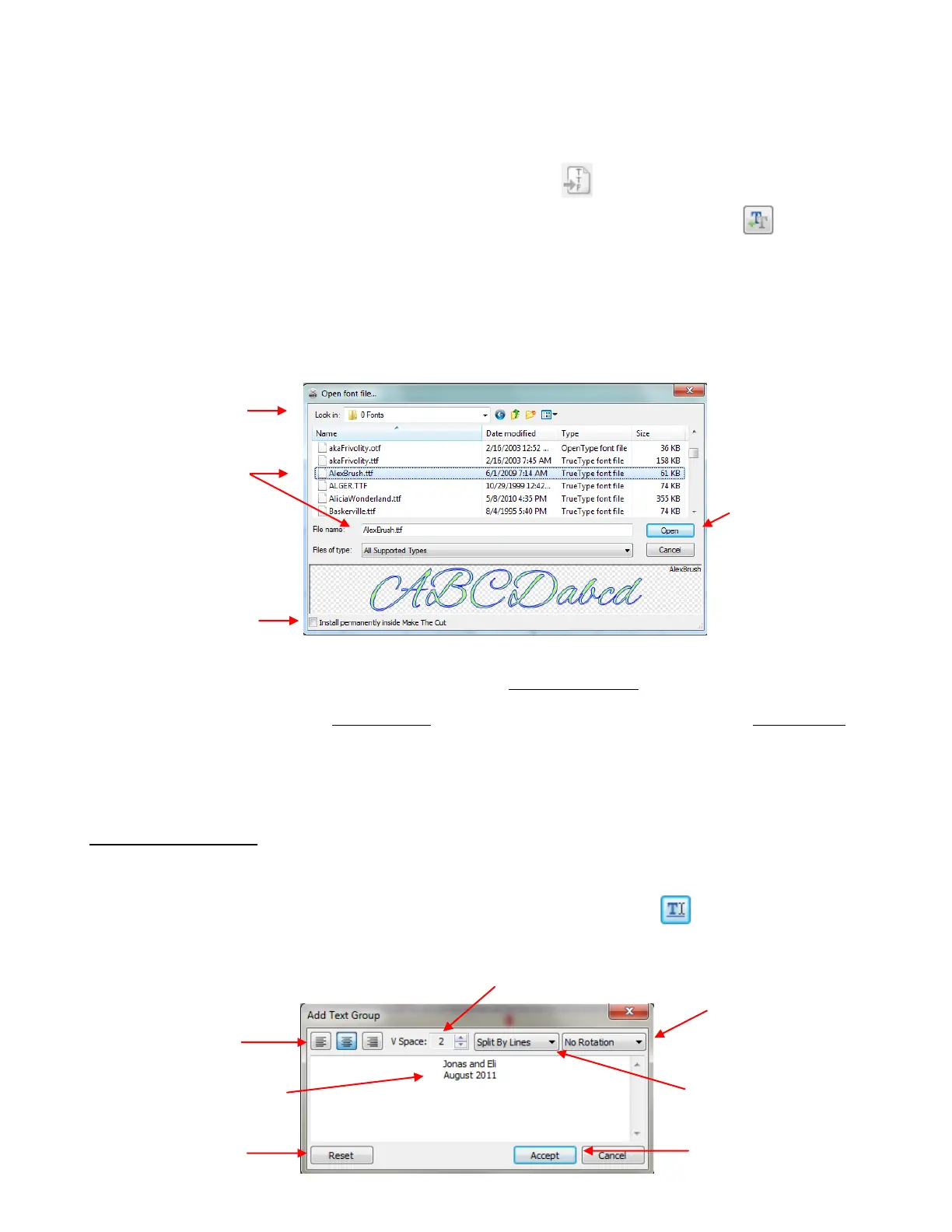
After invoking one of the methods to open a font file, the follow window opens:
When MTC is closed, any new fonts which were opened during that session (but not permanently installed
in MTC) will automatically be uninstalled from MTC. Not to worry! Once a particular font is used to create
text and that file is saved, then that same font does not need to be re-opened when opening that same file.
If you wish to continue using that same font in MTC for other projects, then check the Install permanently
inside Make The Cut box at the bottom of the Open Font File window. To remove a font permanently
installed in MTC, select it and press the delete key on your keyboard or right click on the font.
5.03 Add Text Group
There are two ways to open the Add Text Group window for creating text for your project:
Click on the Add a Group of Characters icon on the Text and Fonts tab
Press Ctrl+I.
Browse to locate a
folder.
Click on the font
name and it will
appear below.
Begin typing to enter text
into window. Press Enter
key to start new lines.
Click Reset to erase
typed text.
Click on Accept to enter
text onto screen
Rotation options to
rotate letters for
creating vertical text
Options for Splitting by
Lines, by Glyphs, by
Spaces, or No Splitting
Check this box if you
wish to keep font
installed in MTC



 To Next Page