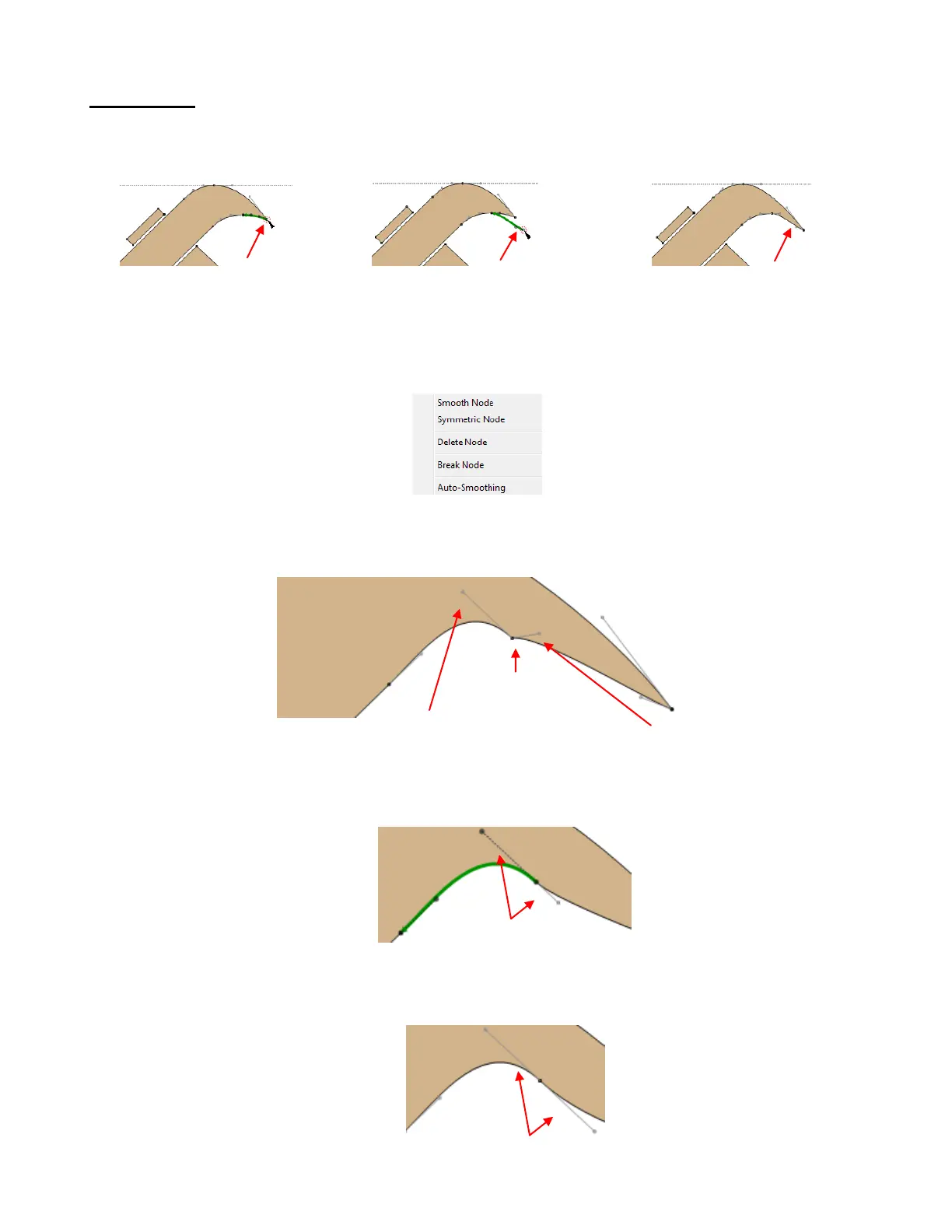
Node Editing
If you hover your mouse over one of the end nodes on a selected path, you will see it become encircled with
a dotted red path. That means the node can now be edited. For example, you can drag the node to a new
location and the connecting segment(s) will move as well.
If you right click on a highlighted node, the following menu will open. Explanations for each options are
described below:
For the sake of illustrating the node editing, the hammer claw has been modified so that there’s a “bump” or
warp at the intersection of two segments. Note the length and direction of the two control points:
Smooth Node: The lines of the Bézier control points on either side of that selected node will align in
a straight line, resulting in a smoother transition.
Symmetric Node: The lines of the Bézier control points on either side of the selected node will
become equal in length, resulting in a smoother transition:
Red dashed circle appears
around a node as the
mouse cursor is held over it
Drag the node to a new
location
Segments on either side of
the node are modified.
Control point for segment
on the left side
Control point for segment
on the right side
Two control point lines are now in a
straight line with one another
Two control point lines are now the
same length



 To Next Page