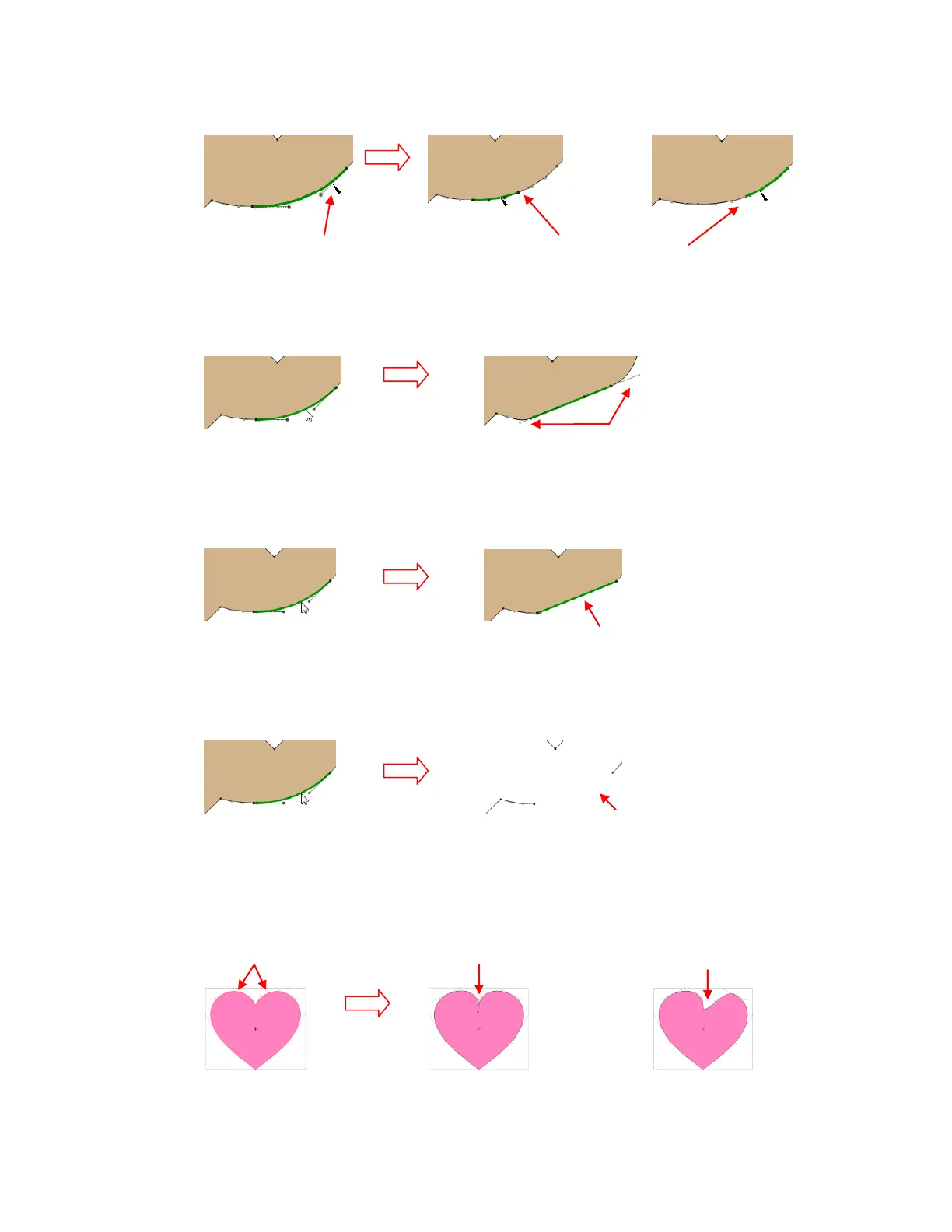
Insert Mid-Point Node: a node will be inserted exactly half-way along the selected segment and
the segment is now split into two segments of equal length.
Neutralize Segment: the segment will become perfectly straight but will still be a Bézier curve with
Bézier control points to maneuver. This is something of a panic button to use whenever a segment
becomes extremely distorted.
Convert To Line: the segment will be converted to a straight line and will no longer be a Bézier
curve. However, dragging the line to form a curve will immediately transform it back into a Bézier
curve.
Delete Segment: the segment will be erased and will leave unconnected nodes at the ends of the
two paths that were connected to this segment. Note that if the shape was previously a closed
shape (and Fill was turned on), it will now be an open shape with no Fill.
Auto-Smoothing: all changes to a segment will result in smoothing (curving) of this segment as
well as adjacent segments. This should be turned off when segments have sharp junctures or cusps
with other Bézier curves. A heart will be used to illustrate this:
Place cursor anywhere
along segment
Segment is split into two
segments at the midpoint.
Neutralized segment is still a
Bézier curve with control points
Line segment is no longer a Bézier
curve: has no control points
Deleted segment is erased and
shape is no longer filled with color.
Auto-smoothing is turned off:
sharp cusp is retained.
Auto-smoothing is turned on:
sharp cusp is converted into
a curve.
The top two segments will be
dragged upwards



 To Next Page