overall design of the puzzle, you can set your origin just inside the corner of your printed image and then cut
the design using the Knife Point setting (Refer to Section 2.02).
Here is an example of an imported picture and the puzzle imported and sized to fit on top:
8.10 Notes Window
The Notes window in MTC can be used in a host of ways: (1) providing instructions for cutting and
assembling the project, (2) adding your name, copyright, and Terms of Use, (3) explaining the purpose of
different pages or layers, (4) crediting others for assistance with the design, (5) citing sources for clipart or
names of fonts used, and (6) attaching files you want to provide with your project.
The Notes window can be opened using the following ways:
Click the Toggle Notes Window icon on the File Toolbar
Go to View>Notes Window.
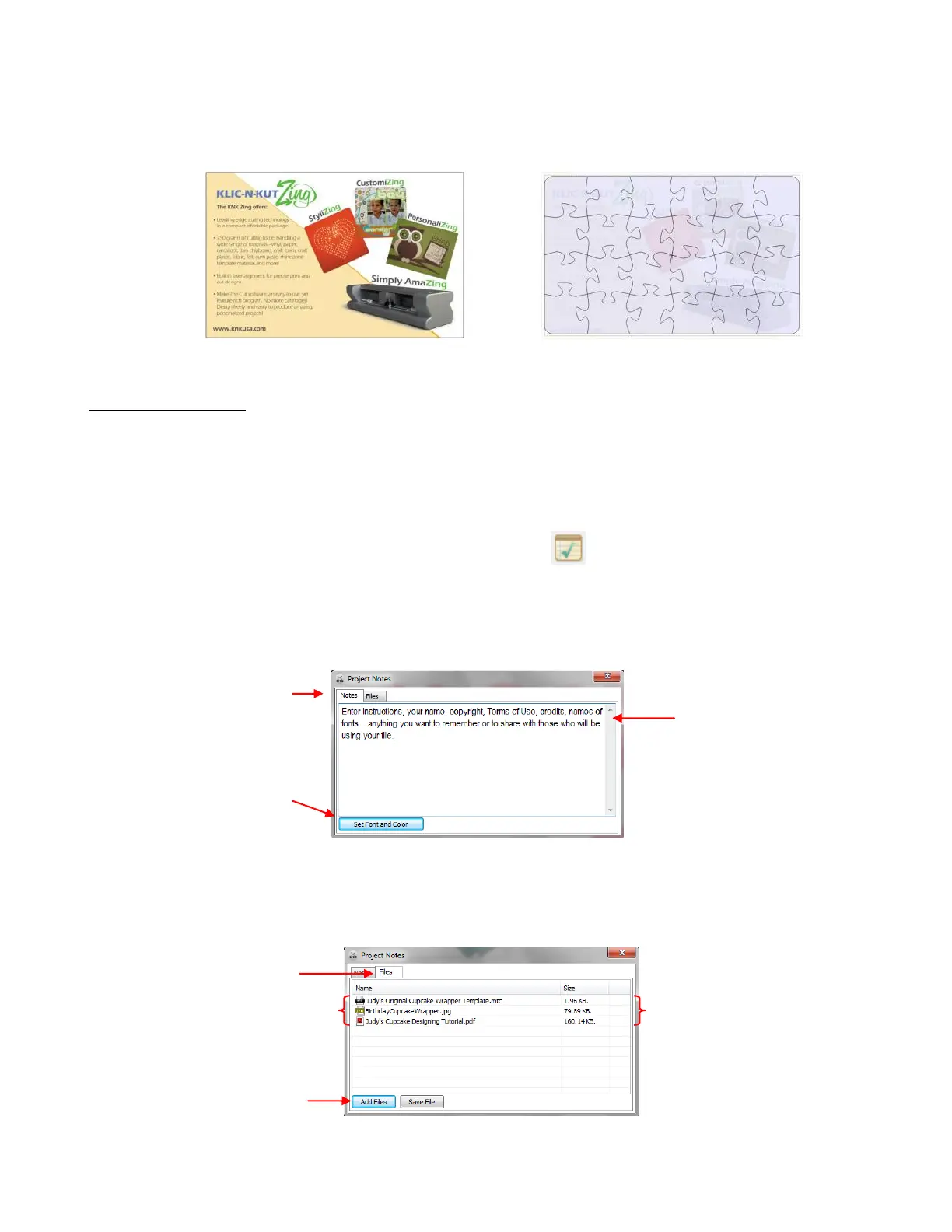
There are two tabs in the Notes window – Notes and Files. The Notes window is used for entering any text
you wish to include with your project:
The Files tab can be used to attach files to your project file. For example, you might want to attach a
photograph of your completed project, or a PDF tutorial, or another MTC file that is associated with this one.
Any file can be attached:
If you have any information entered into your Notes window or a file attached, then it will automatically open
when the file is opened by you or someone else.
Click here to change
which font is used and
the color, size, and style
of the text.
Click on the Add Files to
browse your computer and
select files to attach.
List of files which have been
added to this project
Size of each file which has
been added to this project



 To Next Page