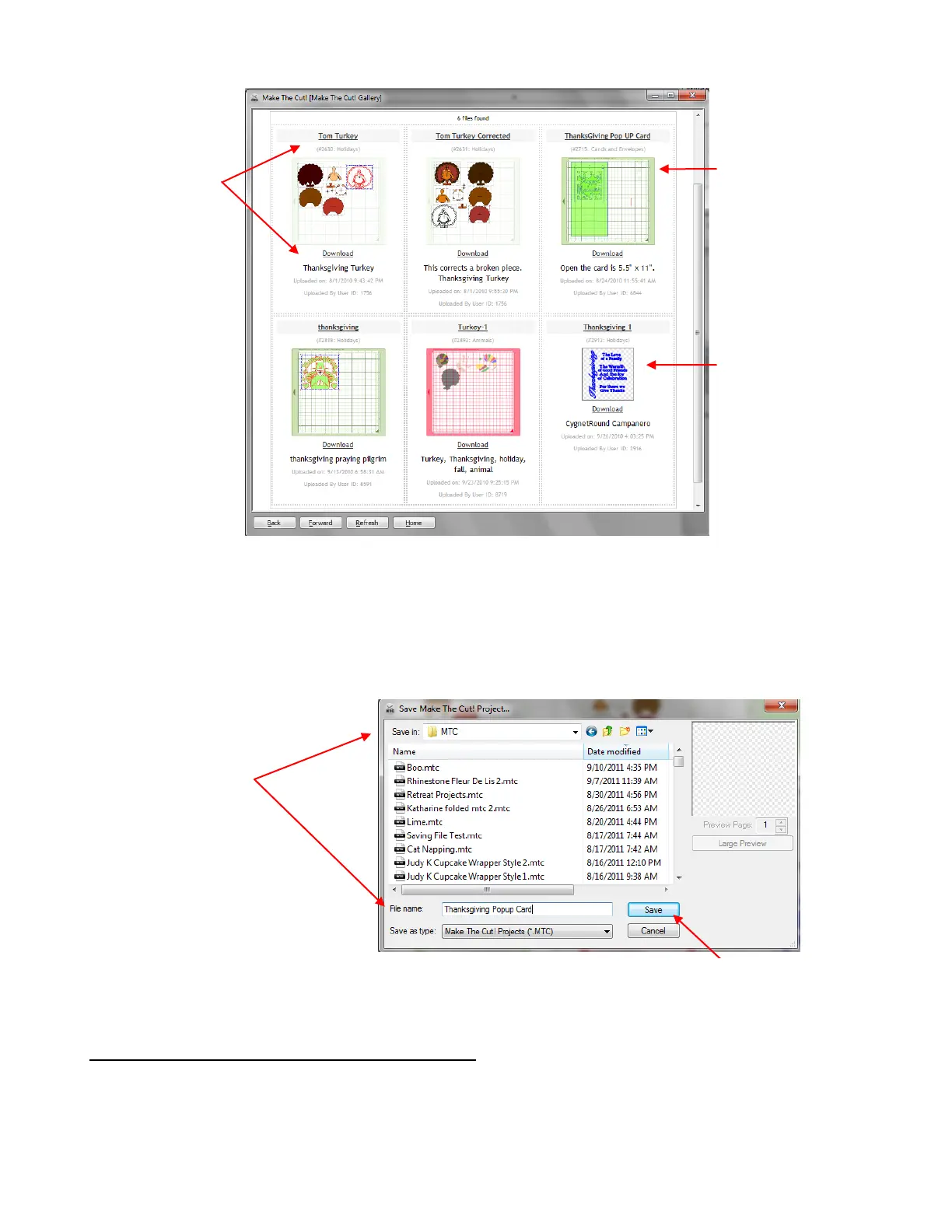
If just the shape was uploaded, then clicking on Download will immediately import the shape at the current
location of the Caret.
If the file was uploaded as a Project, then clicking on Download will open a window where you can browse
to a folder on your computer and then save the file in .MTC format. Once the file is saved, that file will
automatically open, along with the Virtual Mat specifications used by the person who uploaded the file.
4.03 Importing SVG, SVGZ from Your Computer
If the selected file format is SVG or SVGZ, then importing the graphic will bring the shape into MTC to be
resized, edited, cut, etc. Similar to opening files, a window will pop open, allowing you to browse your
computer to locate a subfolder and select the file you wish to import. With SVG you can click on Large
Preview to open a window displaying a much larger view than the thumbnail preview:
MTC uploaded files
appear with a Virtual Mat
background.
SVG uploaded files
appear without the
Virtual Mat background.
Each thumbnail
indicates the File
Name, Category,
Description, User
ID, and Uploaded
Date.
Enter a File Name
and choose a
location on your
computer to save the
imported MTC file.
Click on Save and file will be saved and
then automatically opened.



 To Next Page