2.07 Cut Type
There are three modes in controlling where images will cut to the Zing. They are called:
Knife Point: Moves the shapes to cut at the origin. Use the blade tip to set the origin for cutting.
WYSIWYG: Cuts the shapes where they are positioned on the Virtual Mat. Use the laser light to set
the origin- either at the corner of the cutting mat or the corner of the material (as described later in
this section).
Print and Cut: Cuts shapes relative to registration marks printed on your printer. Refer to Chapter 9
for complete instructions on the print and cut process.
Knife Point
This is the mode recommended for most applications as it economizes the use of your cutting materials.
Shapes can be located anywhere on the screen, including outside the Virtual Mat. The shapes will be
moved and cut to where you set the origin on the material. The origin is set using the position of the blade
tip.
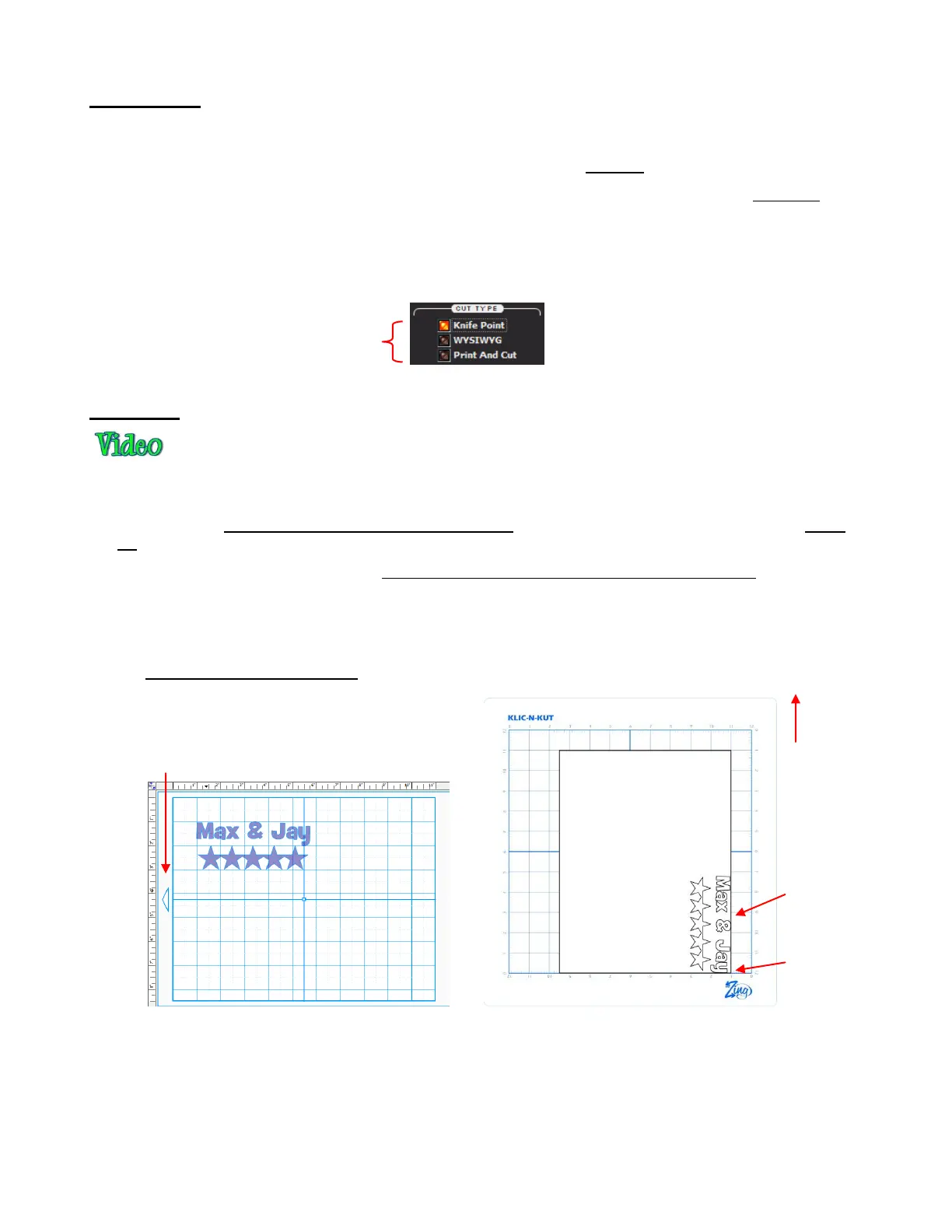
When more than one shape will be cut, the shape closest to the origin will be cut at the origin and any other
shapes will be cut the distance and direction from that shape as positioned on the screen. The following
figures show examples of where images will cut. Use the arrow on the Virtual Mat as a guide to the
direction to insert the actual mat or material into your Zing.
Knife Point – Landscape Mode
Select Cut Type
mode to be used
Location of shapes on the screen
Where shapes are drawn or cut on material
Origin set
here using
the blade tip
Feed the mat this direction into the Zing
Shapes are
cut to align
with the
origin you set
on the Zing.



 To Next Page