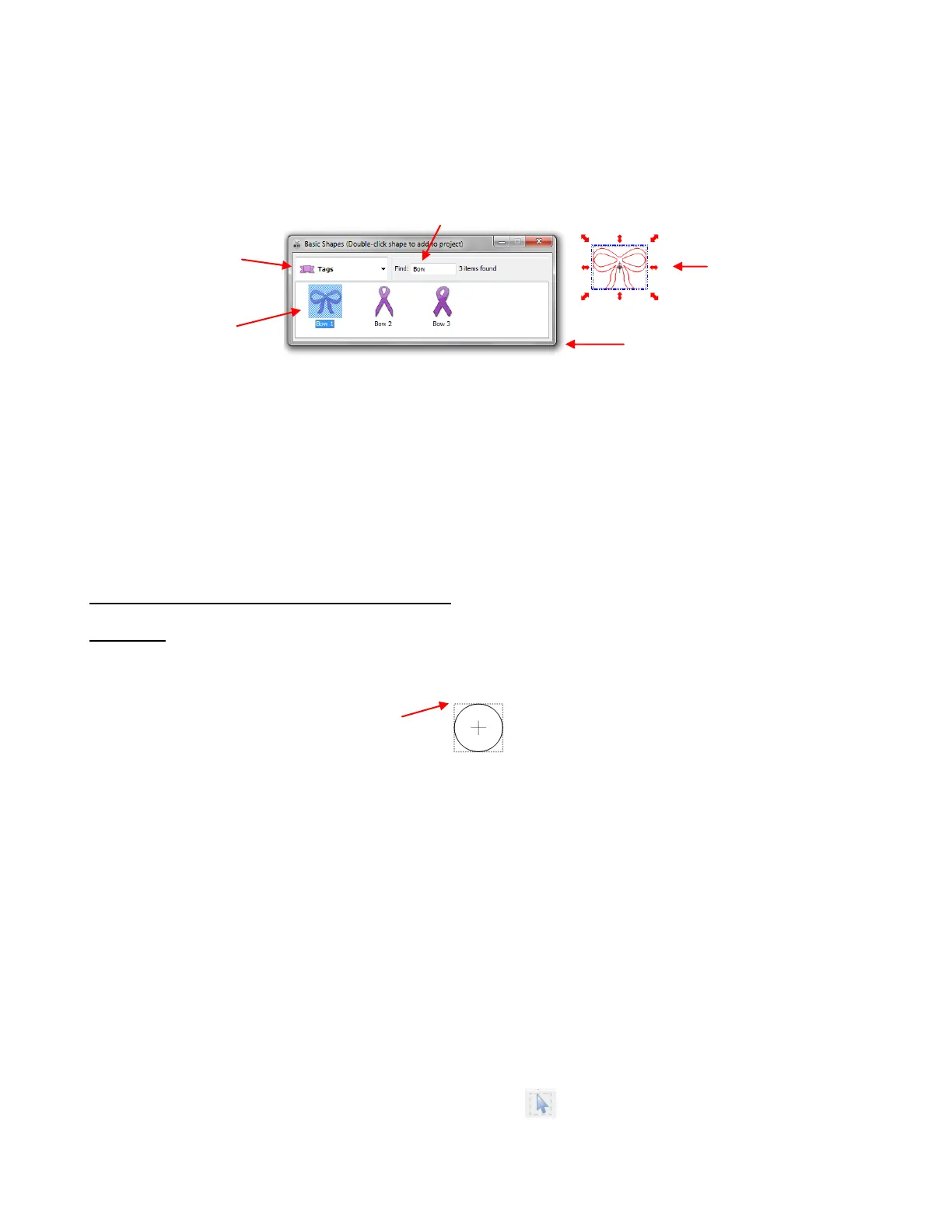
Go to File>Import>From Basic Shapes
You may then select one of the predefined categories and all shapes within that category will be displayed.
Double click on a shape to import it directly onto the screen at the same height and same location as the
Caret.
Note that one of the categories, after you get it set up, is labeled “Your Shapes” which allows you to assign
shapes to that category for quick access. If you have a shape that is repeatedly being used, then saving it to
the Basic Shapes menu will save time in the future. Refer to Section 4.10.
The Basic Shapes library can also be accessed from the Node Mode toolbar. Using this access, versus
the ways described above, allow you to drag your mouse to freely create the height and width of the shape,
as well as flip it. Refer to Section 7.07.
3.09 Selecting, Moving, and Deleting Shapes
Selecting
To select a shape, click anywhere within the bounding area or bounding box, which is indicated by the
rectangle appearing around the shape:
There are several ways to select more than one shape:
Select the first shape and hold down the Shift key while clicking on additional shapes. Note that as your
mouse moves over a shape, a red outline will appear. This makes selecting a shape which is
overlapping other shapes, much easier to select.
Hold down the left mouse button and drag your mouse to form an “imaginary box” around the images
you want selected. Always make sure you start clearly outside the boundaries of the images you want to
select. If part of the shape is outside the selection of that shape, it won’t be selected. This method of
selection is referred to as a marquee-select throughout this manual.
If all of the shapes are on the same layer, click on the thumbnail for that layer. Refer to Section 3.12.
The Caret will disappear while you have a shape (or shapes) selected but will reappear in the upper right
corner once unselected.
If you wish to select all of the shapes on the screen, there are several options:
Press Ctrl+A
Right click on the screen and choose Select All from the menu
Click on the Select All button on the Magic Toolbar.
Go to Edit>Select All.
To scroll through shapes, forward (or in reverse), use any of the following:
Bounding box defined by
outer rectangle
Enter part of the file name, if
needed, to refine your search.
Shape will be placed in
same location as the
Caret (and the same
height).
Drag bottom of window to make
larger, if needed.
Double click
on shape to
import



 To Next Page