3.13 Resizing, Rotating, Slanting, and Warping
The Resizing, Rotating, Slanting and Warping functions are presented together because all four are
readily invoked on any selected shape.
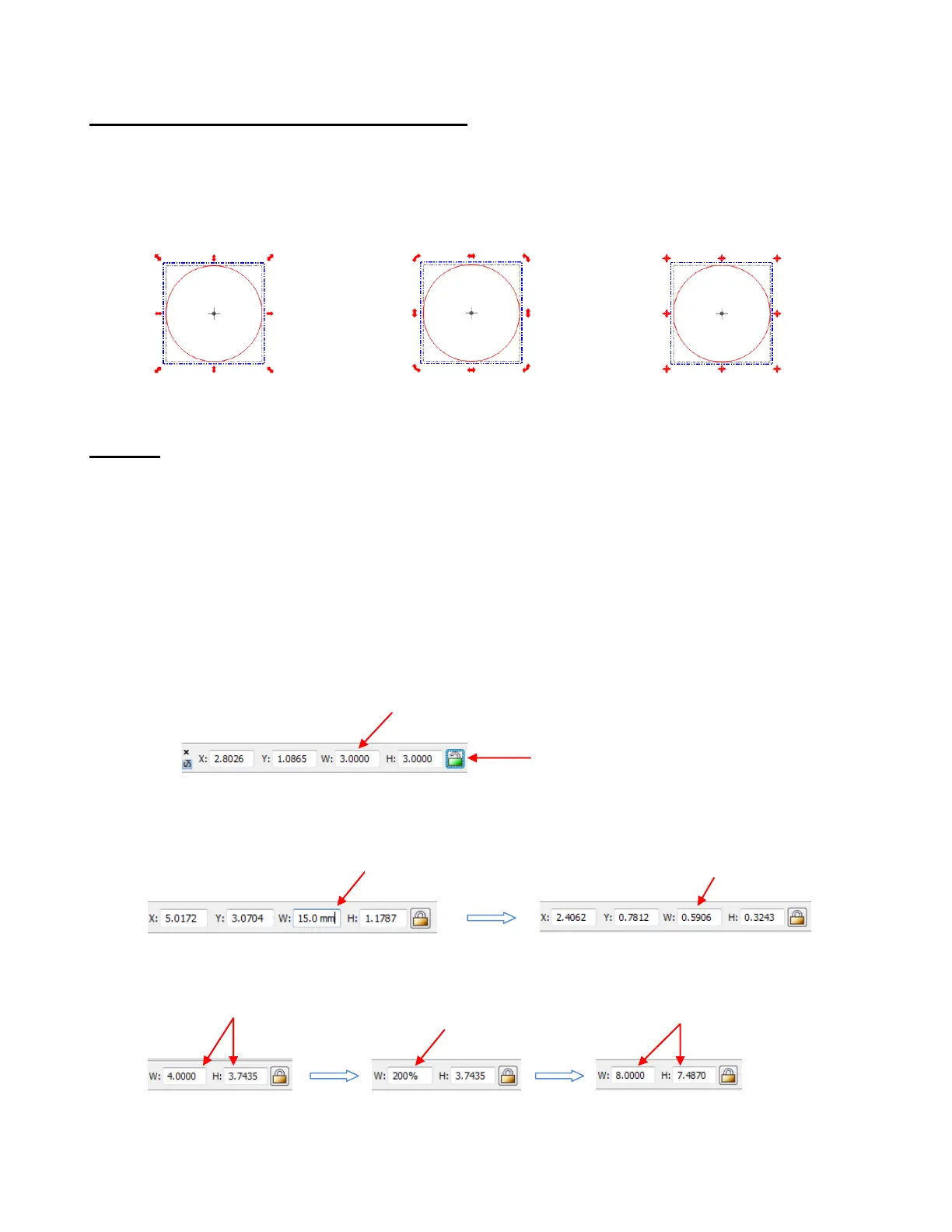
When you first select a shape, you will notice that the bounding box has double headed arrows at the four
corners and in the center along each of the four sides. A double click inside the bounding area of the shape
will change those icons to other choices, resulting in three different modes:
Resizing
With the shape selected, use your mouse to drag any corner of the shape to resize proportionately.
Dragging the double-sided arrow on one of the four sides will allow you to resize either vertically or
horizontally while leaving the other dimension constant.
Depending on the current setting for Snap Position on the Virtual Mat, the resizing will occur in increments
matching that setting. To freely resize the shape, change Snap Position to No Snapping.
If you wish to release the aspect ratio while dragging a corner, press the Ctrl key while dragging. This
allows the height or width of the shape to be freely changed with changing the other dimension.
If you need to make the shape an exact size, then enter the dimension in the W or H box in the Sel.
Properties Bar. The lock icon can be toggled depending on whether or not you want to hold the aspect ratio
constant:
Dimensions can also be entered in mm or cm as long as those units are entered along with the value:
Percentages can also used in the dimension settings. For example, if you want to double the size of a
shape, you can enter 200%:
Percentages can also be entered with an “R” added to calculate the reciprocal. For example, entering
“200%R” will result in the size being halved. Entering 300%R will make the resulting size 1/3, etc.
Enter desired dimension, including a decimal
point, and then press Enter key.
Indent to hold Aspect Ratio; out-dent to release
and allow W or H to be changed without
automatically changing the other.
When entering units, other
than inches, add the units
to the end.
The size in inches will be automatically
calculated and then displayed.
Enter 200% to
double the size
ode
New dimensions show
shape is twice as large



 To Next Page