To completely remove a layer from being displayed, but at the same time not delete the layer, move the
layer to its own page, using the Layer Options Menu at the bottom of the Layer Bar.
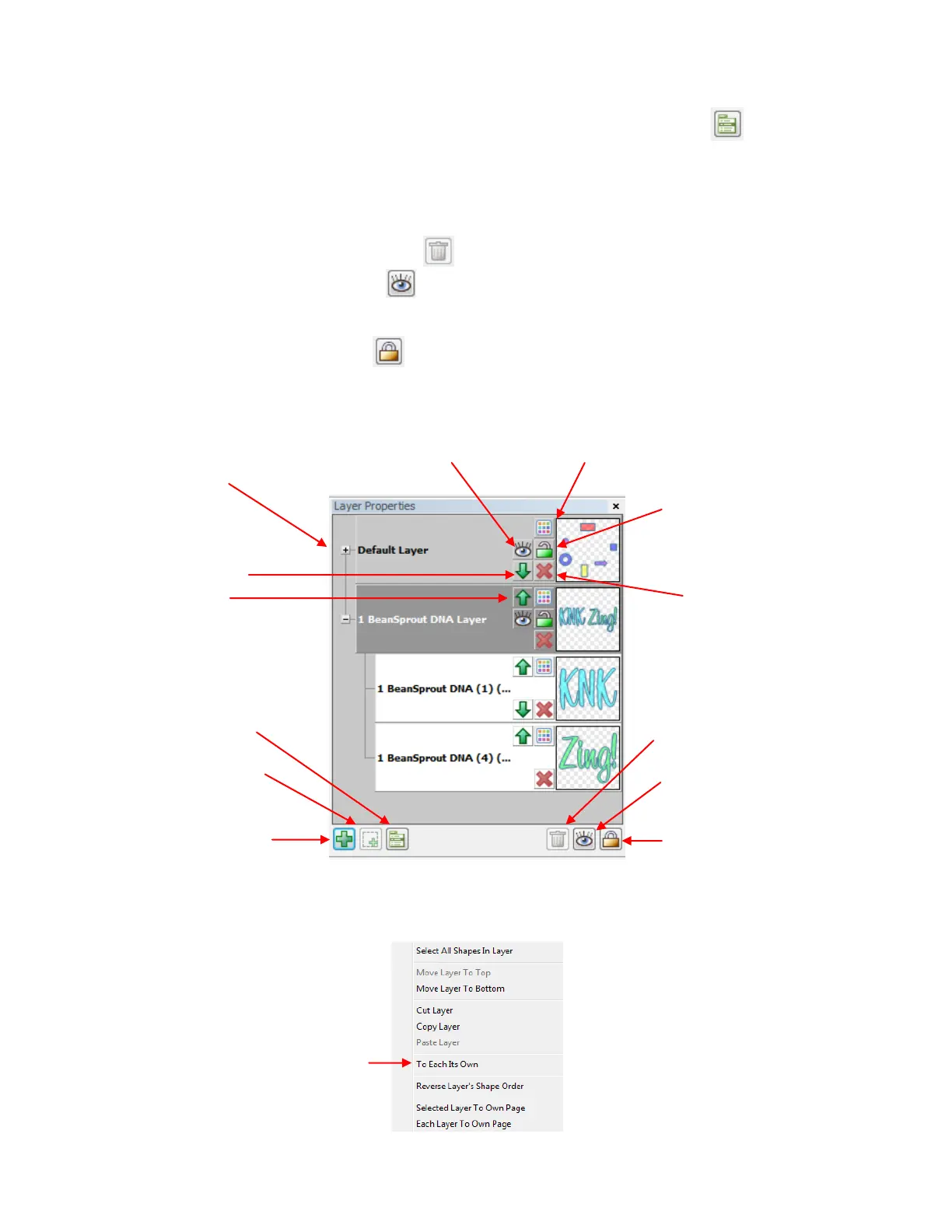
Individual shapes are also assigned to their own layers within a layer, as shown in the screenshot on the
following page. The words “KNK” and “Zing” are individual layers within the layer which displays both words
together.
Three additional features in the bottom right section of the Layer Bar offer the following:
Click on the Delete Empty Layers icon to delete any layers that contain no shapes.
Click on the Visible Toggle menu to offer options to Show All layers, Hide All layers or Toggle
Visible which will reverse the current hide/show status of all layers (i.e. hide layers currently visible and
unhide layers that are currently not visible).
Click on the Lock Toggle menu to offer options to Lock All layers, Unlock All layers or Toggle
Lock which reverses the current lock/unlock status of all layers (i.e. unlock layers currently locked and
lock layers that are currently unlocked).
Right click on a Layer Name (or select the layer and then click on the Layer Options Menu icon) and the
following menu will open:
Layer Name (also
shows number of
shapes on layer)
Hide Layer (or Show Layer)
Set Color for All Shapes in Layer
(also Texture and Line Style)
Lock Layer (or Unlock
Layer)
Most of these options are self-
explanatory.
This option will move every
shape on the selected layer
to its own new layer (no
longer within that selected
layer)



 To Next Page