The Wrap Object to Path can be used for other designing applications, one of which is shown in Section
8.05.
5.08 Fitting Text to Paths
A different function, the Bézier Warp, can also be used to fit text to a circle or to fit text to a custom
designed path.
As before, type the letters you wish to fit to a circle using the method described in Section 5.03. The text
created in Section 5.04 will again be used. Note that the lettering can be welded or not. And if not welded,
the letters can be Split by Glyphs or not:
With the title selected, open the Bézier Warp window using one of the following ways:
Click on the Bézier Warp icon on the Magic Toolbar
Press Ctrl+T
Right click on the screen and choose Shape Magic>Bézier Warp from the menu
Go to Edit>Shape Magic>Bézier Warp.
Closed Path in Bézier Warp
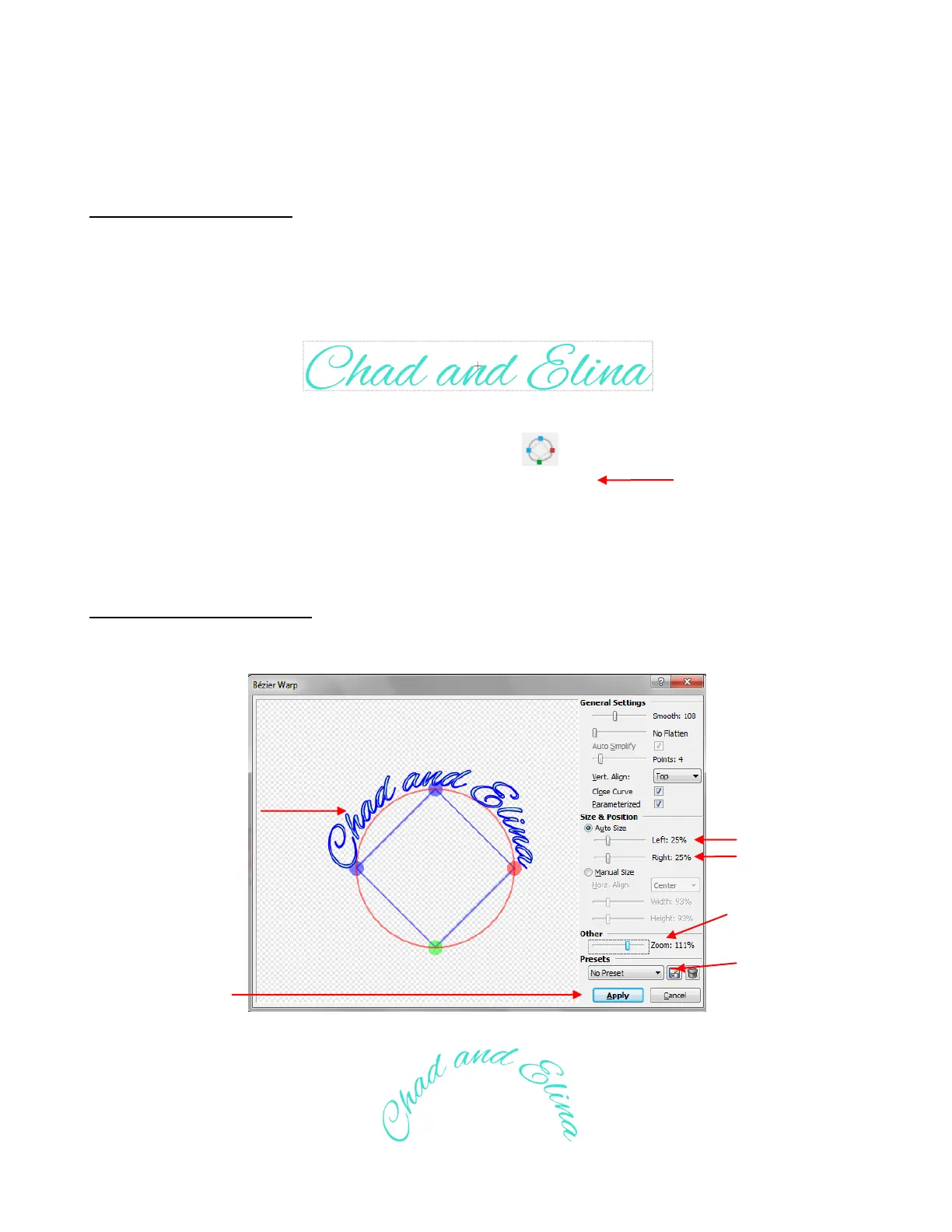
In the first example, the text is fit to a circular shape and the Auto Size option is chosen. Note that the
Manual Size option could also have been used and will be selected in the example after this one:
Click on Apply when
done.
Scroll these two
settings to 25” to
fit text halfway
around circle.
Click on Apply
when done.
Text will initially be
wrapped around
entire circle. But after
adjusting Size &
Position, text will
appear like this.
Option to save
current settings
Option to zoom
preview image



 To Next Page