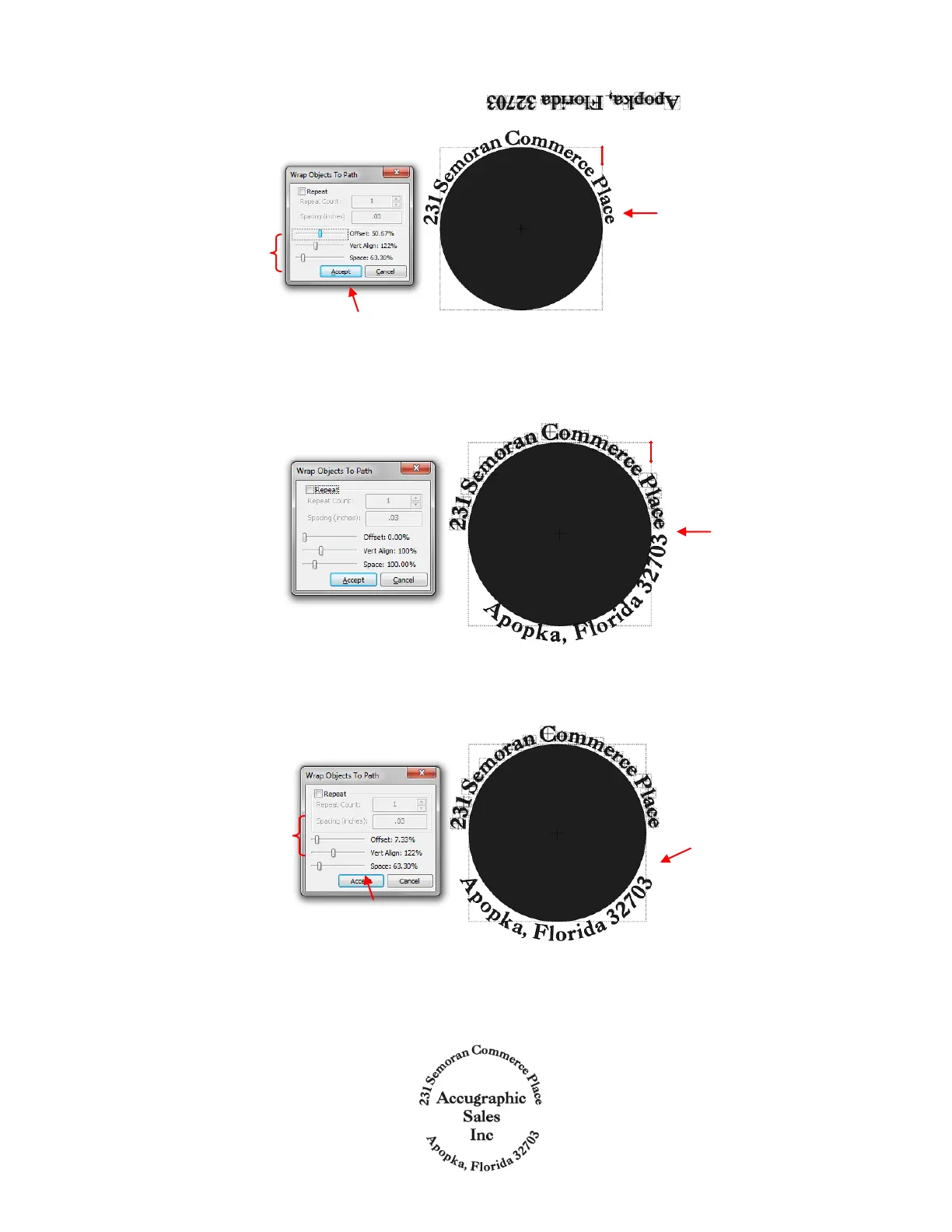
After clicking on Accept, the second half of the text is selected and, again, moved to the center of the circle
while holding the Ctrl key:
Adjust the Vert. Align and the Space settings to match what was used for the top half. Then change the
Offset to align second half of text along the bottom half of the circle.
Click on Accept when done. Add other shapes, as desired. In this case the company named was added to
the center:
Note the Vert. Align
and Space settings are
identical to what was
used for the top half.
Second half of text is now
aligned along bottom of
circle.
Text is now spaced
and positioned along
top half of circle.
Click on Accept
when done.
Adjust settings and write
down the Vert. Align and
Space settings.
Click on Accept
when done.
Second half of text
shows up with
correct orientation
for the lower half of
the circle.



 To Next Page