Hovering your mouse over any of the screen icons will pop up the icon’s name and/or function and shortcut
key. Identification of these icons is also presented in Sections 3.02, 3.03, and 7.06.
Most of the bars and toolbars may be moved to different locations on the screen. Hold down the left mouse
button on the gray dots along the left side of the bar or toolbar and drag. To position these bars and
toolbars vertically, drag to the left or right edge of the screen.
Shapes are the objects or images that you will be adding to your projects. They can be created from scratch
or imported from other sources. As you will see throughout sections in this user manual, you have many
options and resources available to you!
The Caret indicates where an imported or pasted shape will be placed and the height of that shape. To
move the Caret, double click at any desired location on the screen. The size of the Caret can be changed
on the Virtual Mat tab (refer to Section 3.04).
The Notes Window (also called Project Notes) is opened from View on the Menu Bar. This is used to
provide information such as instructions or Terms of Use, and to attach files. Refer to Section 8.10.
There is also a Lettering Delights window that can be opened from View on the Menu Bar. When you first
open MTC, a popup may ask you if you want to open this window. For details about the Lettering Delights
function, refer to the last part of Section 4.07.
Not all of the functions in MTC appear as icons. Thus, check the subheadings within the Table of Contents
to find more functions to use in designing your cutting files.
3.02 Toolbars
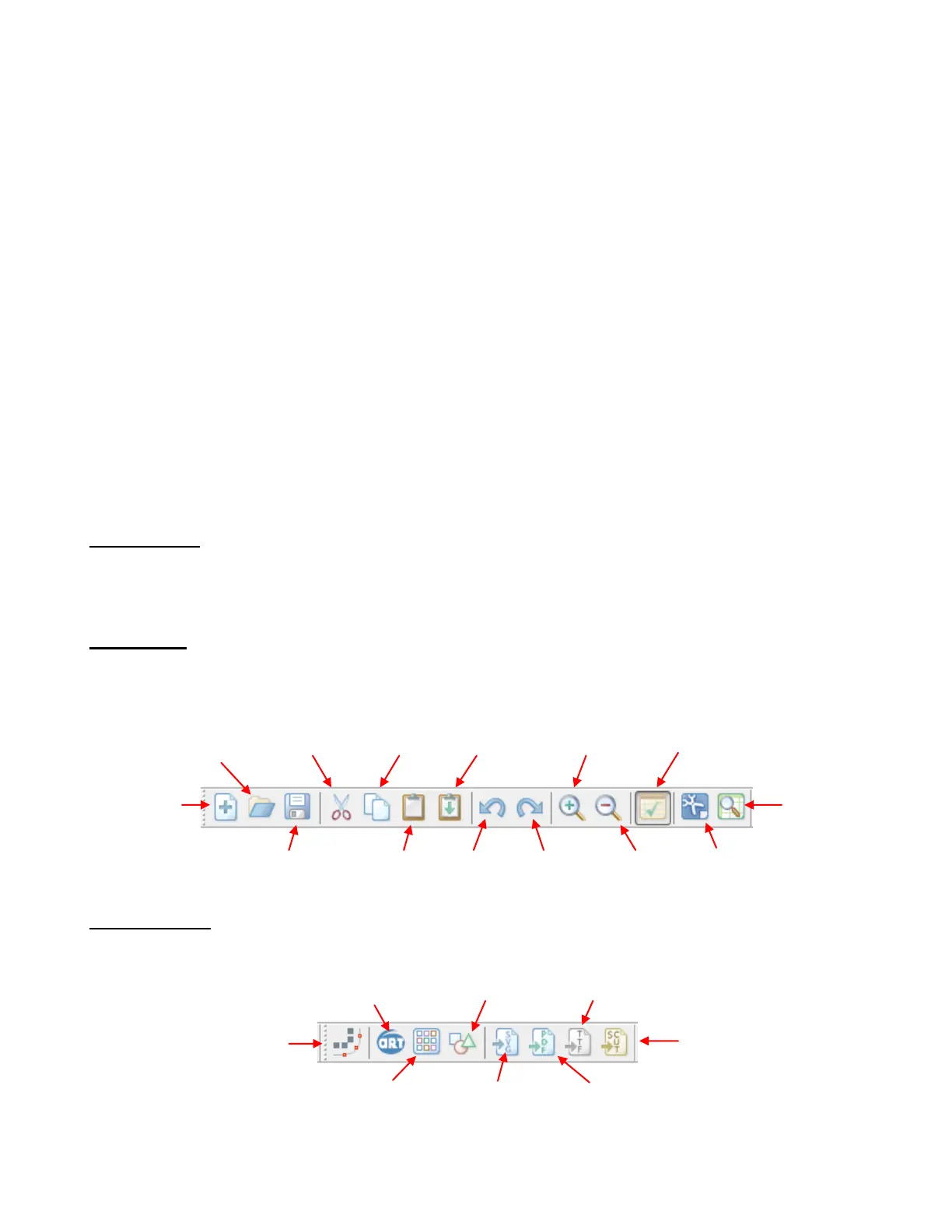
There are four toolbars in MTC: File, Import, Magic, and Node Mode. In this section, only the individual icons
will be identified. To learn more about using the functions, refer to the user manual sections indicated under the
icons.
File Toolbar
The File Toolbar, by default, is located at the top left of the screen. It can be turned on and off under View
on the Menu Bar.
Import Toolbar
Use the Import Toolbar to import the following file types:
Pixel Trace of JPG,
BMP, TIF, PNG, GIF
Files: 4.08, 6.02
TTF, OTF Font Files:
4.06, 5.02
PDF, AI, EPS, PS Files:
4.04



 To Next Page