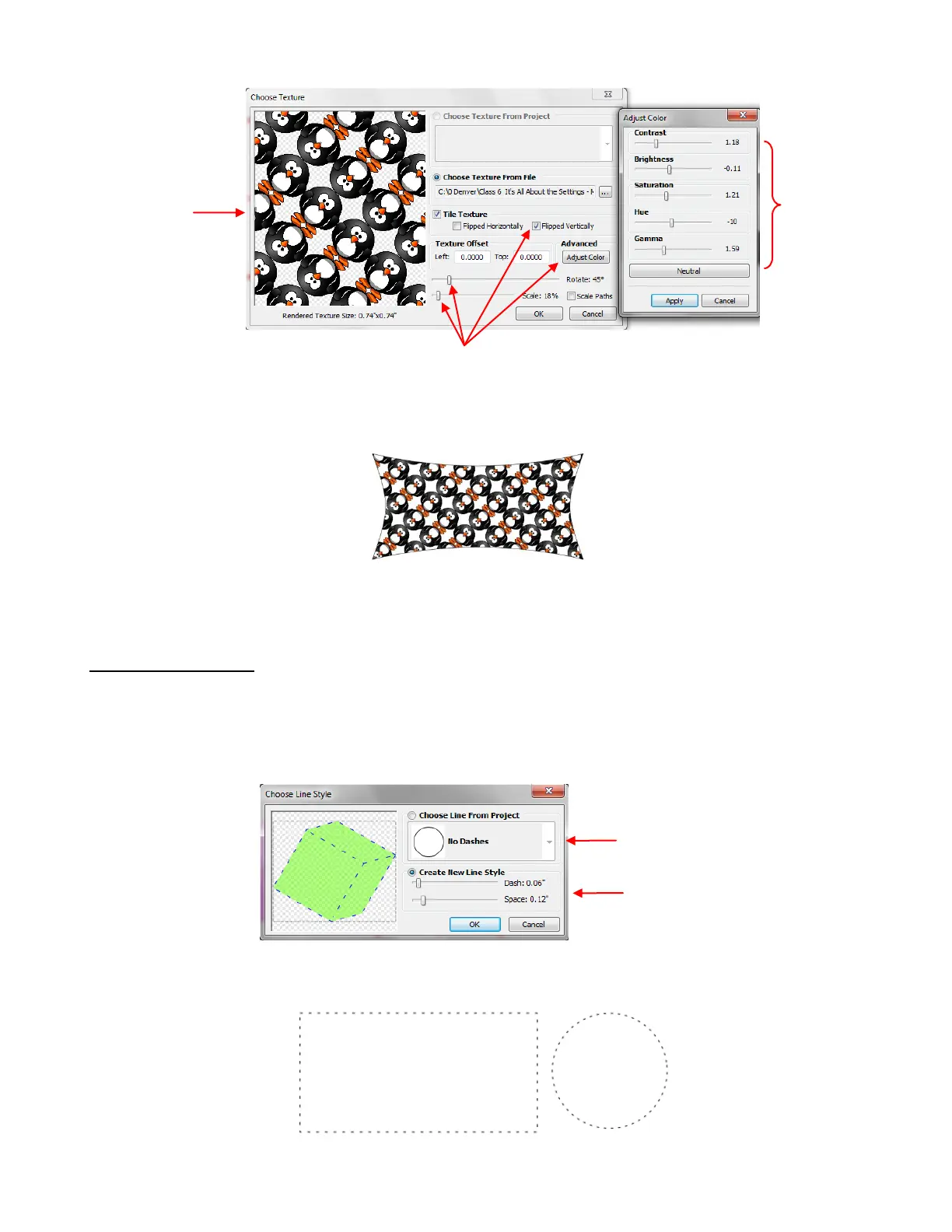
After clicking on OK, the shape fills with the new customized texture:
If you wish to delete the texture from a shape, right click on the shape and select Change
Color/Texture/Line and then select Remove Textures.
Changing Line Style
The Choose Line Style window allows you to create dashed lines instead of solid lines, as needed. Similar
to Choose Texture, the Choose Line Style provides the option to create a new style or you can pick a
Line Style already in use in your current project:
After clicking on OK, your selected shape will appear with the line style you have chosen. Here are two
examples:
Option 1: Select a line style
already present in your project
Option 2: Create a new line style
by setting desired Dash length
and Space between dashes
Preview of how
changes to
settings are
customizing the
texture
Click on Adjust
Color option to
open this
window and
change the color
settings, as
desired
Option to Flip Vertically marked and image rotated 45
degrees, scaled to 18%, and color adjusted.



 To Next Page