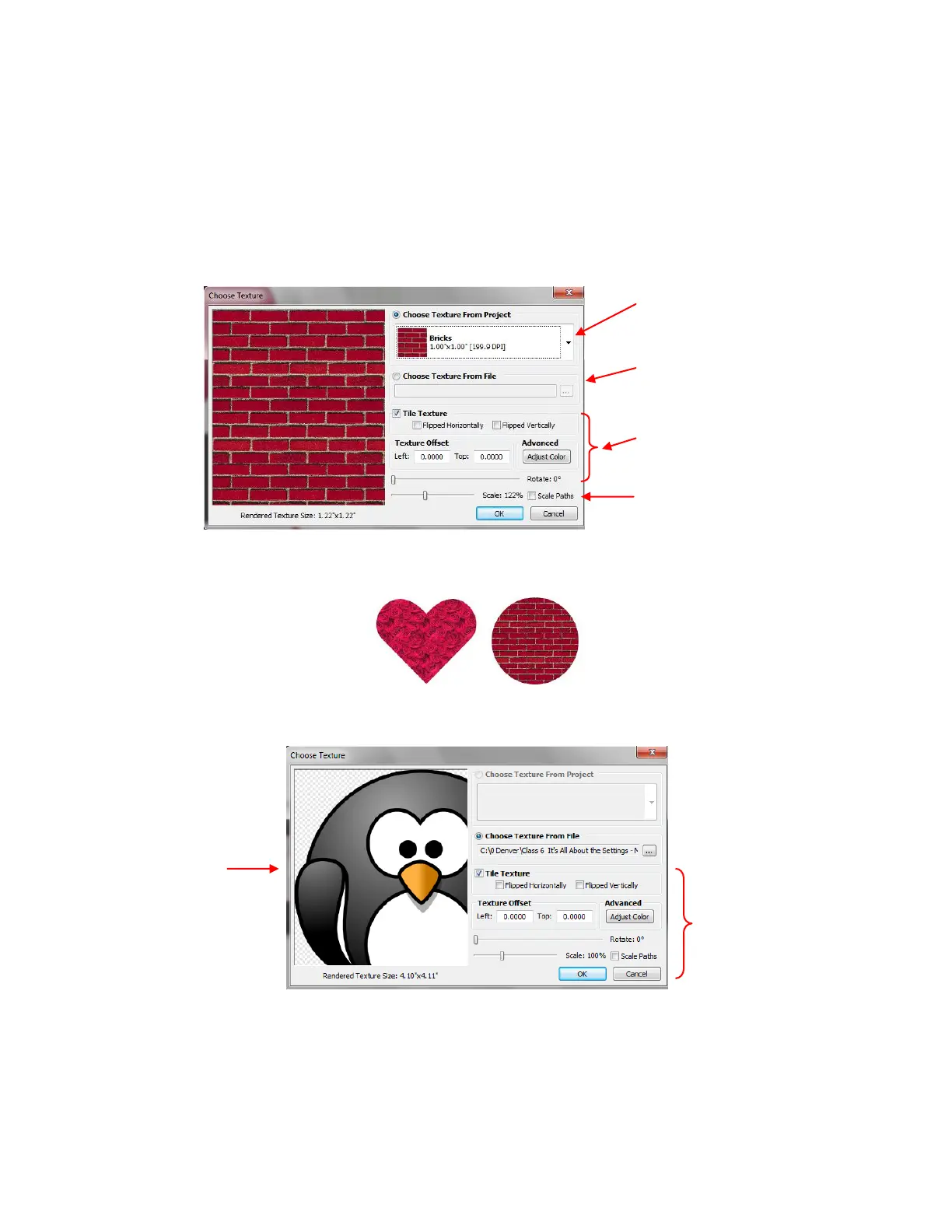
After importing this first texture, or if there was already a texture open in your current project, then the
Choose Texture window opens. In this window, you have options to:
Tile the Texture (fill a shape with a modified version of the texture)
Vertically or horizontally flip the texture
Offset or move the texture within the shape
Adjust the color and brightness of the texture
Resize the texture with or without resizing the shape
After clicking on OK, your selected shape will fill with the texture chosen. Here are two examples:
These are two examples where the shape was filled without scaling down the texture. In this next example,
the text “PENGUIN” was created and then the texture imported is the following penguin image:
To creating a repeating pattern of the penguin, at a much smaller size and with other customizations, the
following changes are made in the Change Textures window:
Option 1: Select a texture already
present in your project.
Option 2: Browse computer to
locate folder and file containing
texture you wish to use.
Settings for the texture include
flipping, rotating, modifying the
color, and offsetting the texture.
Scale: scroll bar resize Texture
Scale Paths: mark box to resize
shape while resizing texture
Preview of
imported image



 To Next Page