As you type the text, it will also appear on the screen at the location and height of the Caret (refer to Section
4.01). After clicking on Accept in the above window, the Add Text Group closes and the text is ready for
any additional editing desired:
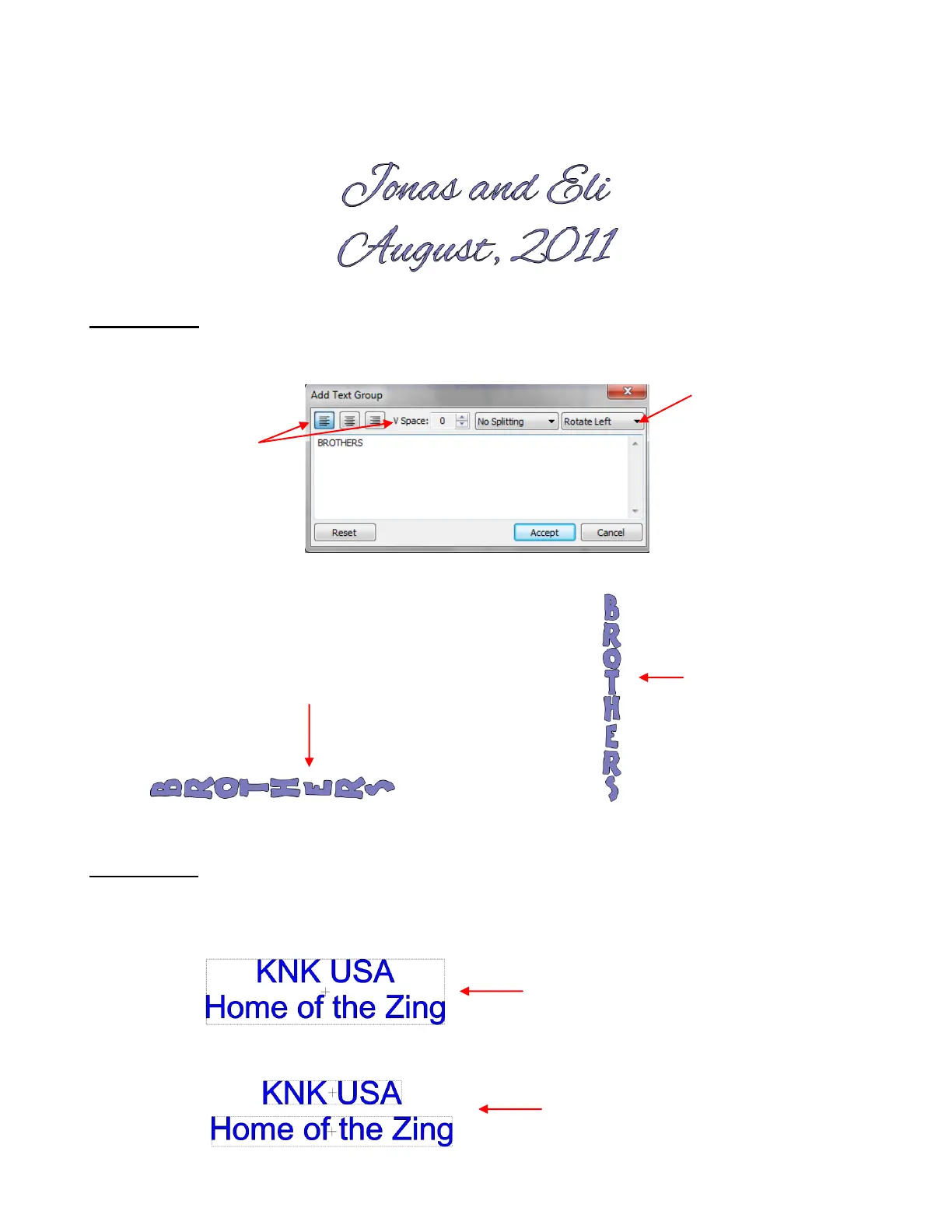
Rotating Text
To create vertical text, select Rotate Left in the Add Text Group window:
Then select the text created and rotate 90
0
(Ctrl+G):
Splitting Text
There are four options in the Splitting drop-down menu:
No Splitting: Entire text is treated as a single shape:
Split by Lines: Individual lines of text will be separate shapes:
Only one line is typed
thus alignment and
vertical spacing does
not matter
Select Rotate Left
from menu and each
individual letter will
be rotated 90
0
to the
left.
Text after clicking
on Accept
Text after
apply Ctrl-G
to rotate
2 shapes, one for
each line of text



 To Next Page