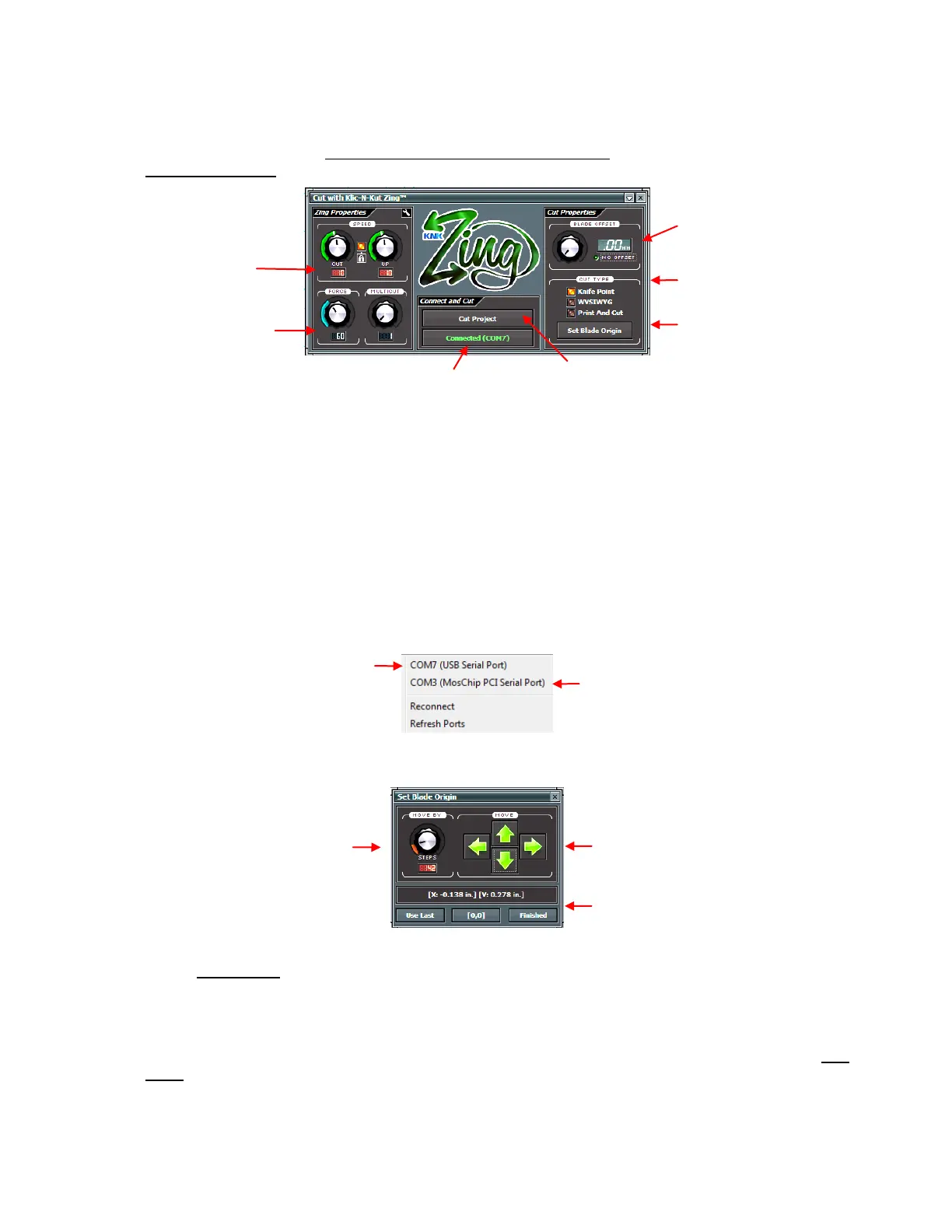
8. To open the cutting control window, go to Cut Project With…>Klic-N-Kut Zing. A new window will
open. This window is covered, in detail, in Sections 2.02-2.08. But for the purposes of this quick tutorial,
make the following changes to the Speed, Force and Blade Offset settings. To change a setting, hold
the left mouse button and drag the dial up or down with your mouse or click on the dial once and then
use the arrow keys on your keyboard to adjust the setting:
9. If, instead of seeing “Connected (COM X)”, you see “Not Connected”, then your computer is not
identifying the Zing. Do the following:
Turn off your Zing. Unplug and reconnect the USB cable at both the Zing and the computer to
make sure the cable is firmly plugged in.
Turn the Zing back on.
Click on the Not Connected button, select Connection (), and select Refresh Ports. Repeat by
going back to this window and then select the connection that says COMX (USB Serial Port). If
there is no option that says USB Serial Port (as shown below), then refer to Appendix B –
Communication Issues.
10. Next, set the origin by clicking on the Set Blade Origin button. The following window will open:
11. Click on the arrow keys to move the pen to the bottom right corner of the paper. You do not have to be
exactly on the corner. In fact, set the pen tip just a little ways in. Then click on Finished to set this new
origin and close the Set Blade Origin window. More details about this window are presented in Section
2.08:
Verify that this button
says Connected.
Click on light button
to turn off Offset
This is the COM port
assigned to the Zing
This is NOT the COM port
assigned to the Zing
Adjust to move in larger
or smaller steps
Click on green arrows to move
the mat in and out of the Zing and
the blade carriage left and right.
Click on Finished to set new
origin.
Click here, after setting origin,
to cut your shape.
Open Set Blade Origin
window here
IMPORTANT: In Knife Point mode, you will use the tip of the pen (or tip of the blade) to set
the origin, not the laser light (which is used in the WYSIWYG or Print and Cut modes.



 To Next Page