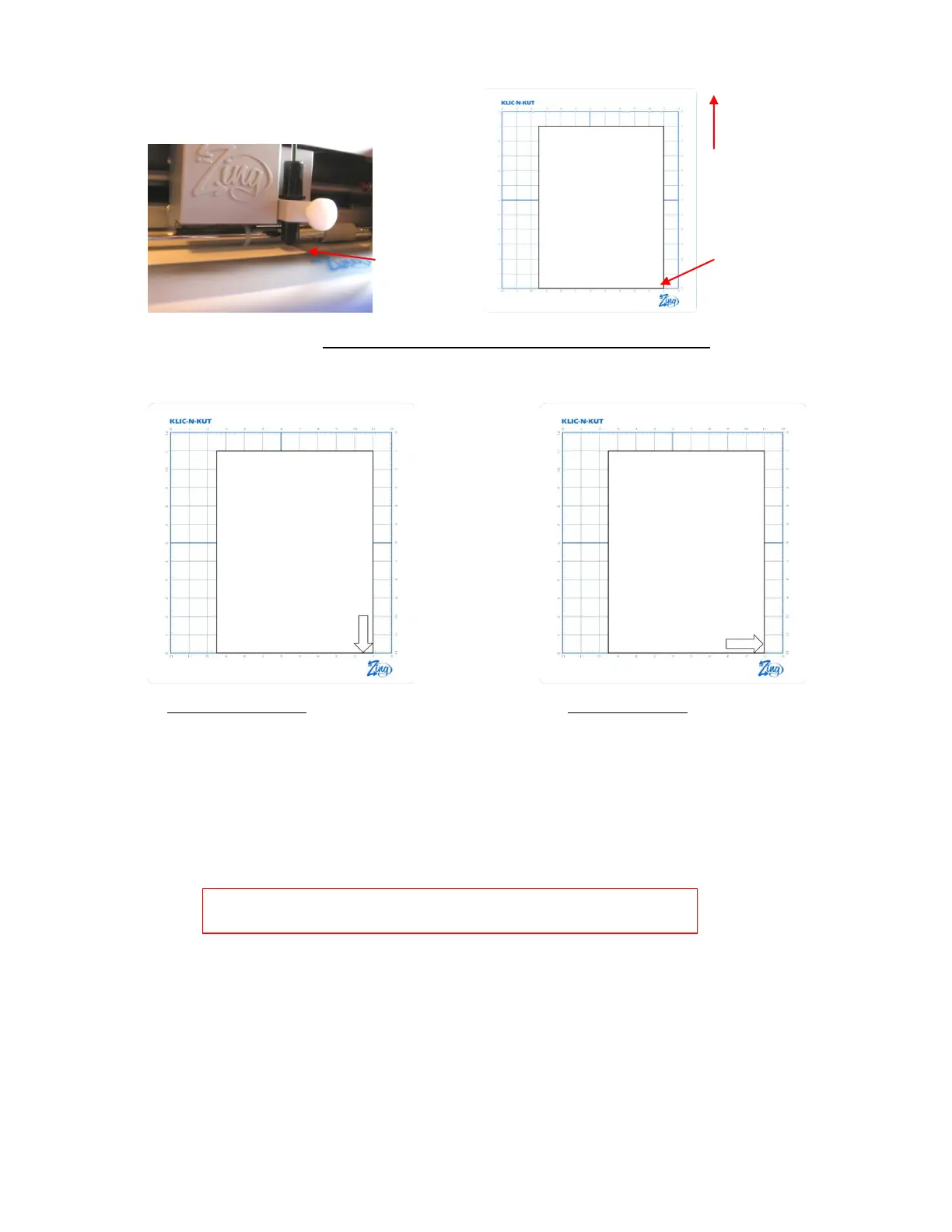
12. Click on Cut Project and your arrow shape will be drawn at the new origin you set. After the cut is
complete, the cut window will close. Your arrow will be drawn as shown, with the direction related to
whether you originally chose Landscape or Portrait for your virtual mat:
13. To draw again, return to the cut window and choose a different origin. Practice moving the origin to
different locations. This is how Knife Point mode works. If you want the image to draw where you have
it on the Virtual Mat, then you need to switch to WYSIWYG mode and use the laser to set the origin
versus the tip of the pen. Refer to Section 2.07 for more details on controlling where images will cut.
Move pen tip to
this corner of the
paper.
Move the pen tip
to this corner of
the paper.
Feed the mat this
direction into the
Zing
Landscape Virtual Mat:
The arrow will be pointing downwards.
Portrait Virtual Mat:
The arrow will be pointing to the right.
IMPORTANT: Please read Section 2.01 before cutting!



 To Next Page