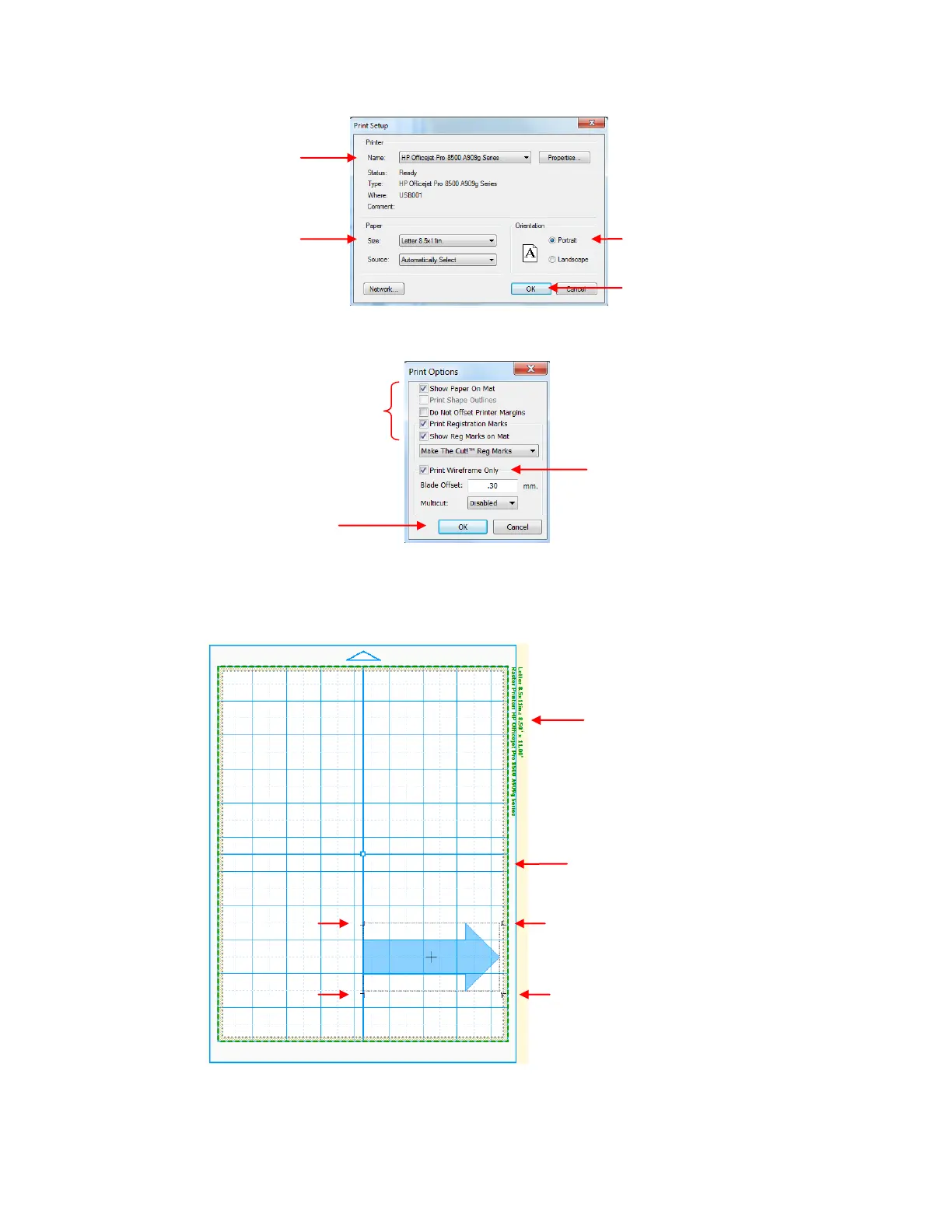
Next, go to File>Print Setup, select the printer you plan to use, and set the Orientation to Portrait:
Next, go to File>Print Options and mark the following boxes:
After clicking on OK, you should see the green borders on the Virtual Mat, indicating how the printout will
be placed on the mat and where the arrow will be printed. If the arrow is outside the green borders, move it
so that it falls within the boundaries:
Go to File>Print Preview and you will be able to see the arrow plus the four registration marks which
should be aligned with the boundaries of the arrow:
Information about your current
printer settings is shown here.
Green dashed lines indicate the part
of the screen that will be printed.
Check this option if you want
an outline only of the arrow
printed (to save on ink!)
Four registration
marks should appear
at the corners of the
bounding box.



 To Next Page