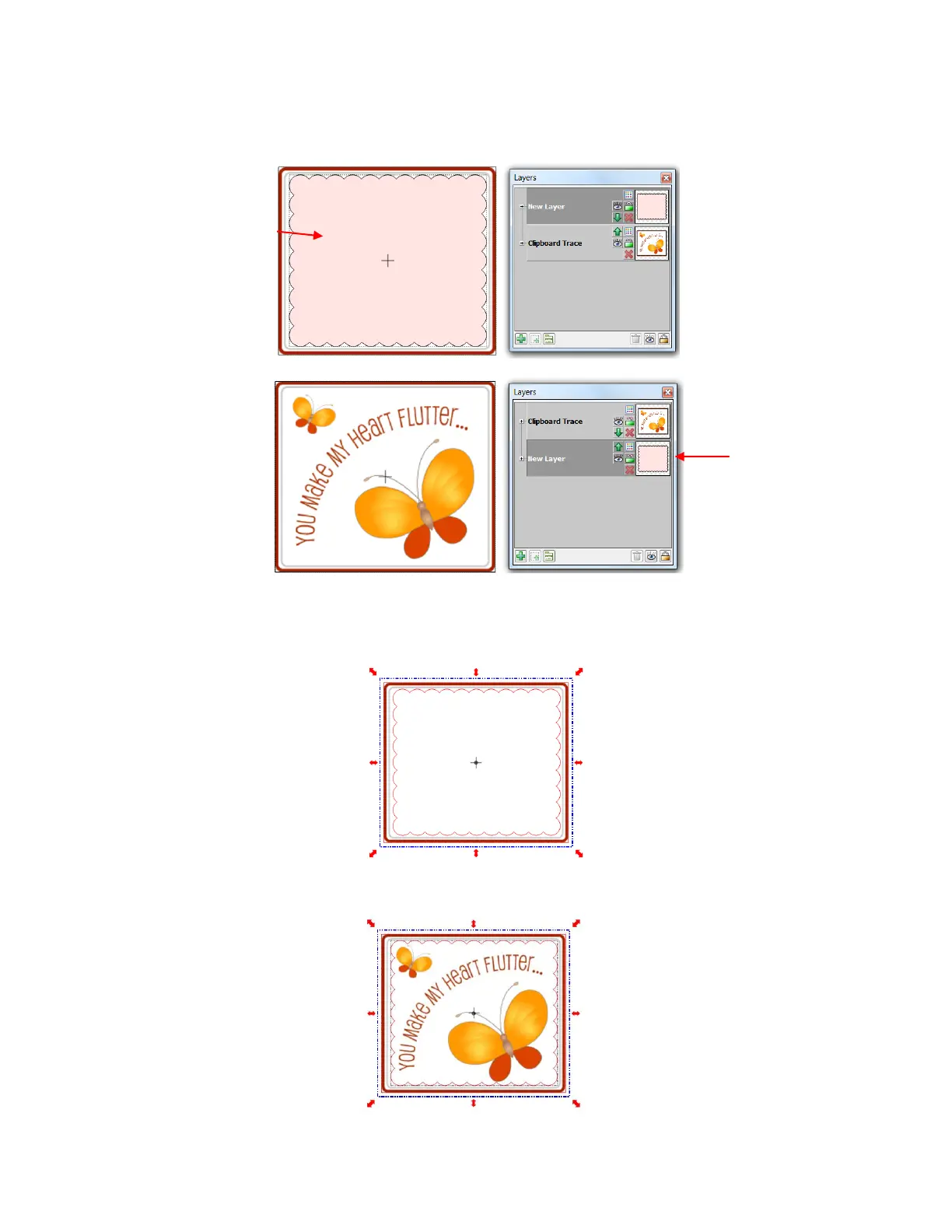
Since anything outside of the scallop will not be needed, that part will be eliminated. This is done by first
arranging the scallop over the image and then moving the scallop layer to its own layer and to the bottom on
the Layers Bar:
Next, marquee-select both the original image and the scallop (or use Ctrl+A to Select All) and then apply
the Join function from the Magic Toobar. The scallop will now appear on top:
Immediately apply the Break function from the Magic Toolbar. The original image now appears but with the
scallop shape around it:
Click elsewhere on the screen so nothing is selected. Then click on the image and drag one image away
from the other:
Scallop is moved to
the bottom layer so
that it is behind
original image.
A scallop shape is
added and aligned,
as desired.



 To Next Page