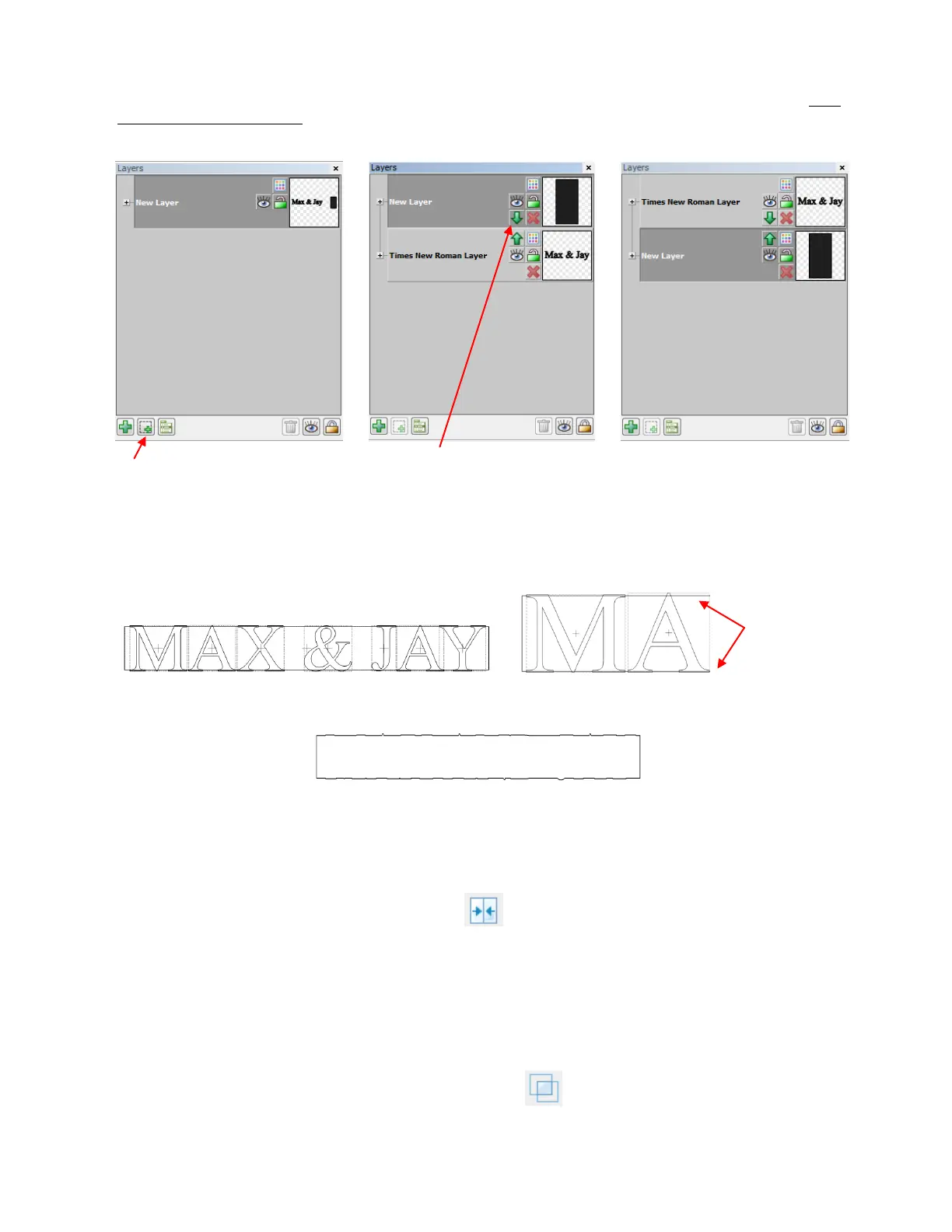
It will also be easier to select individual letters if the rectangle is on its own layer and below the text. With
only the rectangle selected, click on the Selection to New Layer icon (at the bottom of the Layers Bar) and
then move the rectangle layer so that it is below the text layer:
Resize the rectangle to be wide and thin so that the letters extend a little above and below it. Then resize
and respace individual letters, as needed, to overlap the rectangle. Remember to zoom in for a closer look
at the overlap:
If the regular weld tool were applied at this point, the letters would disappear, with the exception of the tiny
overlaps at the top and the bottom:
Thus, an alternative type of weld must be applied. The one to use is part of the Boolean Join options (Refer
to Section 8.03 for more details on the Boolean Join). But before the Boolean Join can be used, you must
reduce the number of individual shapes to just two: the letters (as one single shape) and the rectangle. To
combine the letters to be treated into a single shape, click on the preview of the text layer on the Layer Bar
and then apply the Join function, which can be accessed in any of the following ways:
Click on the Join icon on the Magic Toolbar
Press Ctrl+J
Right click on the screen and choose Shape Magic>Join from the menu
Go to Edit>Shape Magic>Join.
Now marquee-select both the rectangle and the letters and bring up the Boolean Join menu, using any of
the following:
Click on the Boolean Join icon on the Magic Toolbar
Press Ctrl+U
Right click on the screen and choose Shape Magic>Boolean Join from the menu
The selected rectangle is moved to
its own layer by clicking on Selection
to New Layer icon.
Then, the layer with the rectangle
is moved below the layer with the
text by clicking on the down arrow
on that layer
Now the two shapes are on
separate layers with the text above
the rectangle
Zoom in to verify
the overlap and
adjust individual
letters, as needed.



 To Next Page