Load a transaction setup
When you load a transaction setup, you make it active. You can only load a transaction setup
when transaction printing is offline or when you press the stop button on the control panel.
(
Learn about transaction setups
on page 112)
NOTE
In PRISMAproduction you can attach a transaction setup to a job ticket. When the data stream
uses this job ticket, the attached transaction setup is automatically loaded for the next data
stream.
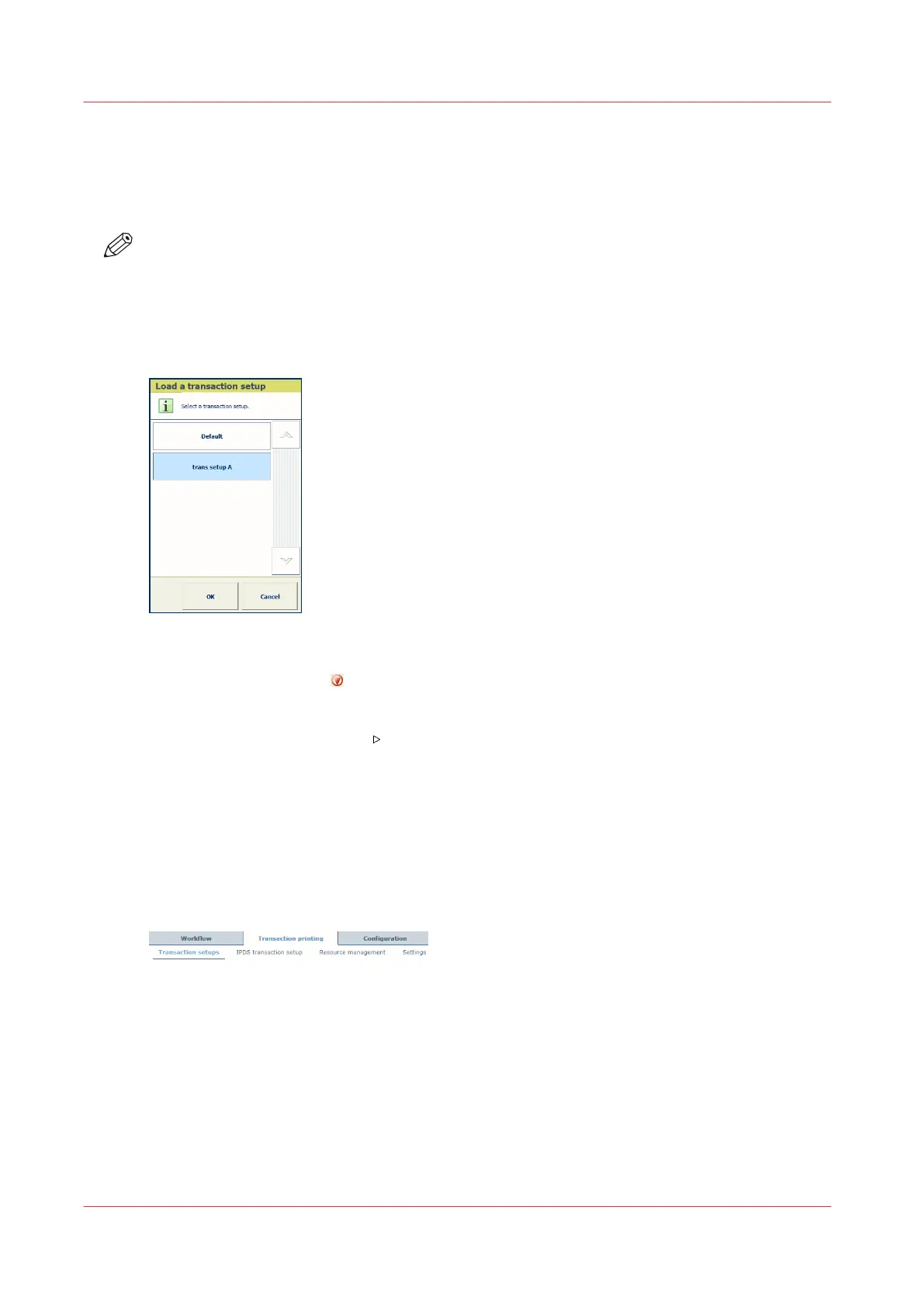
Load a transaction setup on control panel
[129] Load a transaction setup
1. Touch [System]→[Transaction].
2. Press the Stop button .
3. Touch [Active transaction setup] option and select one of the available transaction setups.
4. Click [OK].
5. Touch the [Resume] button
.
Load a transaction setup in Settings Editor
You load a transaction setup in the following situations.
• You want to apply another transaction setup than the active (loaded) transaction setup.
• You want to apply the changes of an active (loaded) transaction setup. You can read the status
of the [Modified] column to see if a transaction setup must be loaded again.
1. Open the Settings Editor and go to: [Transaction printing]→[Transaction setups].
[130] [Transaction setups] tab
2. Ensure transaction printing is offline. (
Activate the transaction printing mode
on page 109)
3. Select one of the available transaction setups.
4. Click [Load].
Load a transaction setup
114
Chapter 7 - Transaction printing


 To Next Page
 Loading...










