Delete print jobs
You can remove print jobs before or after they are printed.
For security reasons, the system administrator can enable the E-shredding option. E-shredding
overwrites the deleted job data and prevents the data recovery of a removed job.
When the control panel shows the printed jobs, you can reprint jobs. Printed jobs can
automatically be removed by the printer after a certain storage period. When the printer does not
remove printed jobs automatically, remove these jobs manually to prevent a full system disk.
Jobs that have not been printed completely and proof prints do not come in the list of printed
jobs.
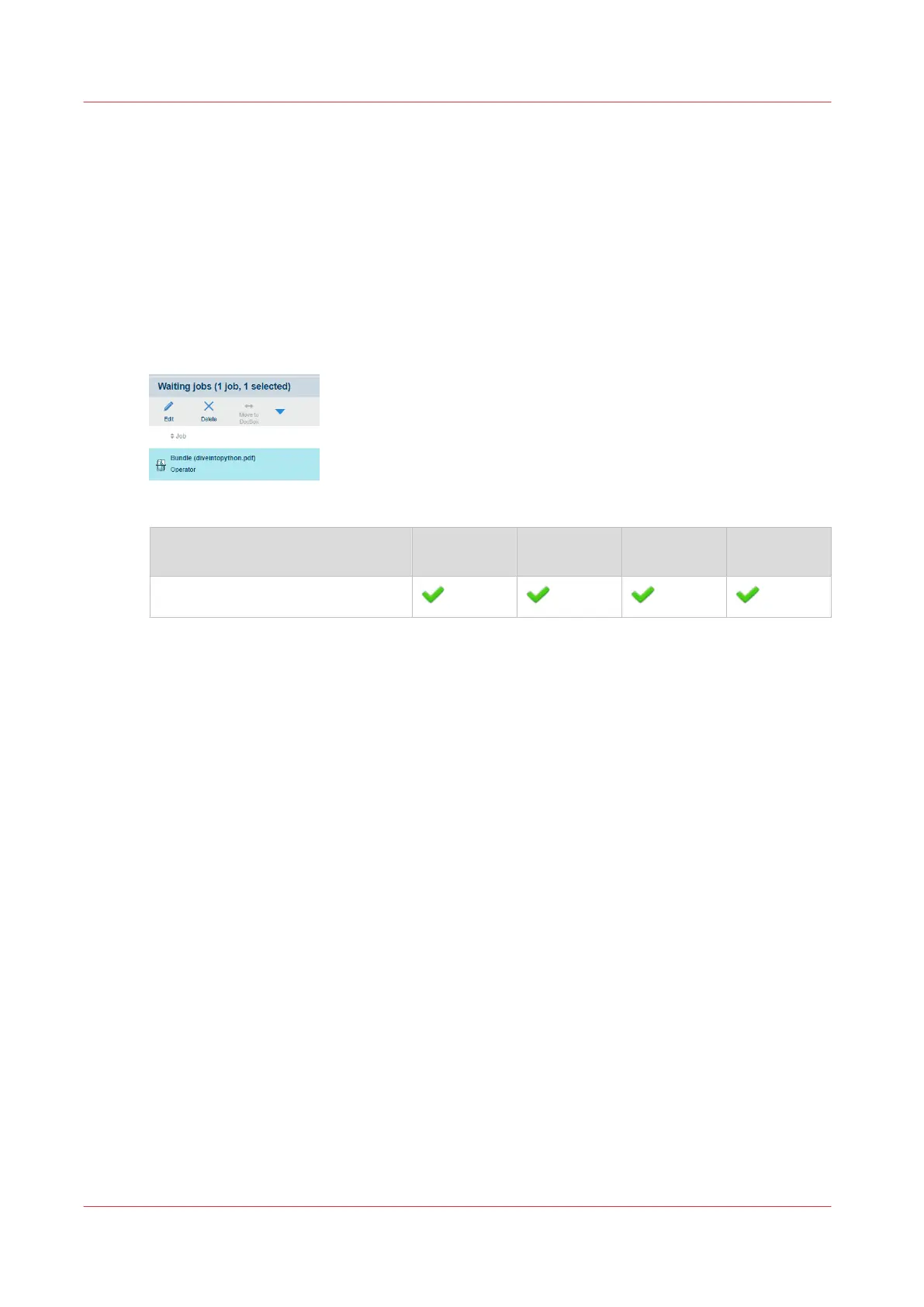
[211] Delete jobs
Function Scheduled
jobs
Waiting jobs DocBox Printed jobs
[Delete]
1. Go to the location of the job.
2. Tap the jobs, or use an option from the [Select] menu. (
Find, select, and filter jobs
on
page 162)
3. Touch [Delete].
4. Confirm the deletion action.
Delete print jobs
170
Chapter 8 - Document printing


 To Next Page
 Loading...










