Software Version C
- 108 -
optek-converter C4101 Version 07.2009_1.2US, 23.07.2009
www.optek.com
9.10.7 Product change
With this function, you can determine whether product change is carried out
manually or via an external control system (remote) on converters C4121,
C4221, C4222, C4322 and C4422 or via PROFIBUS
®
on converters C4151,
C4251, C4252, C4352 and C4452.
1. Select SYSTEM SETTINGS from the main menu and press [ENTER].
2. Select PRODUCT CHANGE and press [ENTER].
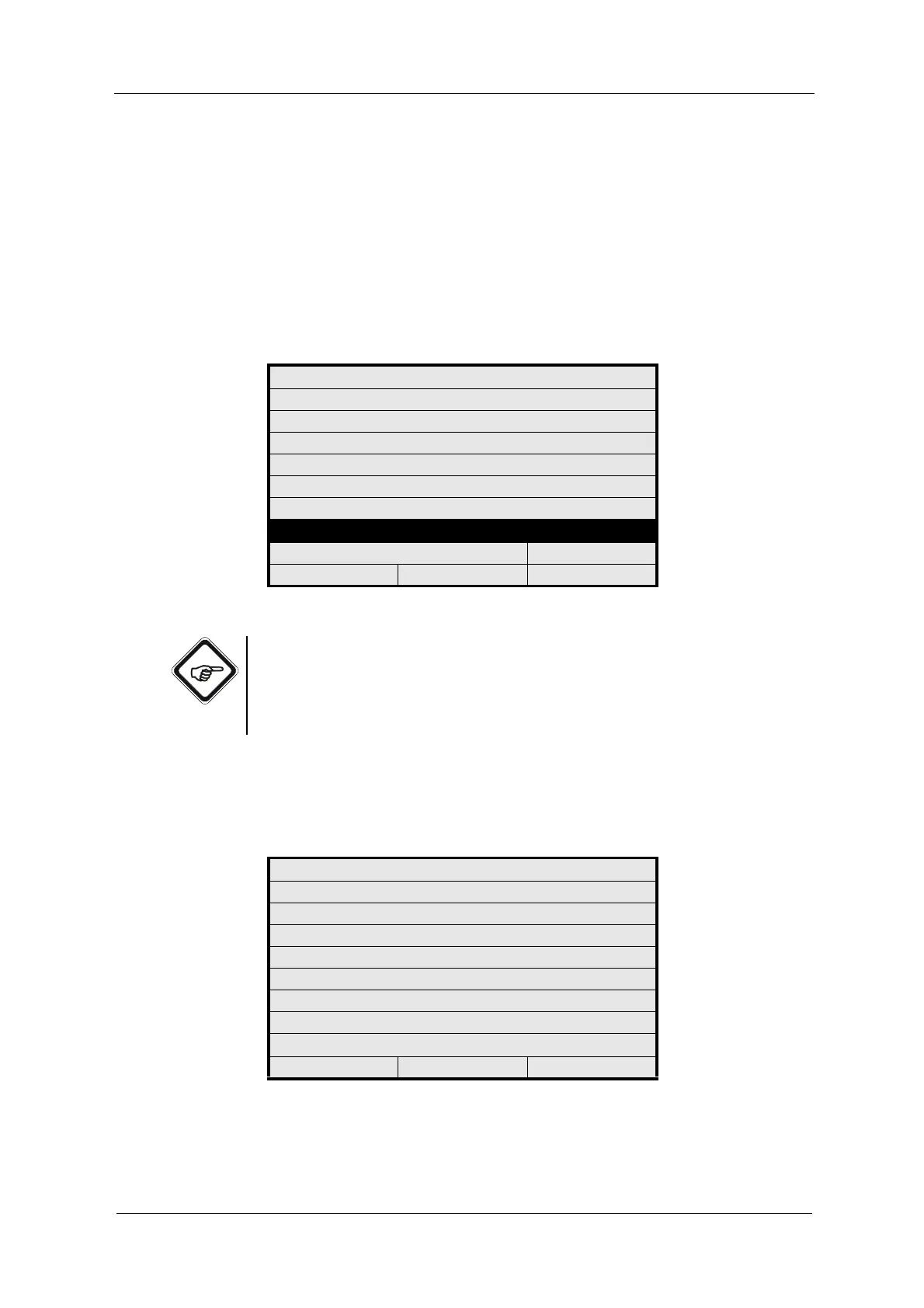
Fig. 109 Menu system settings, choosing product change
Note!
• To prevent a change of product setting, set MANUAL and REMOTE to
NO.
• If you want the product change to be solely possible via the control
system, set MANUALLY to NO and REMOTE to YES.
3. Select MANUALLY and press [ENTER]. Select YES or NO and press
[ENTER].
The cursor moves to the REMOTE menu item.
4. Press [ENTER]. Select YES or NO and press [ENTER].
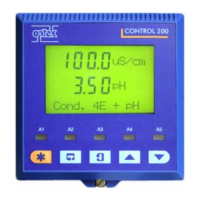
Fig. 110 Setting the product change mode
5. Save the settings. The SYSTEM SETTINGS menu appears.
SYSTEM SETTINGS
DISPLAY
DATE / TIME
DATA LOGGER
DAMPING
LAMP VOLTAGE
SYSTEM ZERO POINT
PRODUCT CHANGE MA
SENSOR TF
20:05:2006 P01 11:26:55
SYSTEM SETTINGS
PRODUCT CHANGE CONFIRMED:
MANUALLY: YES
REMOTE: YES
REJECT P01 SAVE



 To Next Page