Software Version C
- 45 -
optek-converter C4101 Version 07.2009_1.2US, 23.07.2009
www.optek.com
9.4.2 System settings - date / time
1. Select SYSTEM SETTINGS from the main menu and press [ENTER].
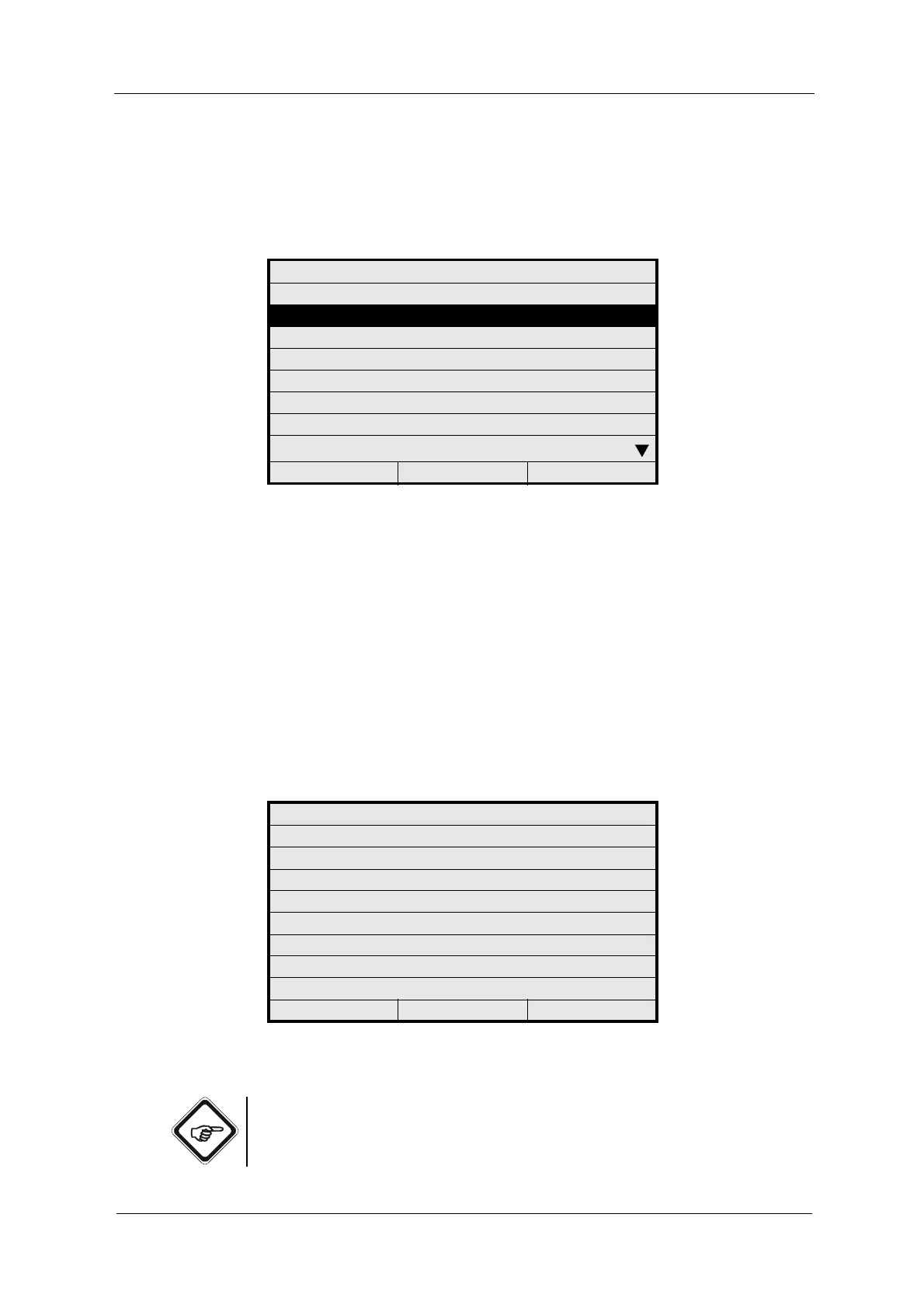
2. Select DATE / TIME and press [ENTER].
Fig. 34 Menu system settings, choosing date / time
3. Select FORMAT DATE and press [ENTER]. A list appears. Select the
desired format TT.MM.JJJJ or MM/DD/YYYY from the list.
4. Press [ENTER]. The cursor automatically moves to SET DATE.
5. Press [ENTER], type in the date via the numerical keyboard (from 1998 to
2050) and press [ENTER]. The cursor automatically moves to FORMAT
TIME.
6. Select the desired time format 23:59:59 or 12:59:59PM.
7. Press [ENTER]. The cursor automatically moves to SET TIME.
8. Press [ENTER], type in the time via the numerical keyboard and press
[ENTER].
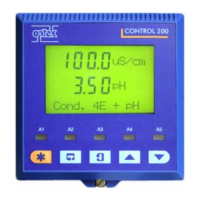
9. Save the entry. The SYSTEM SETTINGS menu appears.
Fig. 35 Entering date / time
Note!
Changes of date and / or time lead to a new storage sector in the data logger
and trend!
SYSTEM SETTINGS
DISPLAY
DATE / TIME
DATA LOGGER
DAMPING
LAMP VOLTAGE
SYSTEM ZERO POINT
PRODUCT CHANGE
SENSOR TF
20:05:2006 P01 11:26:55
SYSTEM SETTINGS
DATE / TIME SETTINGS
FORMAT DATE: MM/DD/YYYY
SET DATE:
FORMAT TIME: 23:59:59
SET TIME:
REJECT P01 SAVE



 To Next Page