Software Version C
- 71 -
optek-converter C4101 Version 07.2009_1.2US, 23.07.2009
www.optek.com
9.5.4.2 Linearization - define tables
With this function, you can define the linearization in a table with up to 11 sets
of points.
The points are linked by straight lines thus defining the shape of linearization.
The distance of the points can be varied so as to optimally adjust the
linearization to the requirements. With this function, you can convert measuring
results measured in concentration units (CU) to your desired units.
1. Select the menu item 01: for the first point in the LINEARIZATION menu and
press [ENTER].
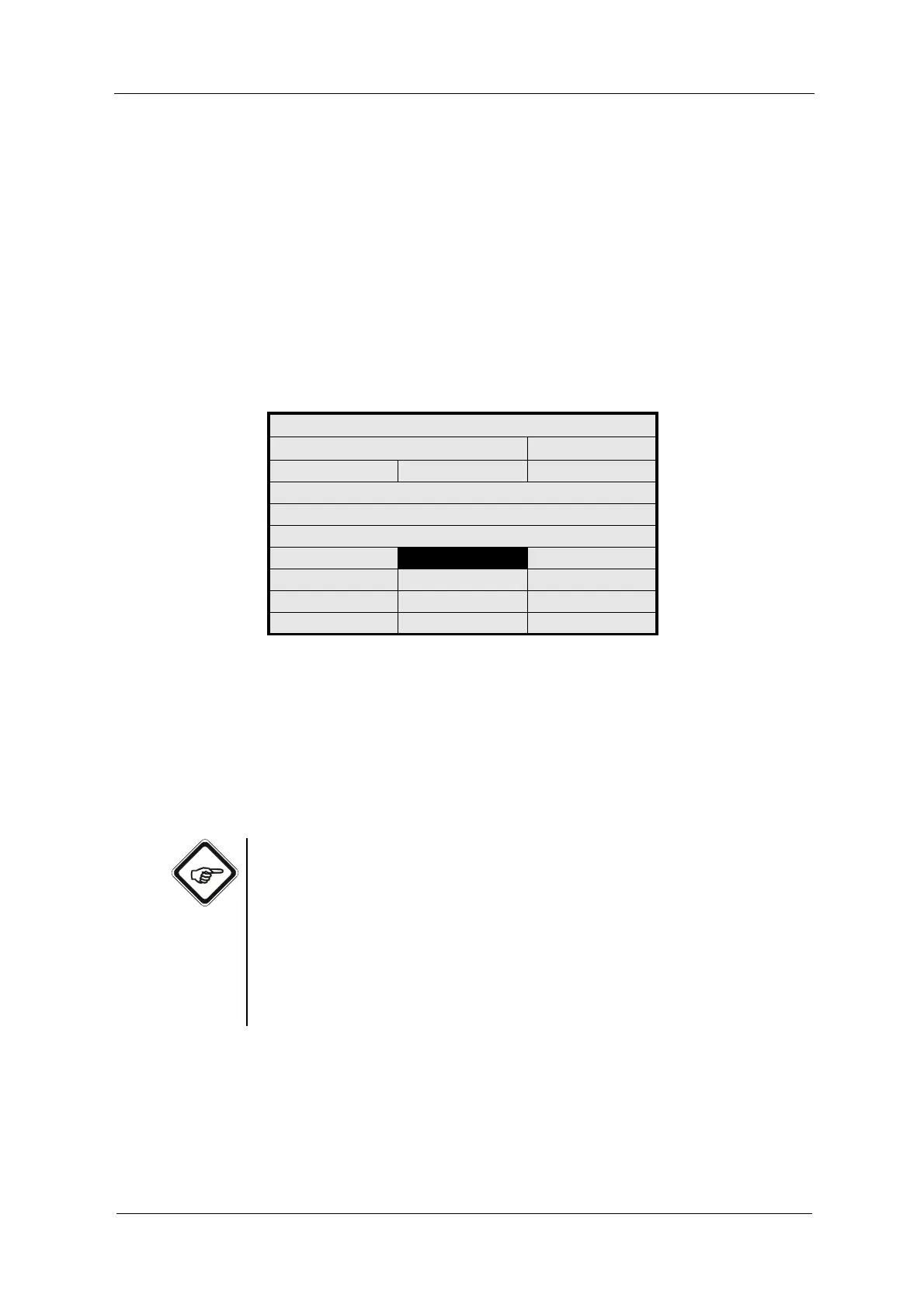
Fig. 63 Linearization – define tables
2. Via the numerical keyboard, enter the in value of the first point to be
corrected in the first line "01". Press [ENTER]. The cursor moves to the out
value of the first point.
3. Enter in the first line "01" the out value via the numerical keyboard. This is
the value to which the in value is to be converted. Press [ENTER].
4. Enter the IN and OUT values for the remaining products.
Note!
The curve shape must increase or decrease continuously! You can enter the
points in an arbitrary order since the software automatically sorts the entries if
necessary.
Horizontal, vertical or zigzag curves are not permitted. After confirming every out
value, the software checks all points. If a value pair is not correct, the error
message "Input causes undefined result" appears. Close the error message by
pressing [CLEAR]. The entry changes to the value pair which has triggered the
error message.
LINEARIZATION: 01
DEFINE NAME:
L01
IN OUT
01: 0.0000 0.0000
02: 1.0000 1.0000
03:
REJECT P01 SAVE



 To Next Page