Software Version C
- 120 -
optek-converter C4101 Version 07.2009_1.2US, 23.07.2009
www.optek.com
3. A new menu appears. The cursor is located on the function selection for
"Hold". Press [ENTER]. A list appears. Select HOLD 1 or HOLD 2 and press
[ENTER].
4. The cursor moves to the HOLD ENABLED MANUALLY menu item. Press
[ENTER], select YES or NO, and press [ENTER] again. If switching on the
hold function at the converter shall be possible, select YES.
5. The cursor moves to the menu item HOLD ENABLED REMOTE for
converters C4121, C4221, C4222, C4322, C4422, C4151, C4251, C4252,
C4352 and C4452. Press [ENTER], select YES or NO, and press [ENTER]
again. If switching on the hold function at the control system shall be
possible, select YES.
6. The cursor moves to the HOLD MESSAGE ON MEASUREMENT DISPLAY
menu item. Press [ENTER], select YES or NO, and press [ENTER] again.
If you want the HOLD message to appear in the measurement display,
select YES. If you have selected the HOLD 1 function, we recommend to
select YES in this case.
Additionally, the time when HOLD was enabled is displayed. To delete the
HOLD message, press [CLEAR]. The HOLD message appears again after
30 seconds.
7. Save the setting. The SYSTEM SETTINGS menu appears.
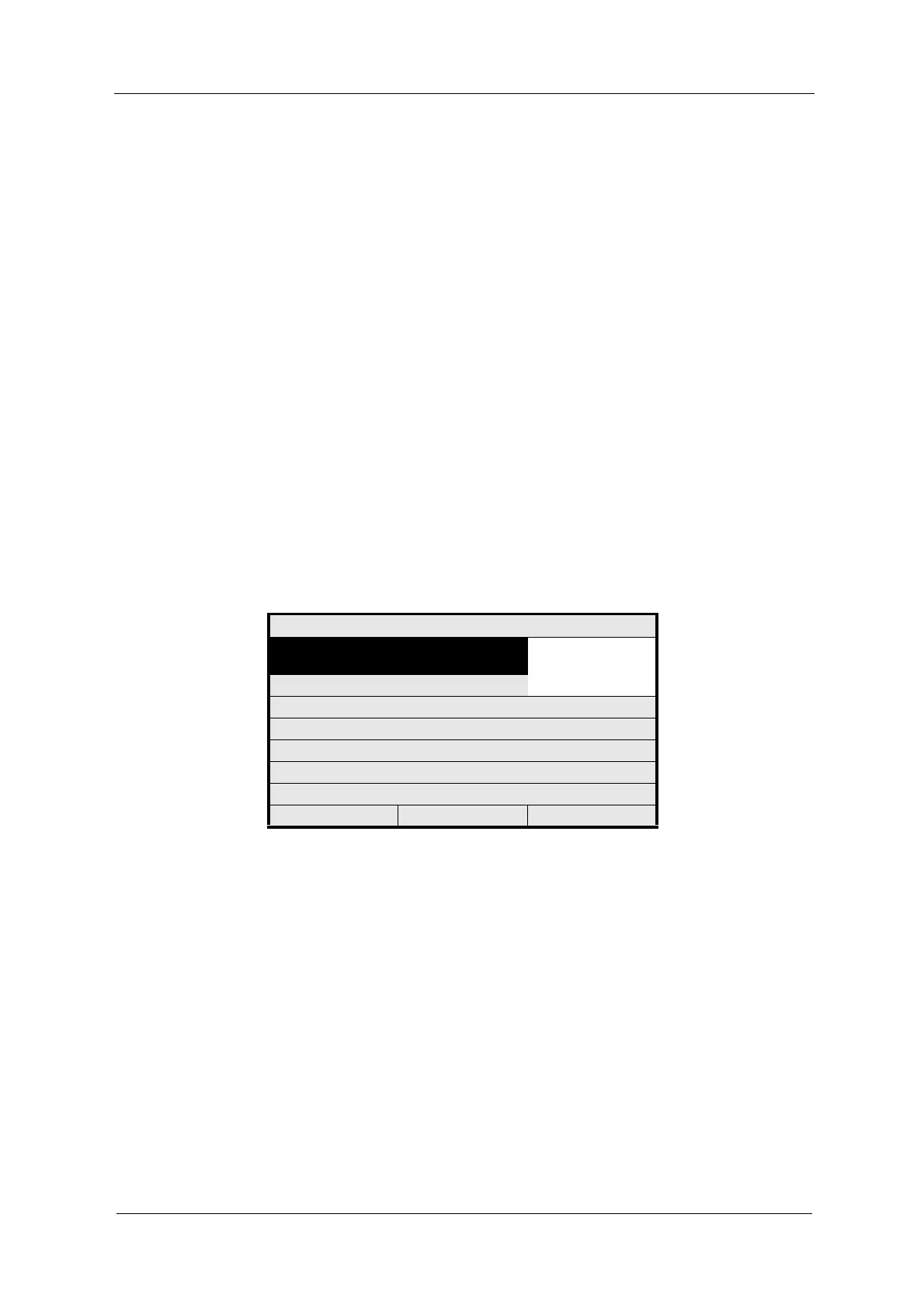
Fig. 124 Choosing the hold function
For more information on enabling the hold function via the external control
system read chapter 9.12.1, page 164.
SYSTEM SETTINGS
SELECT THE FUNCTION YOU WANT TO
USE FOR HOLD
HOLD 1
HOLD 2
HOLD DONE:
MANUALLY YES
REMOTE NO
HOLD MESSAGE ON MEASUREMENT
DISPLAY? YES
REJECT P01 SAVE



 To Next Page