16 007-4486-001
Chapter 1: Getting Started
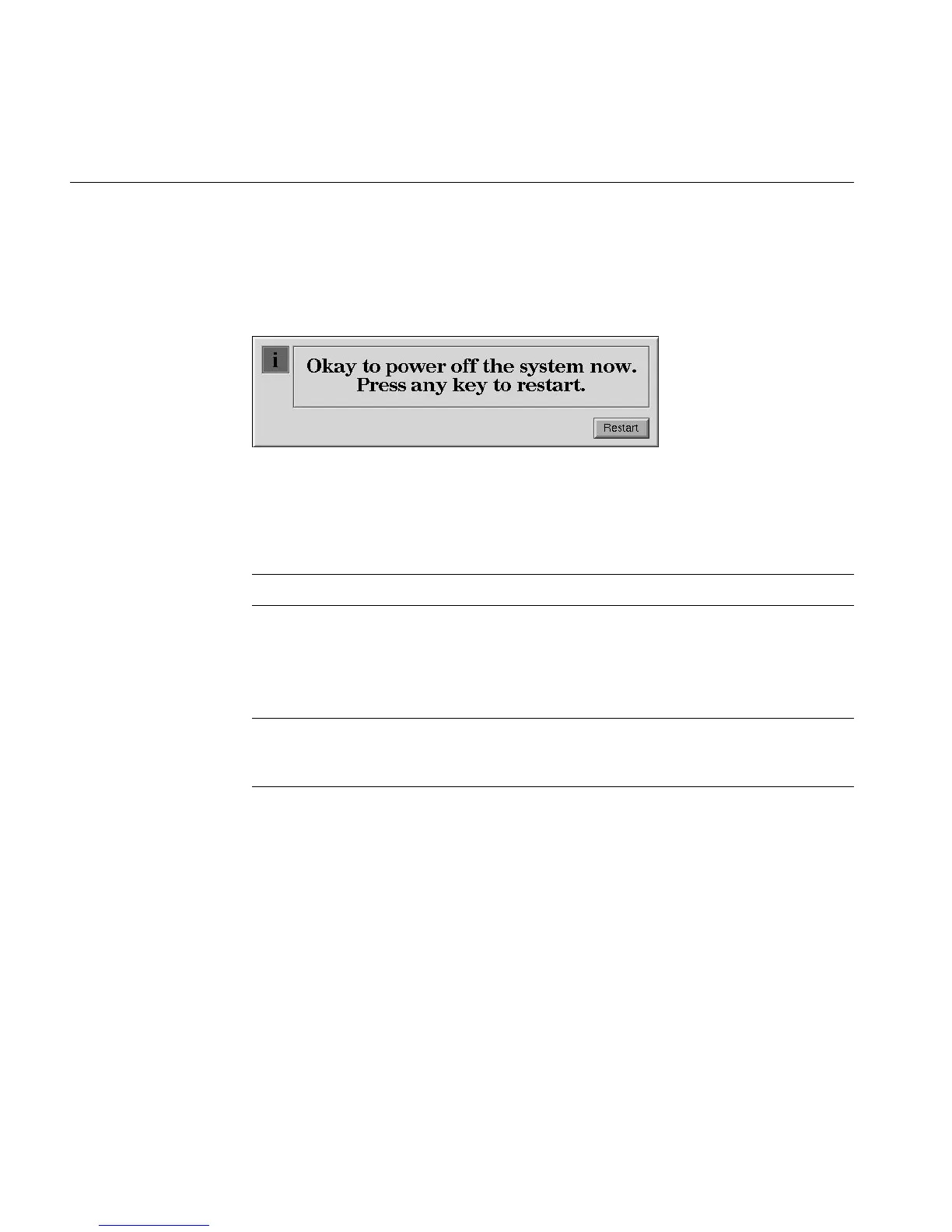
3. You see a message that says the system is shutting down, and then another message
telling you it is okay to power off. You can then press and release the power button
on the front of the workstation. Or, to shut down and restart the system without
powering off, click Restart.
Figure 1-14 Power Off Message
Setting Up the O2Cam Digital Video Camera
Note: The O2Cam is not a standard item with O2+ workstations.
The O2Cam color digital video camera captures images and video recordings. It has a
built-in microphone that points in the same direction as the lens. When you record audio,
speak toward the front of the camera, not toward the microphone on the side.
Note: If you want to place the camera face down for snapshots of documents or objects
on the desktop, a desktop camera stand is available. To order one, contact your local SGI
service provider.
For information on software media tools that you can use with the camera, see “About
the Digital Media Tools User’s Guide”.
For the camera’s technical specifications, see Hardware Central. (If your Web browser is
not loaded, it takes a few seconds to load.) Or, if you are viewing this on a remote server,
see “O2 Camera Technical Specifications” in Appendix A.



 To Next Page