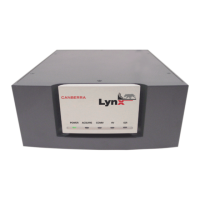
Change Lynx from Static IP to DHCP (requires the yellow IP network cable)
Make these changes after the site's DHCP Network is operational, but while still con
-
nected to your PC using the red Crossover cable.
12.
Go to the System menu item. Under the General heading, the field labeled
Name is the network name. Enter a new name for the Lynx (e.g., GeLab;
up to 8 contiguous characters maximum) and press Submit.
13.
On the Lynx, go to the Network menu item. On the General tab, select the
DHCP radio button, and then press Submit to save this change. Once this
has been performed, log off the Lynx unit.
14.
Now, change the Ethernet cable on the Lynx from the red Cross-over CAT5
cable to the yellow CAT5 cable to the regular IP network connection.
Set your PC to utilize DHCP via its NIC (using a regular Ethernet cable)
15.
On your PC, right-click the My Network Places icon. Select Properties.
16.
Right-click on the Network Adapter icon. Select Properties.
17.
On the General tab, select Internet Protocol (TCP/IP). Select
Properties.
18.
Select the General configuration tab; select the Obtain an IP Address
Automatically button. Press OK to keep this setting.
19.
In your Network Places, if UPnP has been installed, you would see the
Lynx unit as peripheral (similar to a printer) connected to the network. You
would see the name Lynx or the name set when changed in Step 1, where by
double clicking or selecting this unit or name, which would start your
browser and you should see the Lynx Login Screen again.
If not, start you browser and type in the name of your Lynx instrument in the
URL section, you should then see the Lynx login screen and type in correct
login name and password. Default is administrator and password.
Appendix B - Communications Setup
160 Lynx™ Digital Signal Analyzer


 To Next Page