Note
• If the Tab Selection screen is not displayed, press the Menu button.
2
Press the OK button. The Paper Menu is displayed.
3
Press ▲ or ▼ to select Paper Details, and then press the OK button.
4
Press ▲ or ▼ to select the type of paper, and then press the OK button.
5
Press ▲ or ▼ to select Cutting Mode, and then press the OK button.
6
Press ▲ or ▼ to select Eject, and then press the OK button.
7
Print the job.
When printing is finished, the printer will stop without cutting.
8
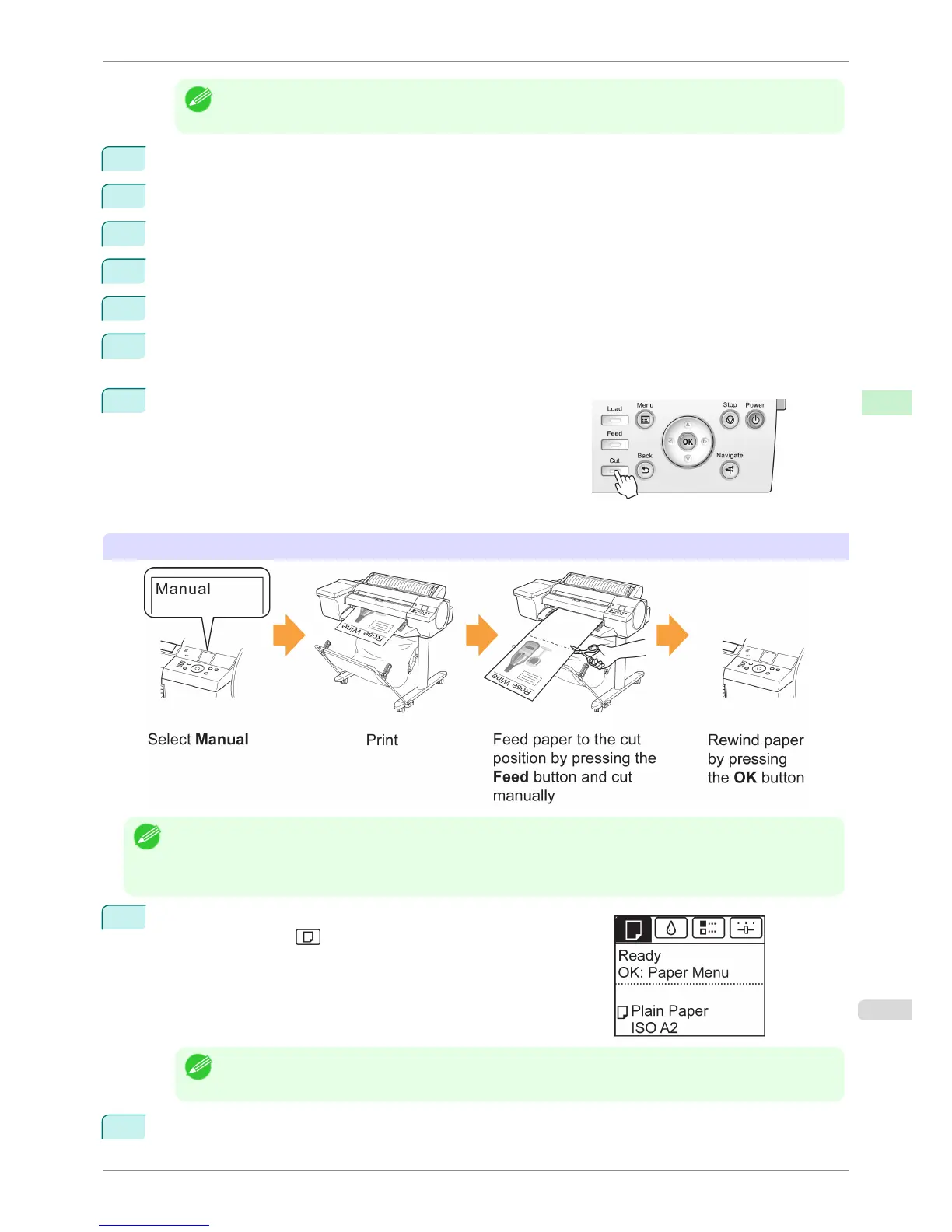
Holding the printed document to prevent it from dropping, press
the Cut button to cut the roll.
Manual (when using media that cannot be cut with the Cutter Unit )
Note
• Once the following step has been performed, the procedure can be started from step 8 the next time.
• Printing the second and subsequent times
• Printing after replacing with the same type of paper
1
On the Tab Selection screen of the Control Panel, press ◀ or ▶ to
select the Paper tab ( ).
Note
• If the Tab Selection screen is not displayed, press the Menu button.
2
Press the OK button. The Paper Menu is displayed.
iPF6400S
Specifying the Cutting Method for Rolls
User's Guide
Handling and Use of Paper Handling rolls
485



 To Next Page